
One event, many audiences. Advanced ticket sales and group communication in Hi Events
Members pay less, partners get hidden tickets, the press gets in after approval and VIPs have their own channel and separate emails. All at one event.

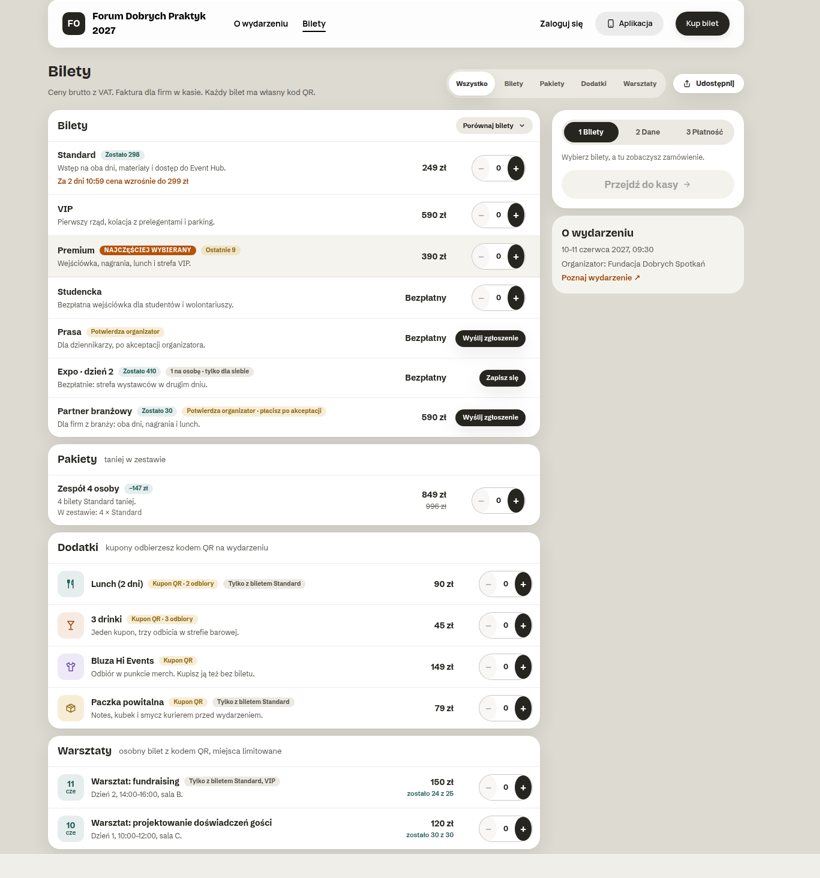
If you run an industry congress, an association conference or a partner event, you know the problem. A simple ticket shop is enough as long as everyone pays the same and gets the same. Real events don’t look like that.
In this article we show how Hi Events handles the trickier sales scenarios, and how groups let you talk to each part of your community separately. Our example is “Good Practice Forum 2027”, a test event on our sample data. Every screen comes from the beta.
The foundation: groups, or who is who
Everything in this article rests on one idea. Every person at an event belongs to groups. Some groups the system creates by itself: Everyone, Logged in, Attendees, With a ticket and Admin. The rest you create yourself, for example Members, VIP, Partners, Press or Speakers.
There are two ways into a group:
- Manually. The organiser adds a person to a group in the admin panel.
- Automatically, with a ticket. In the ticket settings you choose which groups the buyer joins. Whoever buys a VIP ticket is in the VIP group straight away.
From then on, the same group decides lots of things at once: which tickets someone sees, which modules they have in the app, which chat channels they can join and which parts of an email they get. You set it up once, and it works across the whole event.
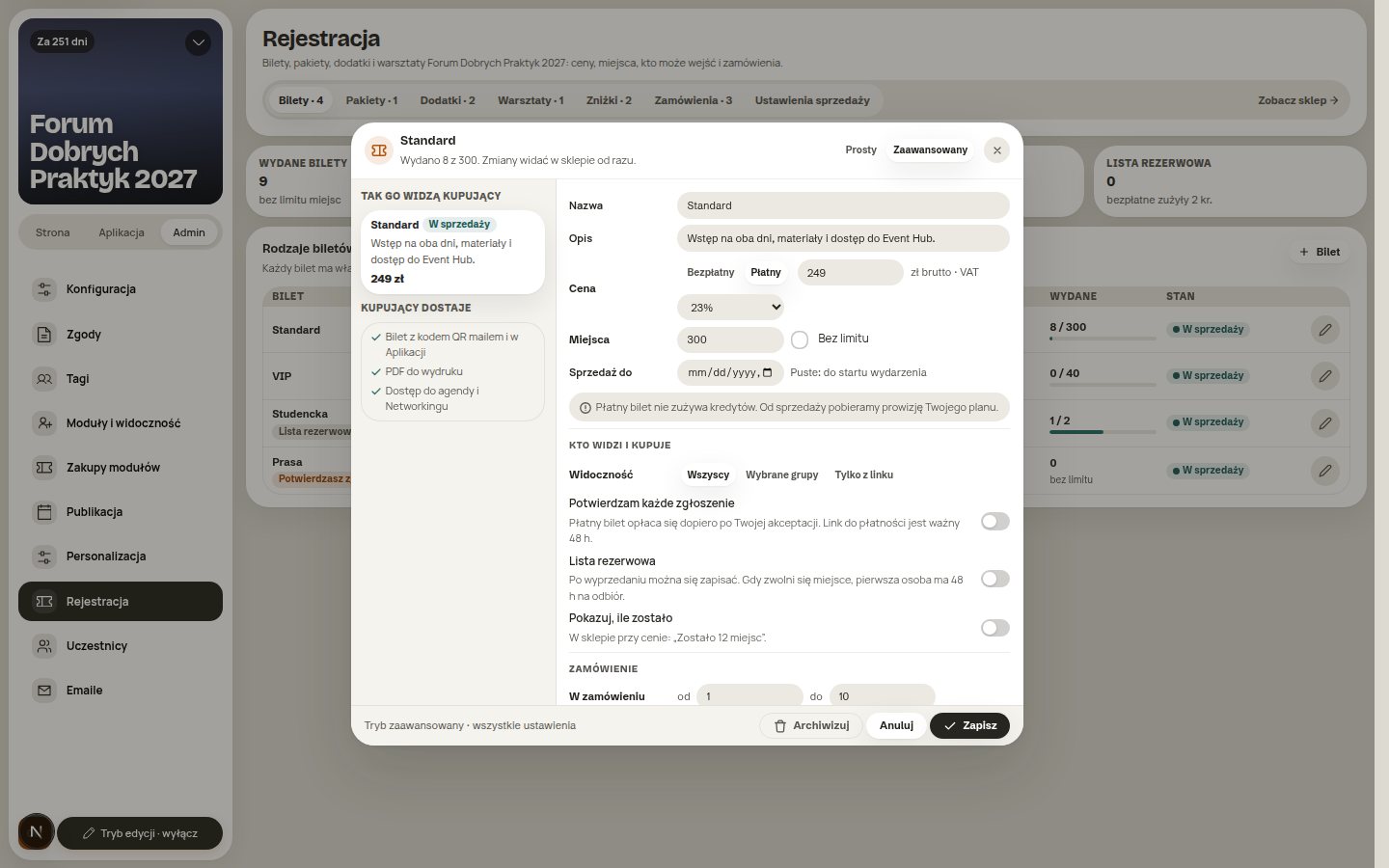
You set up a group once. It decides tickets, emails, modules and channels.
Scenario 1. An early bird that ends by itself
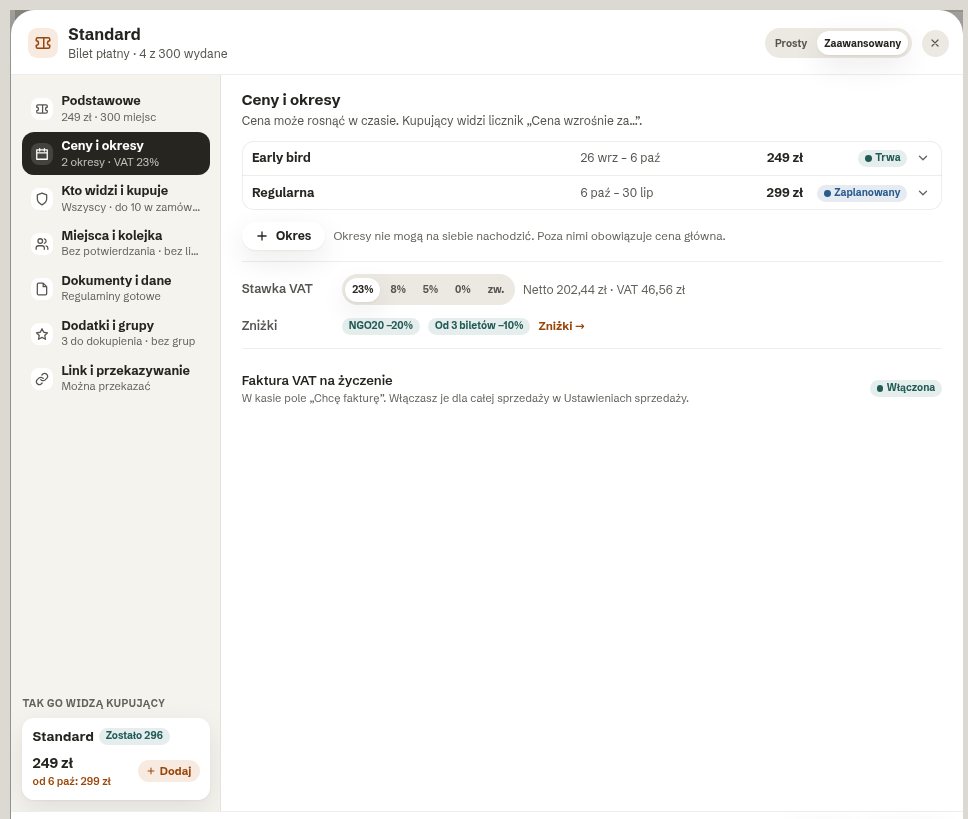
The simplest of the tricky scenarios. You want a ticket to cost PLN 249 until 6 October and PLN 299 after that. In many systems that means two separate tickets and switching off the cheaper one by hand at midnight.
In Hi Events one ticket has several price periods, up to six. The price changes by itself when a period ends. The buyer sees a countdown like “The price goes up to PLN 299 in 2 days”. That works better than a reminder email, because the information is right where the buying decision is made.
Scenario 2. A members-only ticket
An association wants members to pay PLN 190 instead of PLN 249. Until now this was done with a discount code sent out by email. The code soon ends up in a Facebook group, and suddenly everyone is a “member”.
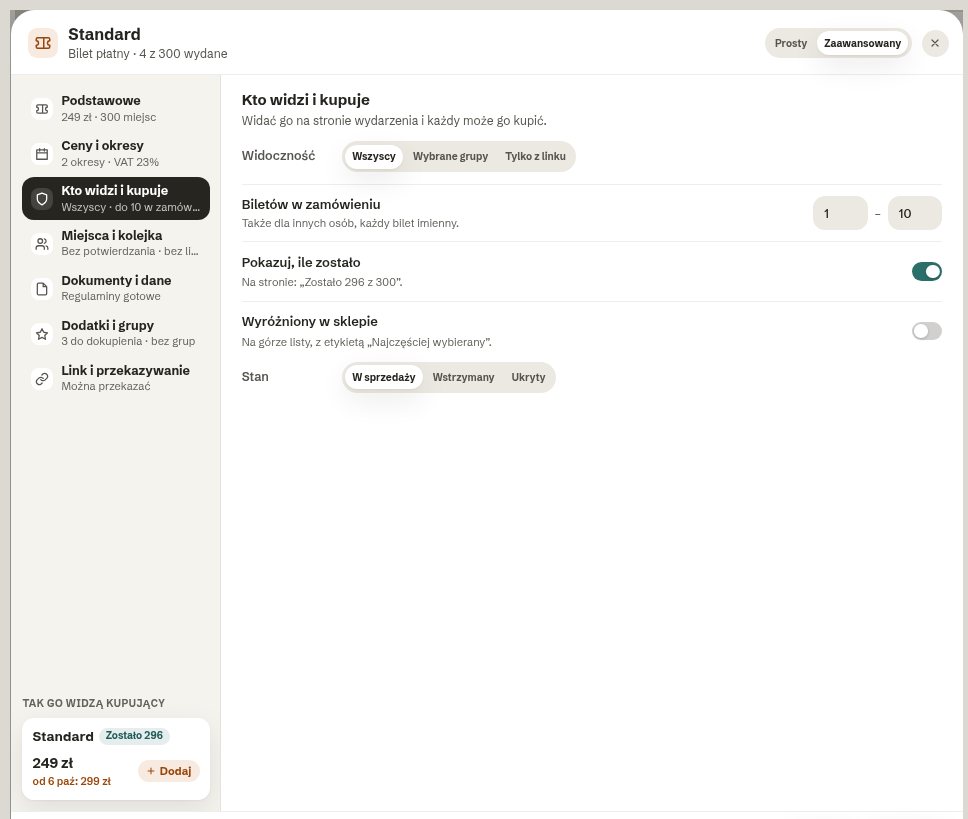
In Hi Events you set the ticket’s visibility to “Selected groups” and pick the Members group. Once logged in, a member sees their ticket in the shop. Anyone outside the group only sees that there are tickets for selected groups, and can log in. Nobody copies codes and the discount doesn’t leak.
Scenario 3. Hidden tickets for special guests
You have a pool of tickets for partners, special guests or journalists. You don’t want them sitting in the shop, because they’ll prompt questions like “why can’t I have one?”.
In Hi Events you choose the “Link only” mode. The ticket disappears from the shop and opens only from its secret address. You send the link only to the people you choose. The pool of places, the per-order limit and all the other rules still apply.
Scenario 4. Tickets approved by the organiser
The “Industry partner” ticket is for companies in the industry, but not for competitors. The “Press” ticket is free, but only for real newsrooms. Here it isn’t enough for someone to click “Buy”.
In Hi Events you switch on approval for every application on that ticket. The person sends an application, and you accept or reject it in the admin panel. With a paid ticket, people only pay after approval. They get a payment link valid for 48 hours. If they don’t pay, the place goes back to the pool.
Scenario 5. A waiting list instead of “has anything freed up?” emails
The VIP tickets sold out in two days. For the next few weeks you keep telling people there are no places left, then someone cancels and you don’t know who should get their place.
In Hi Events a ticket can have a waiting list. When a place frees up, the first person in the queue gets an email with an offer valid for 48 hours. If they don’t take it, the offer moves on to the next person. A paid ticket is bought at the price on the day of purchase. All that’s left for you is agreeing that the queue should exist at all.
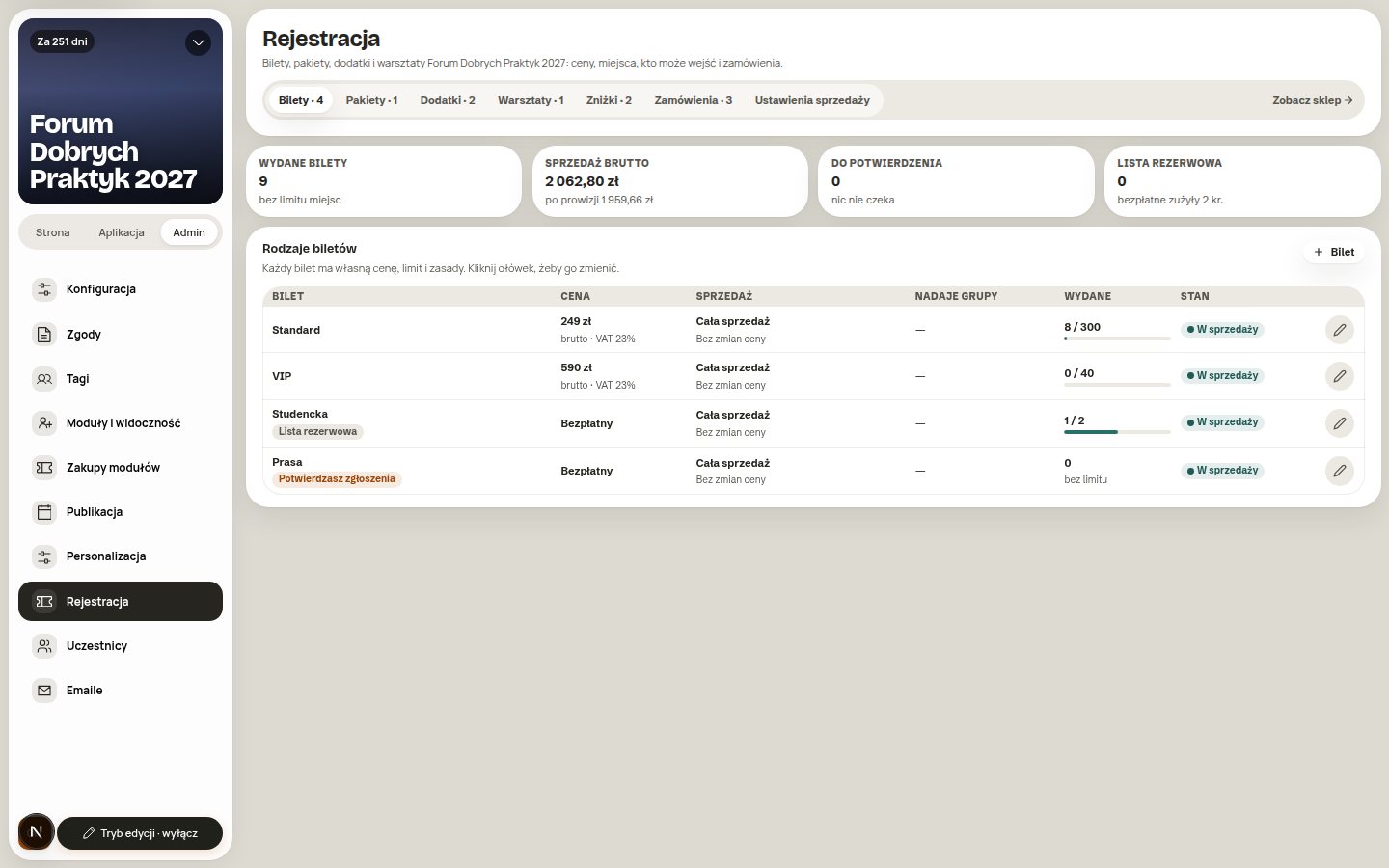
Scenario 6. Discounts that don’t clash
A code for a partner, a discount for non-profits and a discount for buying three tickets at once. What if someone qualifies for two? In many shops discounts add up, and suddenly someone buys a ticket for pennies.
In Hi Events there are two kinds of discount:
- Discount code. A percentage or a fixed amount. You can limit how many times it’s used, set validity dates and choose which tickets it applies to.
- Automatic discount. It kicks in by itself from a set number of tickets in one order, for example from three.
The rule is simple and fair to both sides: discounts don’t add up; the one that’s better for the buyer wins. The basket says plainly which discount was applied.
Scenario 7. Bundles, add-ons and workshops
At a big event the ticket is only the beginning. People buy lunch, workshops and merchandise. Companies buy five tickets at once and want to pay less.
In Hi Events the shop has four shelves:
- Tickets, each with its own QR code.
- Bundles: several items together for less, for example “Team of 4”.
- Add-ons: vouchers redeemed with a QR code at the event. One voucher can be redeemed several times, for example 3 drinks on one code.
- Workshops: separate tickets with a limited number of places.
For an add-on or a workshop you choose how it’s sold: on its own, only together with a selected ticket, or included in the ticket price. So lunch can be available only with a Standard ticket, because VIP already includes it.
Scenario 8. Tickets for someone else
An assistant buys tickets for the whole board. She doesn’t know all the names yet, because it isn’t clear who will go.
In Hi Events the buyer chooses, for each ticket, who will use it. They can enter that person’s details themselves. Or they can send them a “fill in your details” link, and the ticket waits until then with the status “Waiting for details”. If the organiser allows it, the ticket can later be passed on to someone else from the profile. The old QR code then stops working.
Communication: a group is also an audience
So far we’ve talked about sales. But groups keep working long after the ticket is bought. This is where Hi Events differs most from an ordinary ticket shop. We explain how one event joins the website, sign-ups and the app in Conference planning without the chaos.
Emails to selected groups
In the Emails module you choose who gets the message: for example only Attendees, only people With a ticket or only your VIP group. You can send it straight away or schedule it for a specific day and time. Before sending you can see how many people will get it, and you can send a test to yourself.
There’s also something that even newsletter tools usually don’t have. One email can have sections only for selected groups. You write one message, “Important information before the event”. Only VIPs see the paragraph about VIP parking. Only speakers see the paragraph about the tech rehearsal. Everyone gets their own version, and you write one email.
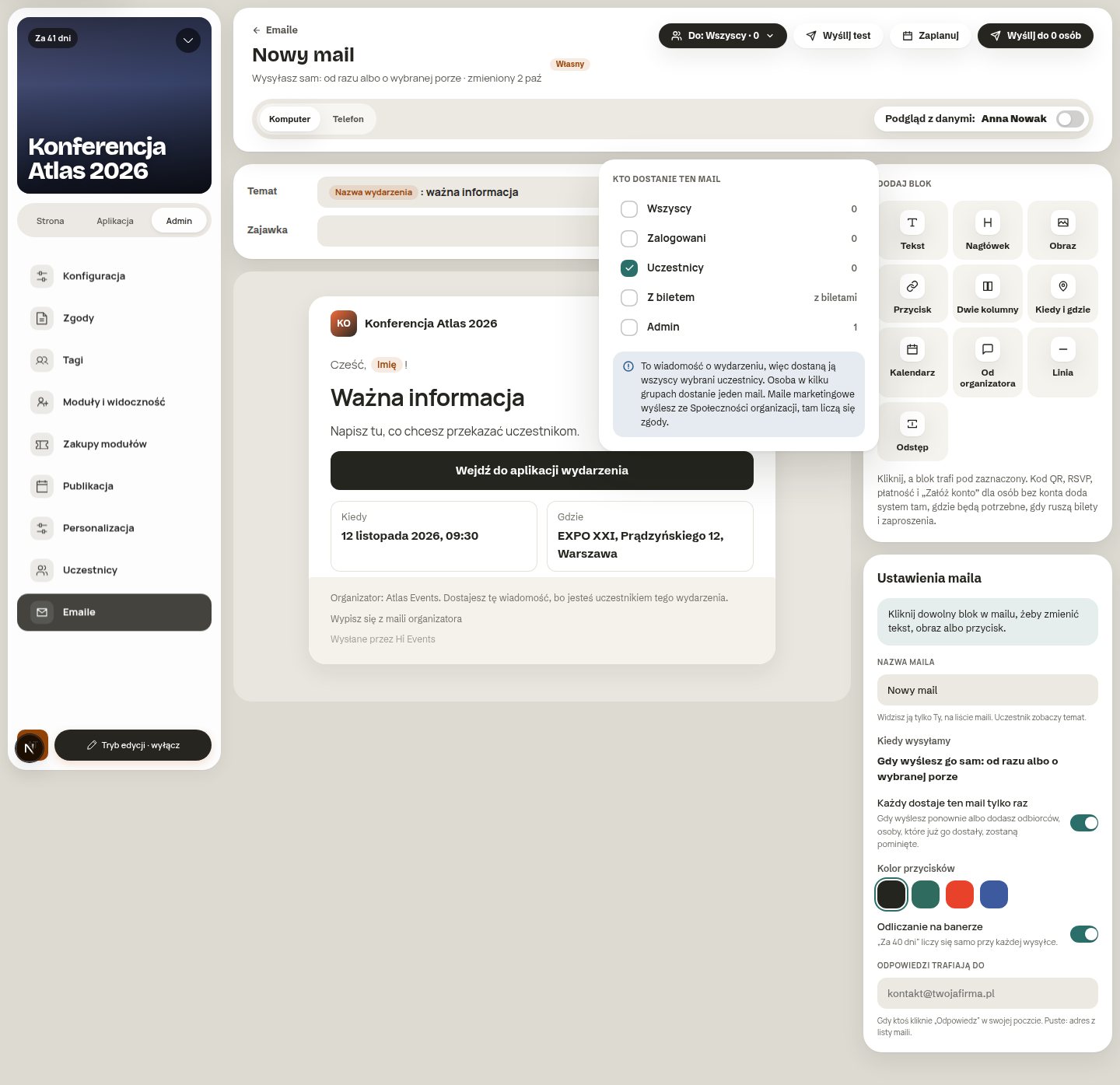
Someone who is in several groups at once gets one email, not three. Anyone who has unsubscribed from your organisation’s messages is skipped. System emails, such as a ticket or a sign-up confirmation, always arrive.
Modules and channels for selected groups only
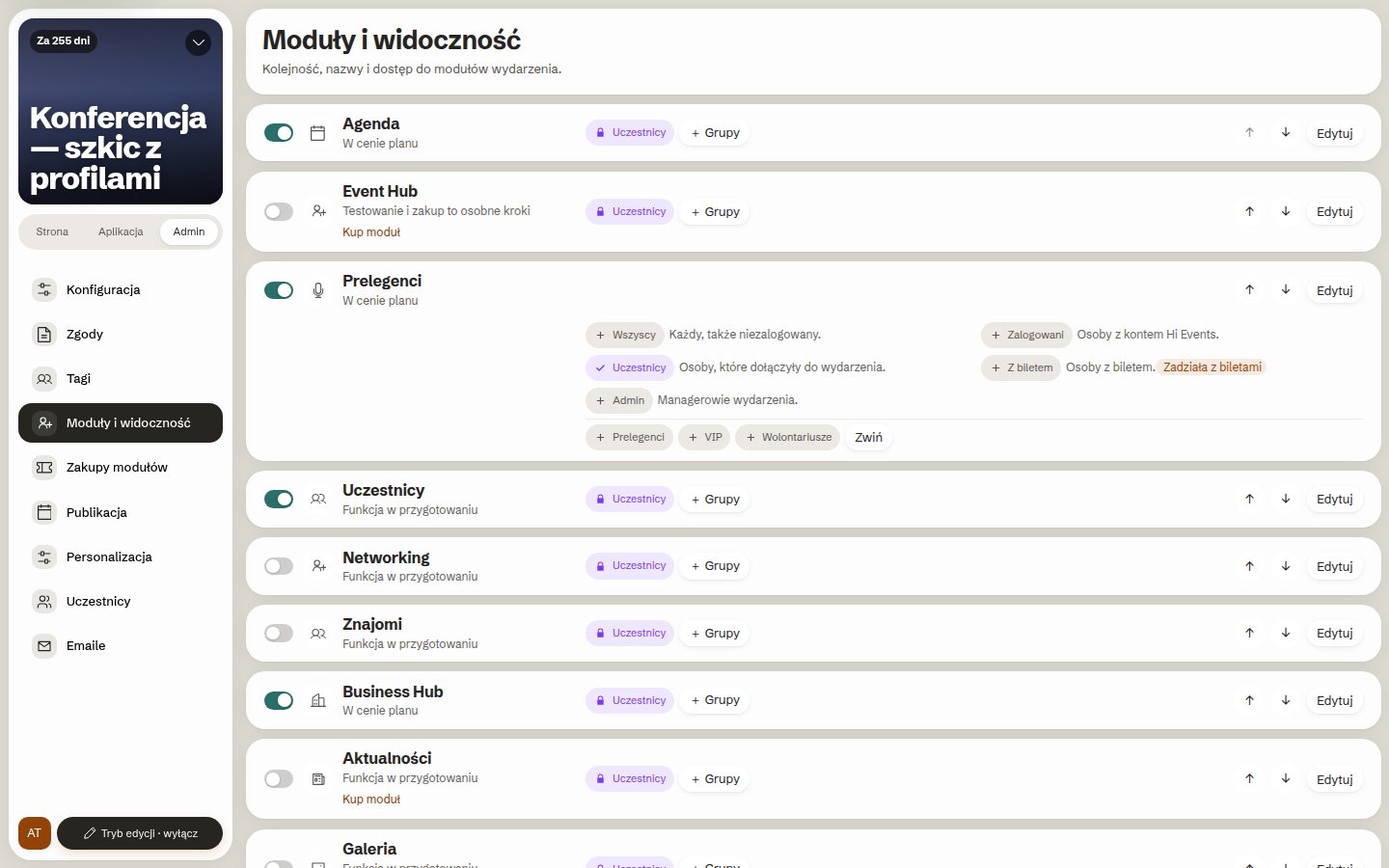
You can show each app module to everyone or only to selected groups. Speakers can be visible to everyone, and the attendee list only to people with a ticket. The same works for individual sessions in the agenda and for companies in the Business Hub.
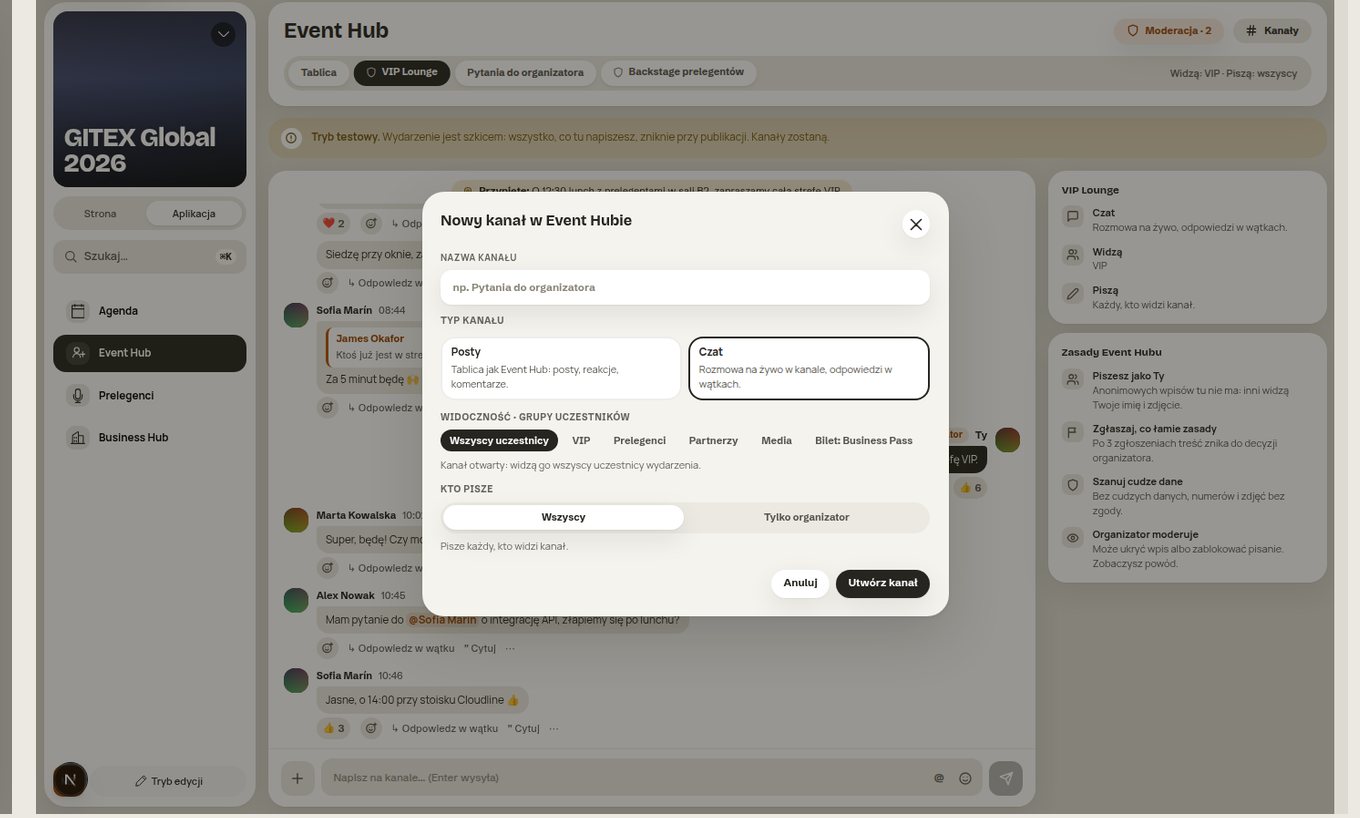
In the Event Hub, where attendees talk, you set up channels for selected groups. For example: “VIP Lounge” only for VIPs, “Speakers’ backstage” only for speakers. You also decide who can post in a channel: everyone or only the organiser.
A closed event
Sometimes the whole event should be closed, for example a board meeting or a general assembly. When publishing, you choose whether the event shows on the public list, and who can get in: anyone, only people with an account or only people with an access code.
How it all fits together
Let’s put one example together from start to finish:
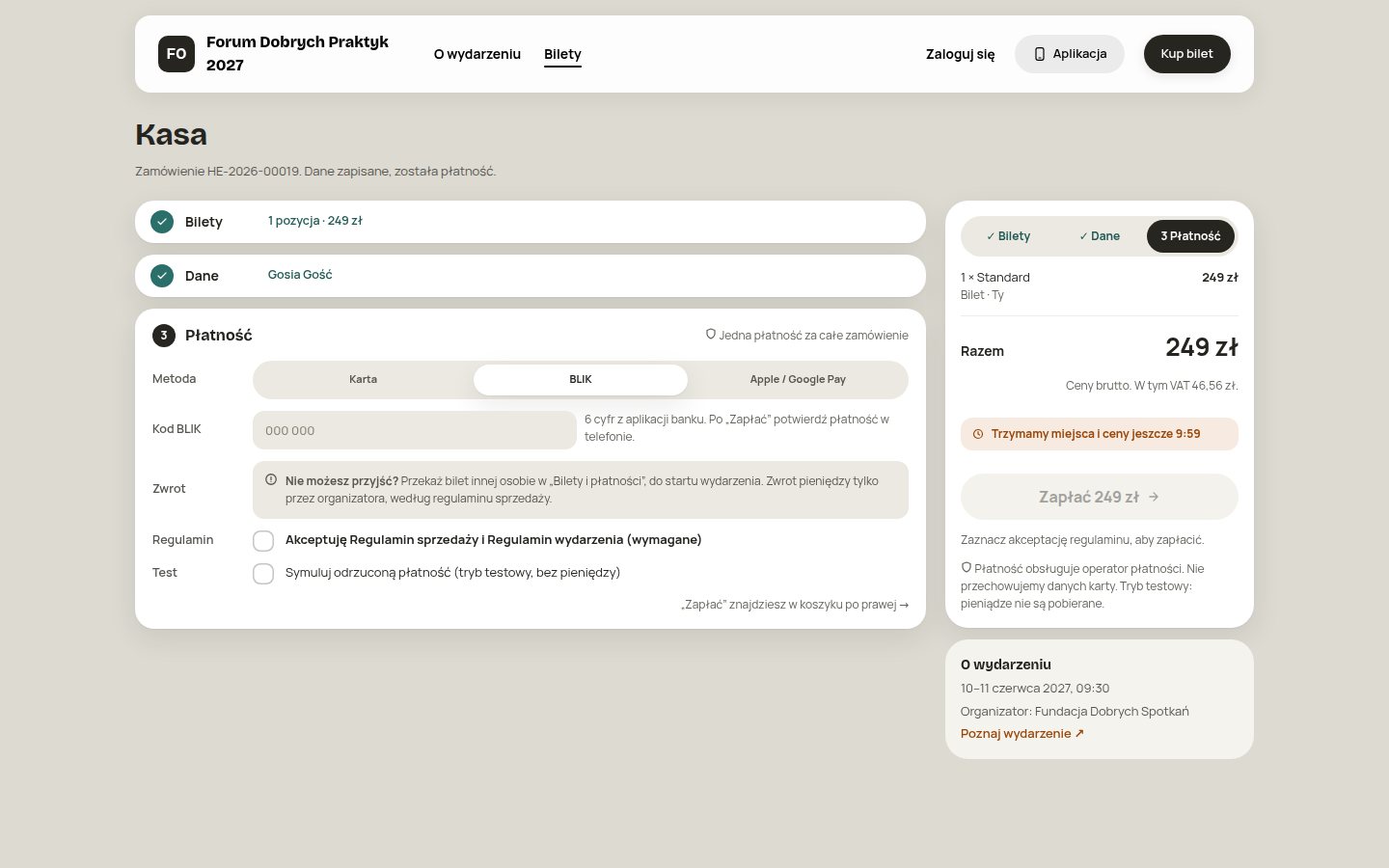
- You create a VIP group and a VIP ticket priced at PLN 590. The buyer joins the VIP group straight away.
- The ticket has a waiting list, because there are 40 places.
- In the app, VIPs see the VIP Lounge channel and a session closed to everyone else.
- A week before the event you send one email to all attendees. Only VIPs see the paragraph about the separate entrance and parking.
- Someone cancels, and their place goes automatically to the first person on the waiting list. After buying, that person is also in the VIP group and has access to everything above.
Nobody copies lists between systems. The organiser sets the rules and the system enforces them.
Frequently asked questions
Can I sell a ticket only to association members? Yes. You set the ticket’s visibility to a selected group. Members see the ticket once they log in.
Do discount codes add up? No. One discount always wins, the one that’s better for the buyer. The basket shows which.
Can I send an email only to VIPs? Yes. You choose the recipient group. You can also show selected paragraphs of one email only to selected groups.
Can I run an event that isn’t visible on the internet? Yes. An event can be hidden from the public list and available only with an access code.
How to get started
Hi Events is in beta. Leave your address at hievents.com in the “Join the beta” section. We’ll show you these scenarios on your own event, not on a slide.
The “Good Practice Forum 2027” example and the “Good Meetings Foundation” are test data. The screens come from the Hi Events beta, October 2026.
Read on
All articles → Planning
Conference check-in: how to prepare for welcoming attendees
How to prepare check-in at a conference or trade fair: plan the desks, badges, staff training and how to handle tricky cases at the entrance.
 Community
How to build community between conferences and meetups
How to stay in touch with attendees after a conference: meetup examples, the host’s role and ideas for your first month working with a community.
 What’s new
Why we built Hi Events from scratch
Why did the Meeting Application team create Hi Events? On organisers’ experience, a new brand and joining registration with the event app.