
How to join an event and where to find my ticket
Registration, buying a ticket, the QR code, PDF, transferring and returning a ticket. Everything a participant does before the event.

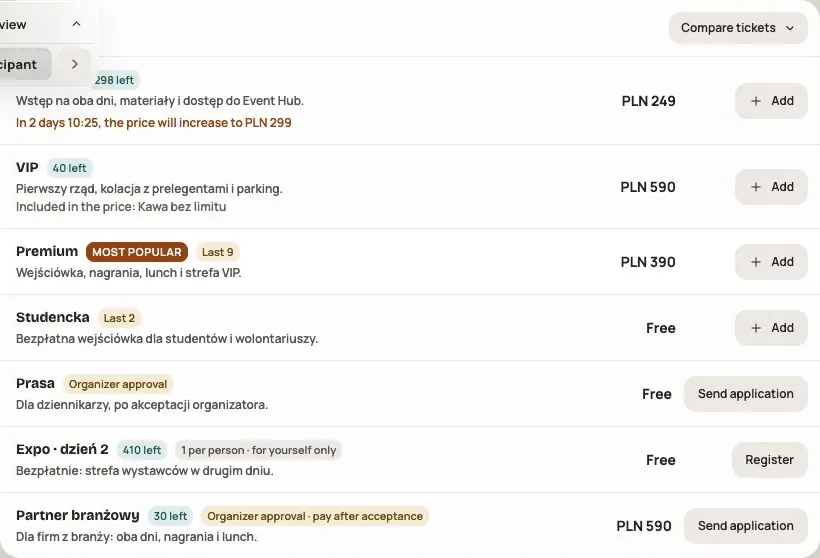
You join an event in Hi Events in one of three ways. Which one you see depends on how the organizer set up registration.
Way 1. A ticket from the event shop
This is the most common way. On the event website, click Buy a ticket (for 0 zł tickets the button is Get ticket).
- Choose the tickets and how many. Shop prices are gross, including VAT.
- Click Next: details. For each ticket, choose who is coming:
- Me: the ticket goes to your account,
- I will enter the details: you enter another person's first name, last name and email,
- I will send a link: the person enters their own details and accepts the terms,
- Later: you assign the ticket after signing in, at the latest before the event starts.
- Accept the required documents and continue to payment. Checkout shows the available methods, such as card or BLIK. A free order needs no payment.
Note: for now, ticket payments are in test mode. No one is charged.
If the checkout has an „I want a VAT invoice” box, you can enter your company details. Invoicing is in preparation (KSeF).
Check the order status on the confirmation screen. Starting payment alone does not mean that the ticket is active.
The ticket with its QR code arrives by email. If you don't have an account yet, the email has a button that creates an account on the same address and signs you in.
Tickets that need approval. The organizer has to approve some tickets. The order then waits for confirmation, and the QR code appears once it's approved.
Waiting list. When tickets run out, you can join the waiting list. When a place frees up, we send an email and hold it for you for 48 hours.
Way 2. A joining link
The organizer can send you a joining link. Open it. If you are signed out, the window guides you through I already have an account or account creation and email confirmation, then returns you to this event.
Check the details shared with the organizer, read the documents, accept the required terms and click Join. Opening the link alone does not register you for the event.
Way 3. An access code
Some events are only open with a code from the organizer. Enter it in the Access code field. Once you've entered it, the „Join” window opens.
If you see a message that the organizer runs registration, you can't join by yourself. The organizer will add you or send you an invitation.
Where to find my ticket
After signing in, go to Tickets and payments in your account menu. There you'll see:
- tickets for your events with their QR code. Show the code at the entrance. save the emailed ticket or download its PDF before the event so you have it available without internet,
- a Download PDF button, if you prefer a paper ticket,
- your orders and payments with their status.
The ticket is personal. The organizer determines how entry works. A QR code on the ticket does not by itself mean a Hi Events reception scanner is available.
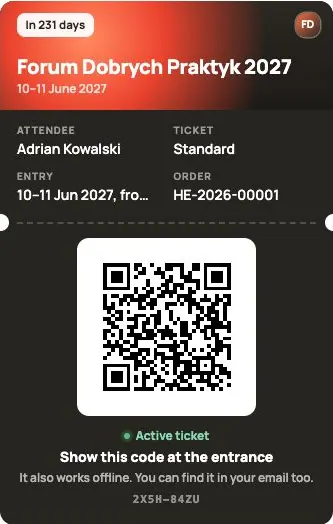
PDF, calendar and coupons
On your ticket page, use Download PDF or Add to calendar. If the purchase includes an add-on with a coupon, you also see a separate coupon with its own QR code. An add-on coupon and an admission ticket can be separate items: check the name by the code.
The buyer may also have an order confirmation PDF. An order confirmation is not a VAT invoice and does not replace the separate ticket of someone the purchase was made for.
I can't come. What can I do?
It depends on the ticket and the organizer's settings. In Tickets and payments you'll see what you can do:
- Transfer: when the organizer allows it, you can transfer the ticket to another person before the event starts. Your QR code stops working, and the new person gets their own ticket by email.
- Return to organizer: the ticket stops working and the place goes back to the pool. This can't be undone.
- Contact the organizer: when neither option is available.
You can also look after the tickets you bought for others in the same place: Remind, Resend, Change person.
Frequently asked questions
I didn't get my ticket by email
Check your Spam or Promotions folder. You can always find your ticket after signing in, in Tickets and payments. Make sure you sign in with the same email address the ticket was bought for.
I bought a ticket for someone and they haven't entered their details
In Tickets and payments, click Remind next to that ticket. You can also change the person or assign the ticket to yourself.
Will I get my money back?
Refunds are up to the event's organizer. Contact them directly.
Read on
All articles →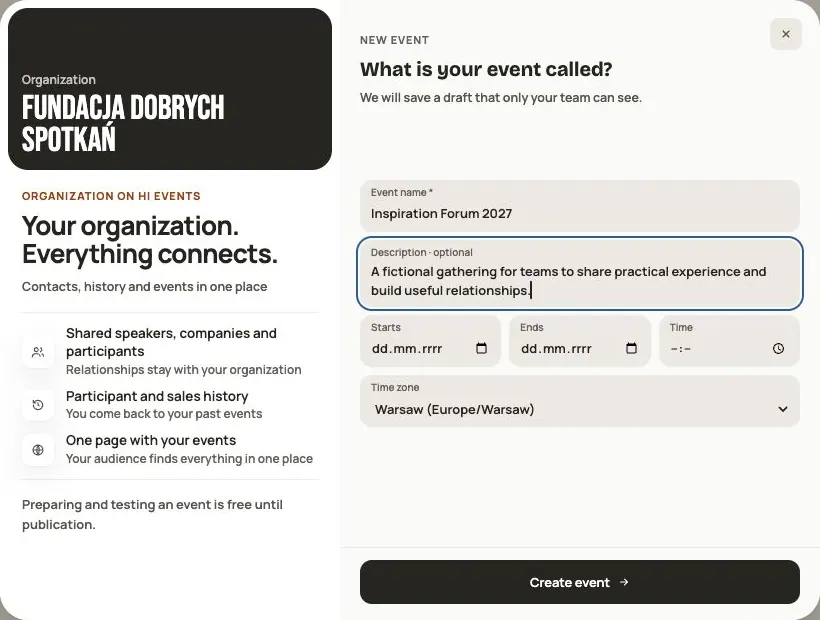 Help
Your first event, step by step
From draft to publication: name and dates, consents, tickets, content, modules, credits and the „Publish event” button.
 Help
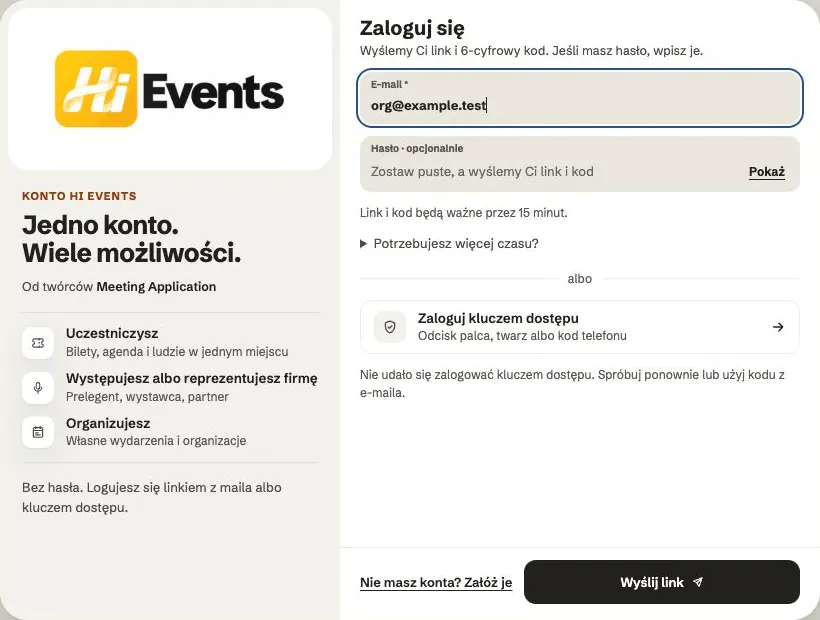
Signing in: link, code, password and passkey
Four ways to sign in to Hi Events, how to set or change your password, and how to sign in with your fingerprint.
 Help
Photos and files: formats and limits
Which photos you can add, how big they can be, and what to do when a file won't upload.