
Signing in: link, code, password and passkey
Four ways to sign in to Hi Events, how to set or change your password, and how to sign in with your fingerprint.

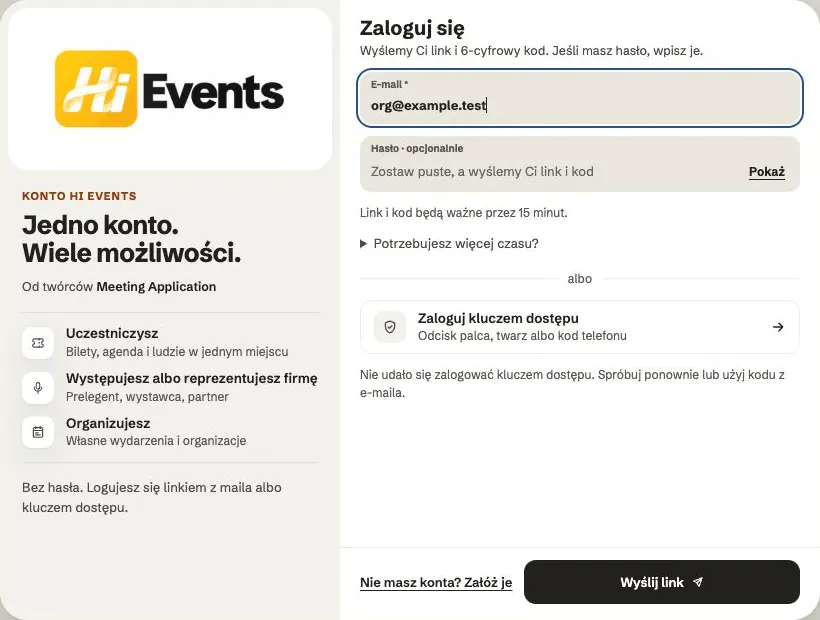
You don't need to remember a password for Hi Events. Choose the way that suits you.
| Way | How it works |
|---|---|
| Email link | You enter your email address and click Send a link. You click the link in the email. |
| Email code | The same email has a 6-digit code. You type it on the sign-in screen. Handy when you read email on your phone and sign in on a computer. |
| Password | If you've set one, you enter your address and password. |
| Passkey | You sign in with your fingerprint, face or device PIN, with no email. |
After opening the link, confirm sign-in with the button on the page. Your email app opening a message or checking a link does not sign you in.
Links and codes are valid for 15 minutes. If you need more time, choose the longer confirmation window before sending: 150 minutes. Links and codes work only once. Always use the latest email, because older ones stop working.
Tip: tick „Remember this device after signing in” and you'll sign in faster next time. Don't tick it on a shared or someone else's computer.
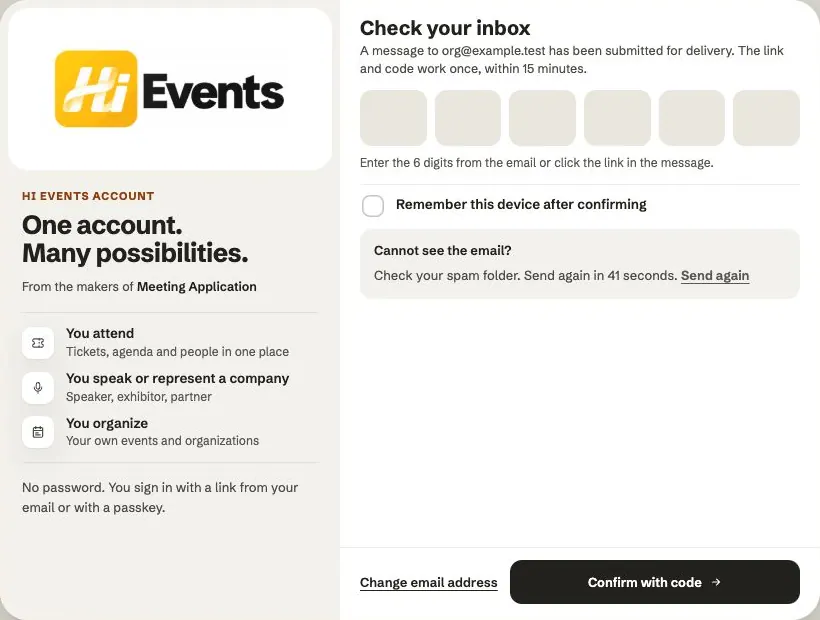
How to set or change your password
- On the sign-in screen, click Set or change your password.
- Confirm your email address with the link or code from the email.
- Enter the new password twice. It must be 15 to 128 characters long. You can use spaces, paste the password or use a password manager. Very common passwords are rejected; there is no requirement to add special characters.
- Click Continue.
Once the password is saved, we sign you out on your other devices. Signing in with a link still works.
Forgot your password? Click Forgot your password? Use a link and sign in with the link from the email. You can then set a new password.
How to add a passkey
- Go to My profile and account, to the Passkeys section.
- Click Add passkey and confirm with your fingerprint, face or device PIN.
- Next time you sign in, choose Sign in with a passkey.
You can have up to 10 passkeys, for example on your phone and computer. For each one you see when it was last used, and you can remove it. If Hi Events asks you to, sign in again with an email code first, then add the passkey.

Frequently asked questions
The email with the link doesn't arrive
Wait a minute and check your Spam or Promotions folder. Make sure the address has no typo. Then send the link again.
The screen after sending does not confirm that an account exists
Read the email itself. Signing in does not create an account. If the email says that no account uses this address, register or check the address you used before.
The link expired or doesn't work
Ask for a new one and use the link or code from the latest email.
I typed the code wrong several times
After five wrong tries the code locks. Ask for a new email and enter the new code.
Can I change my sign-in email address?
Not in the app. In My profile and account you can, however, enter a different contact email.
Read on
All articles →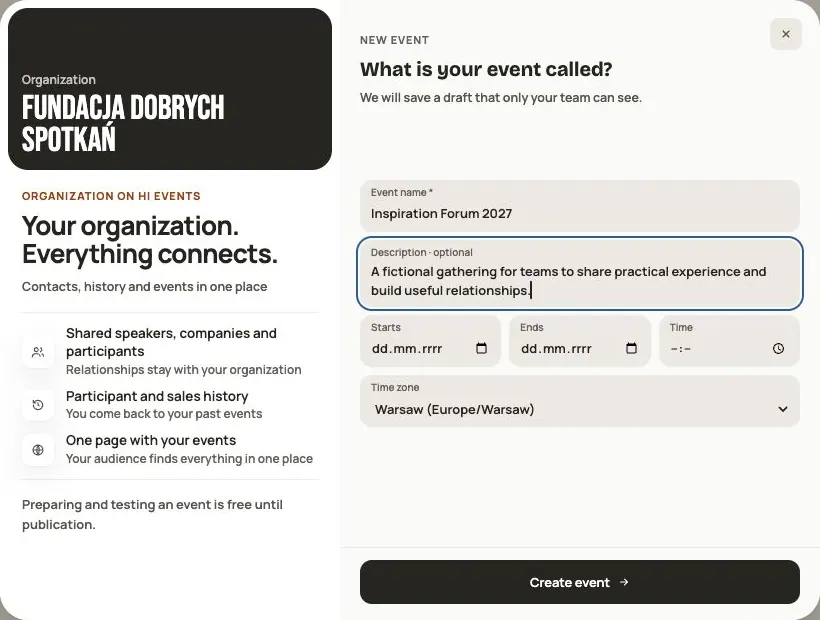 Help
Your first event, step by step
From draft to publication: name and dates, consents, tickets, content, modules, credits and the „Publish event” button.
 Help
Photos and files: formats and limits
Which photos you can add, how big they can be, and what to do when a file won't upload.
 Help
Admin panel — prepare and launch your event
Set up event details, invite your team, choose modules and audiences, check readiness and publish the event.