
Photos and files: formats and limits
Which photos you can add, how big they can be, and what to do when a file won't upload.

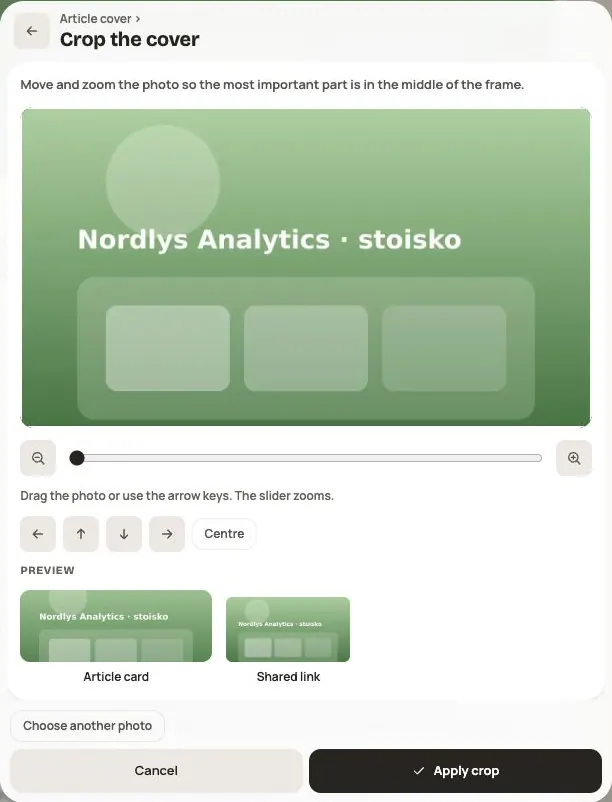
In Hi Events, photos belong to a particular card, article or post. You add them in many places: in your profile, for speakers and companies, in the agenda, on the event website and in News.
What you can add
- Formats: JPG, PNG or WebP.
- Size: usually up to 5 MB per photo. The exact limit is shown by the photo field. Hi Events makes the photo smaller itself before saving.
- PDF documents and presentations: uploading is turned off for now.
For many photos you can set the crop: you move and zoom the photo, and the preview shows how it will look. A profile photo has a square crop, and a News article cover is 16:9.
Where the photo is used
| Place | What to check |
|---|---|
| My profile and account | Save the photo with the profile. Photo visibility also depends on profile sharing and event visibility. |
| News | The cover is cropped to 16:9; a Gallery block holds up to 12 photos. |
| Event Hub | A post or NEWS holds up to 10 photos; a chat message up to 4. Photos are available to people who can access the entry and channel. |
| Promo | The generator uses the account photo, speaker card photo or company logo. Update the source of the image. |
Uploading does not always finish saving. Wait for the upload, then save the profile, article or entry. If something fails, use the retry in the same form.
Photo descriptions
In News, every photo needs a description for screen readers. Without it you can't publish the article. Briefly describe what the photo shows.
Frequently asked questions
My photo won't upload
- Check the format. iPhone photos are often in HEIC format, which Hi Events doesn't support. Save the photo as JPG, PNG or WebP and choose it again.
- Check the size. If the file is larger than the limit by the field, make it smaller in a photo app.
- Try again with a better internet connection.
I want to add a speaker's presentation or a PDF
New PDF, PowerPoint and Keynote uploads are currently disabled, even if a presentation or materials field is visible. This does not prevent downloading existing available files or ticket PDFs generated by Hi Events. You can paste a link to the file in the session description or in an article.
Read on
All articles →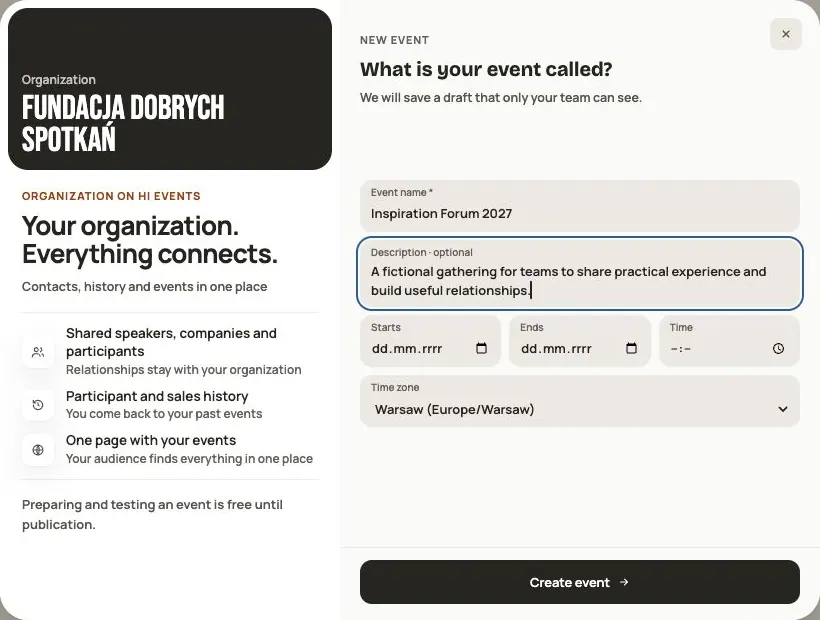 Help
Your first event, step by step
From draft to publication: name and dates, consents, tickets, content, modules, credits and the „Publish event” button.
 Help
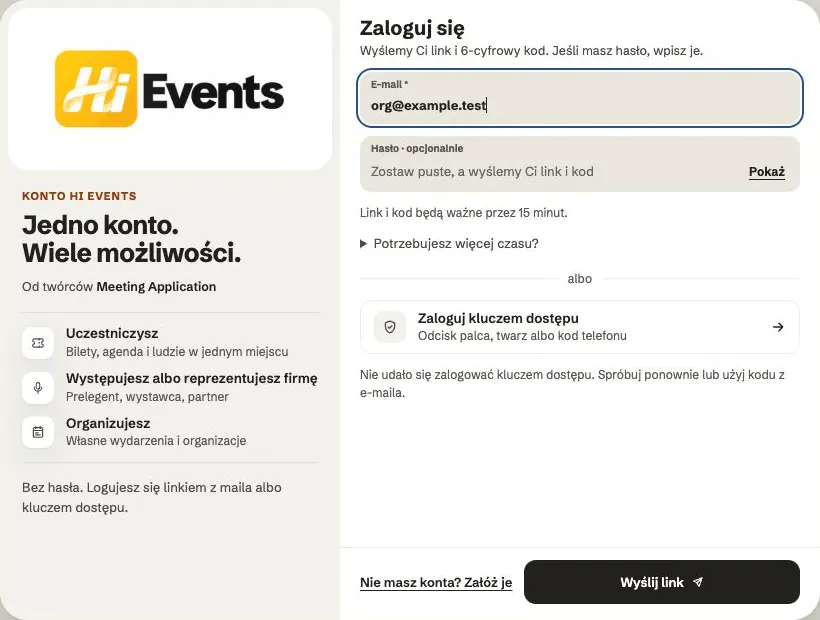
Signing in: link, code, password and passkey
Four ways to sign in to Hi Events, how to set or change your password, and how to sign in with your fingerprint.
 Help
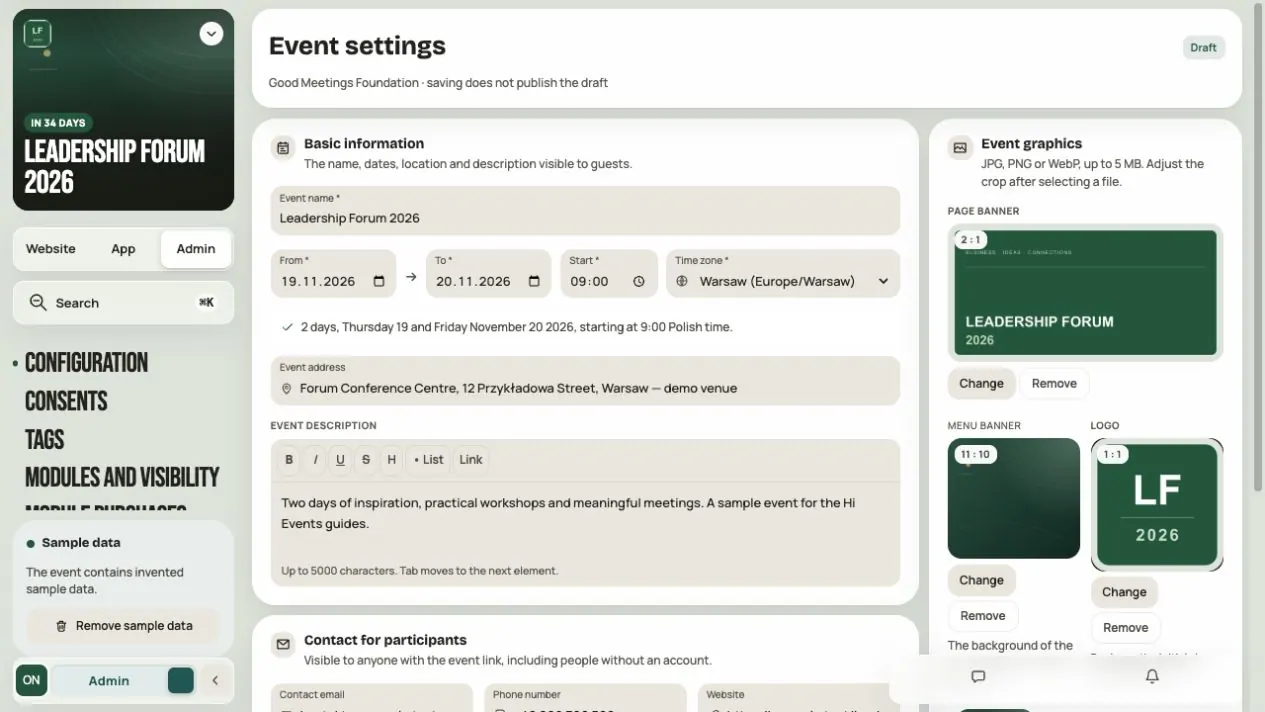
Admin panel — prepare and launch your event
Set up event details, invite your team, choose modules and audiences, check readiness and publish the event.