
Your team: organization managers and event managers
Who can do what, how to invite an event manager, how many seats your plan gives you and what to do when an invitation expires.

Hi Events has two roles for the organizer's team.
| Role | What they can do |
|---|---|
| Organization manager | All of the organization's events: creates new ones and runs existing ones. Settings for the whole organization. Plan, credits and payments. |
| Event manager | One event only: participants, speakers, companies, the agenda and the event website. No organization settings. The plan and payments stay with the organizer. |
The person who created the organization is its manager, and that access can't be taken away.
Speakers and company managers are separate roles. They are described in the article about speakers and company managers.
How many people your team can have
The number of seats depends on the organization's plan: Free 2, Standard 5, Pro 10, Dedicated 15.
- Every organization manager and every event manager takes a seat.
- One person takes one seat, even when they manage several events.
- A valid pending invitation reserves a seat for a new address. Several invitations to the same address do not mean several people. Someone already holding a seat does not take another for an additional event.
- Revoking or expiring a pending invitation releases that address's reservation if no other valid invitation remains.
When all seats are taken, you can't send another invitation. Change your plan in Plan and payments or revoke a pending invitation.
How to invite an event manager
Invitations are sent by an organization manager.
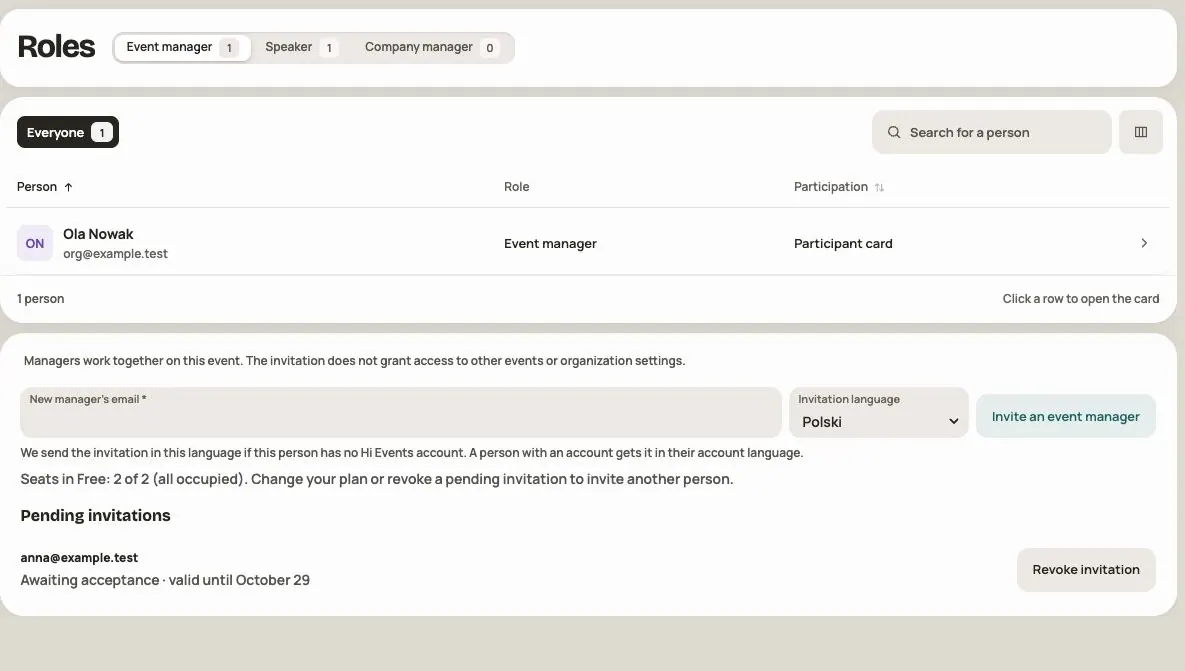
- In the event panel, go to Admin → Roles, the Event manager tab.
- Enter the new manager's email.
- Choose the invitation language. We send the email in that language if the person doesn't have an account yet. Someone with an account gets it in their account's language.
- Click Invite an event manager.
Below the form you see Pending invitations and their delivery status. You can revoke any of them.
What the invited person does
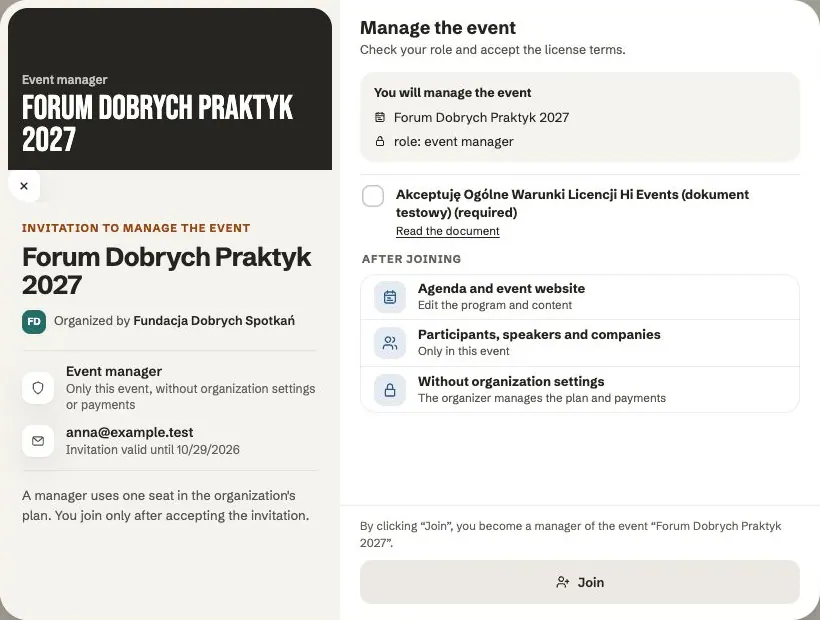
- They open the email „Invitation to manage an event in Hi Events” and click Open invitation.
- They sign in to an account with the confirmed invited email address, or create an account for that address. A confirmed secondary address on the account also qualifies.
- They accept the Hi Events General License Terms and click Join.
The link is valid for 7 days. If it expires, the person sees an „Invitation expired” message and asks for a new one. Just send it again.
While the event is still a draft, the new manager sees it right away along with the rest of the team.
How to add an organization manager
Organization managers are added by the Hi Events team. Write to us in the chat with the person's email address. They will get an email „Invitation to an organization team in Hi Events”, valid for 7 days.
How to remove someone's access
You can revoke a pending invitation yourself in Admin → Roles. To remove a manager who has already joined, write to us in the chat. An organization always needs at least one person managing it.
When the invitation result is uncertain
Queued means the message was queued, rather than received. If the result is unknown, use the panel's retry of the same attempt and check the list before sending another invitation.
You can revoke a pending invitation yourself. Removing an active manager has no separate screen; contact Hi Events. The founder and the last organization manager are protected from removal.
Frequently asked questions
The invited person didn't get the email
Ask them to check their Spam or Promotions folder. Also check the status next to the invitation under Pending invitations. If you see a delivery error or the address has a typo, revoke the invitation and send a new one.
The person signs in, but the invitation doesn't work
Their account must have the confirmed invited address. Also check whether the invitation expired or access was revoked.
Can an event manager see the organization's payments?
No. An event manager only has access to their own event. The plan, credits and payments are seen by organization managers.
Read on
All articles →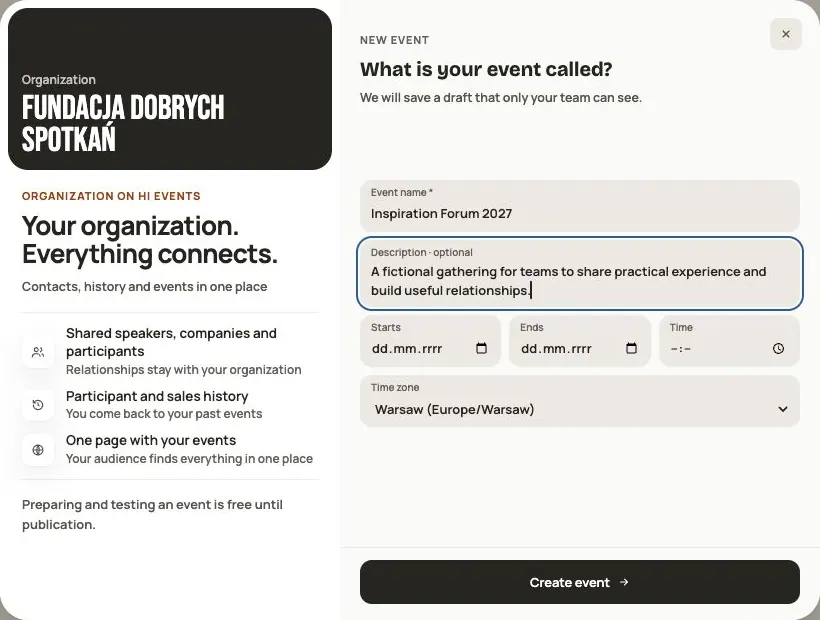 Help
Your first event, step by step
From draft to publication: name and dates, consents, tickets, content, modules, credits and the „Publish event” button.
 Help
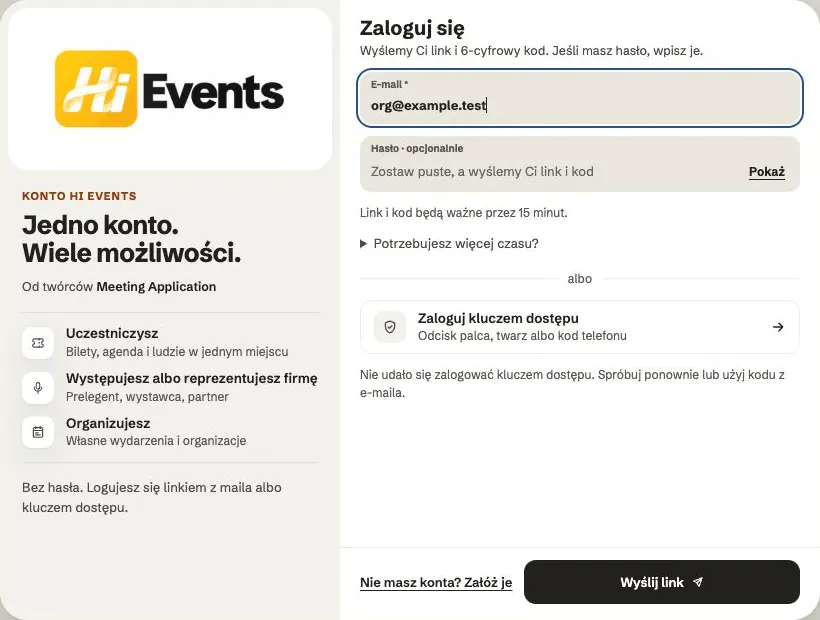
Signing in: link, code, password and passkey
Four ways to sign in to Hi Events, how to set or change your password, and how to sign in with your fingerprint.
 Help
Photos and files: formats and limits
Which photos you can add, how big they can be, and what to do when a file won't upload.