
The event app for participants
Hi Hub, My plan, Hi Dock with chat and notifications, Friends and your profile. How to use Hi Events during an event.

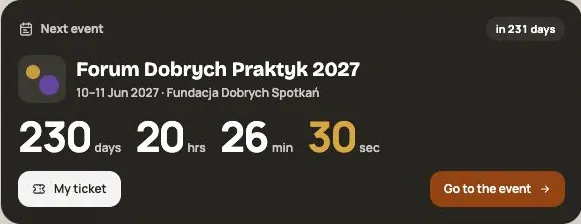
Once you join an event, you have everything in one place in Hi Events: the agenda, speakers, companies, your plan, your ticket and conversations with other participants. The app runs in your browser on a computer and a phone; you don't need to install anything.
Your account menu
After signing in, your account menu has:
- Hi Hub: your dashboard and start screen,
- Events: the events you've joined, upcoming and past,
- Friends: people you met at events, and invitations,
- Tickets and payments: tickets with QR codes and your orders,
- My profile and account: your details, language and accessibility settings,
- Appearance: how the app looks.
Hi Hub, your dashboard
Your account’s Hi Hub collects information across your events. Hi Hub inside an event shows only that event. It presents the most important things as tiles (widgets): a countdown to your next event, your ticket, your plan, the speakers and companies you saved, and what's left to do, such as completing your profile.
Click Customize to reorder tiles, change their width or hide them. You bring hidden tiles back with Add widget. The dashboard remembers your layout on that device.
The event app
Every event has its own app. The organizer decides which modules you see. Most often these are:
- Agenda: sessions day by day. Save sessions with the star and they go into your plan.
- Speakers and Business Hub (companies, partners, exhibitors). You can star them too.
- Participants: the people who show their profile. On a person's card you can write a message or invite them to be friends.
- Networking: themed tables and 1-on-1 meetings, if the organizer turned it on.
- Event Hub: posts, announcements and conversation channels.
- Polls & quizzes, News and Promo, if the organizer shared them.
The search at the top (Command or Control + K) finds sessions, speakers and companies.
My plan
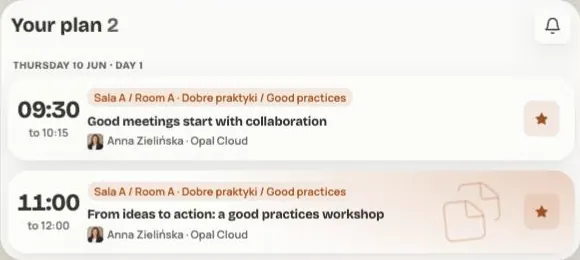
Your plan contains starred sessions and your Networking meetings and tables, laid out day by day. Starring a session saves it to your plan; it does not replace buying a workshop or reserving a place if the organizer requires that. If two saved sessions overlap, you'll see a yellow mark. You can turn this reminder off in Plan settings.
Hi Dock: chat, plan and notifications
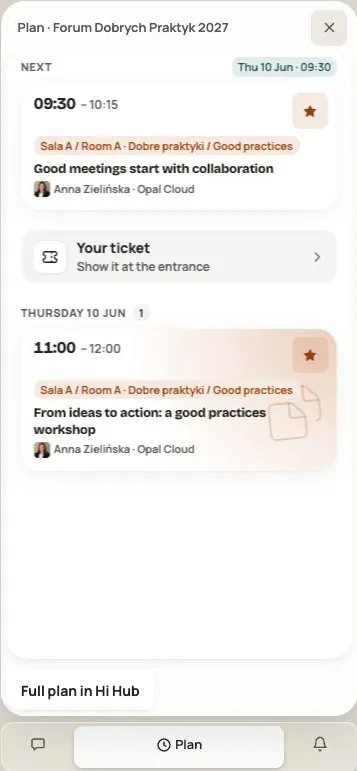
Hi Dock is your handy side window. On a computer you open it with the capsule in the bottom-right corner; on a phone, with the buttons in the top bar. It has three parts:
- Chat: conversations with people from all your events. Your first message to someone new is a conversation request. Once they accept it, you can keep writing. You can block any conversation in the More menu.
- Plan: what is on now and next in today’s plan, and your ticket. Session details open in the same panel; Full plan in Hi Hub opens the full view.
- Notifications (Alerts on a phone): friend invitations, conversation requests, replies, Networking meetings and messages, and for speakers also changes to their sessions.
Friends: stay in touch after the event
- Open a participant’s card and choose Invite as a friend.
- Add a short greeting if you like, or send it without a message.
- In Friends → Invitations, check Received and Sent. Accept or decline an incoming invitation, or withdraw your own.
After acceptance, you see each other in Friends, even after the event, with the fields shared in your profiles. Search by person or company and switch between Cards / Table.
Remove friend ends the friendship. The existing conversation remains available; block it separately in Chat if you do not want messages. The meeting action in Friends is marked coming soon; use the event’s Networking module for available event meetings.
You can send up to 20 invitations per day. If a save or send result is uncertain, check its state and use the offered retry.
Your profile and privacy
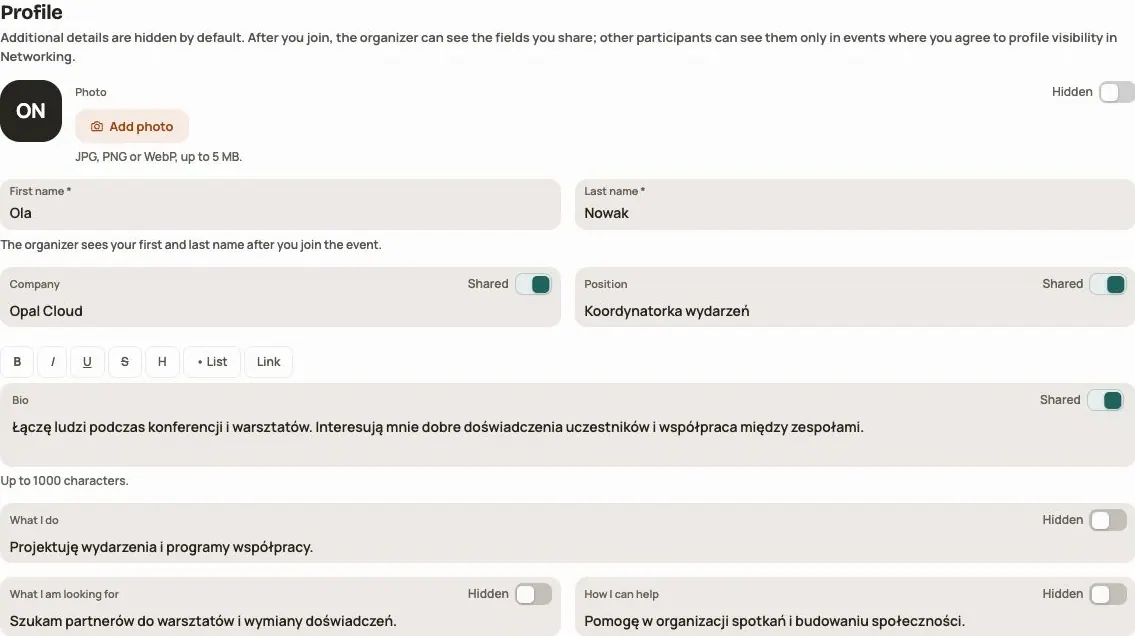
In My profile and account you can add a photo (JPG, PNG or WebP, up to 5 MB), your company, position, bio and networking fields: What I do, What I am looking for, How I can help.
You decide what is visible. Extra details are hidden by default. For each field you choose whether to share it. The event organizer sees your first name, last name, email and whatever you choose to share. Other participants see your profile only in events where you agree to show it.
Confirm profile and photo changes with Save changes. If another window changed the profile, read the message before loading the new version: unsaved text may be lost.
This is also where you change the language of the interface and emails (Polish or English). The account menu’s language selector changes interface labels; it does not translate participants’ messages or organizer content. An event can supply its own PL and EN versions.
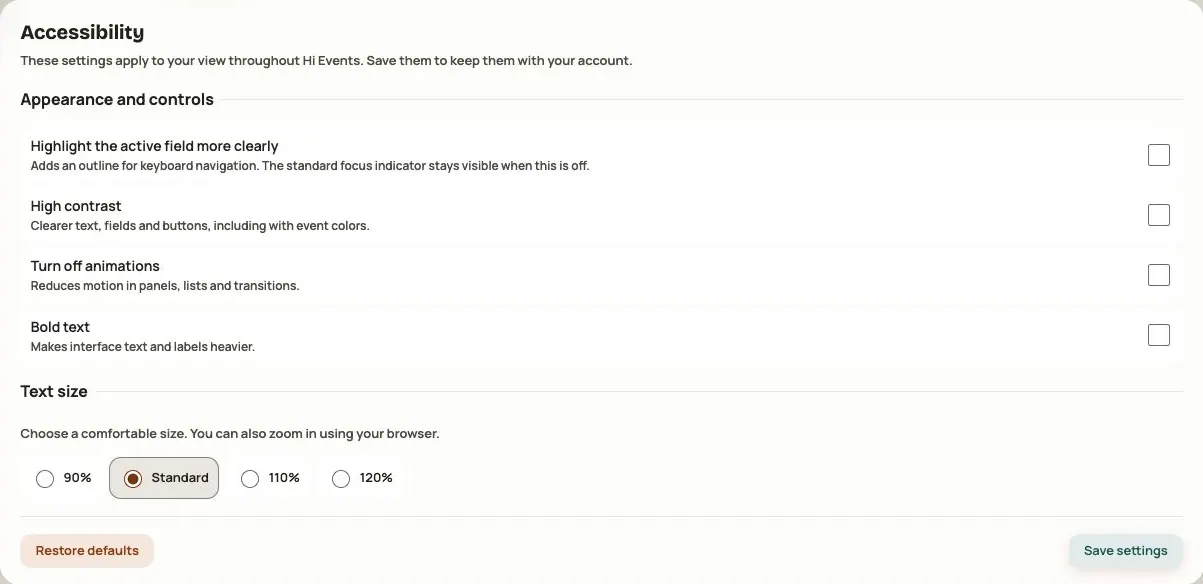
The separate Accessibility tab provides additional focus highlighting, high contrast, bold text, text size and reduced motion. Save these settings separately from the profile. They apply to your account, not to the event’s appearance for everyone.
Frequently asked questions
Do I need to install an app?
No. Hi Events runs in the browser on a computer, tablet and phone.
I can't see a module someone else has
The organizer can show a module only to chosen groups, such as exhibitors or VIPs. If you think you should see it, contact the organizer.
How do I change my sign-in email?
You can't change your sign-in address in your profile. You can, however, enter a different contact email, which others see at events.
Read on
All articles →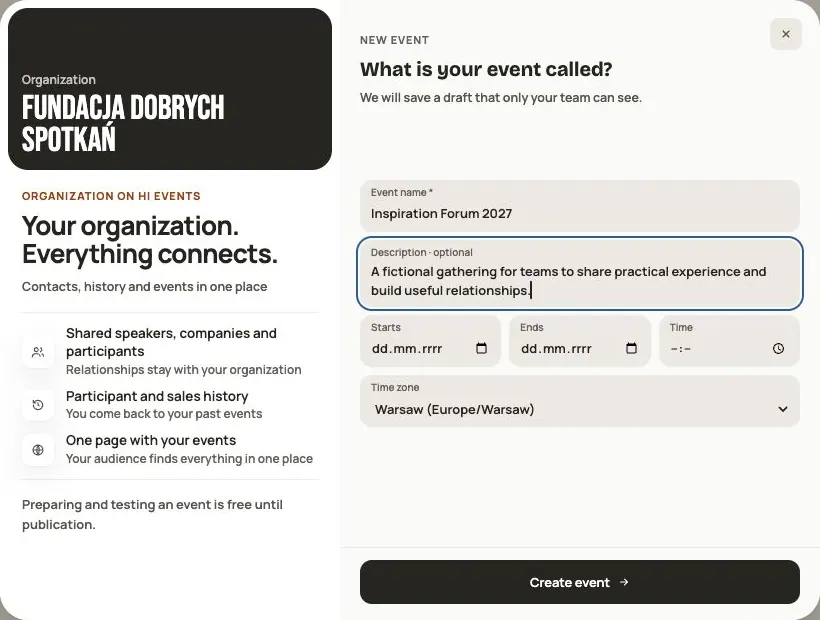 Help
Your first event, step by step
From draft to publication: name and dates, consents, tickets, content, modules, credits and the „Publish event” button.
 Help
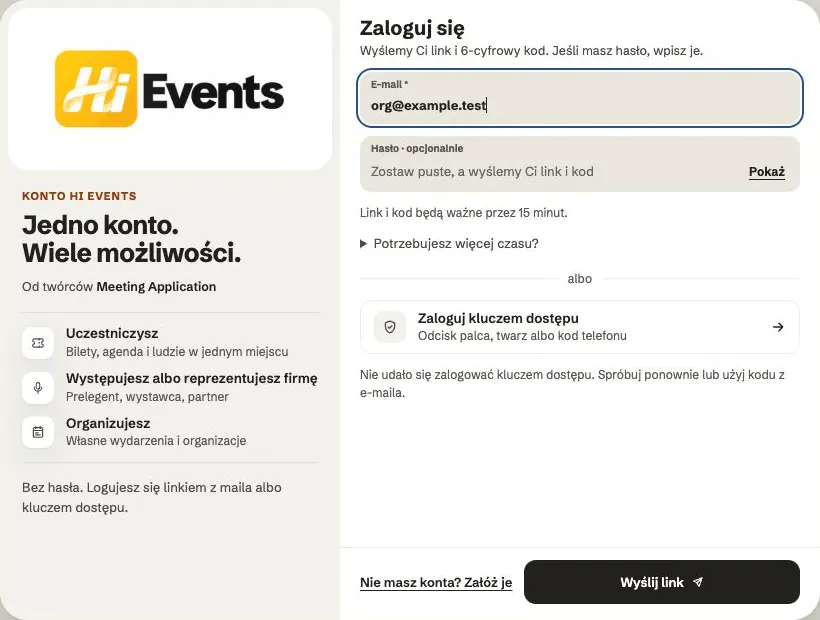
Signing in: link, code, password and passkey
Four ways to sign in to Hi Events, how to set or change your password, and how to sign in with your fingerprint.
 Help
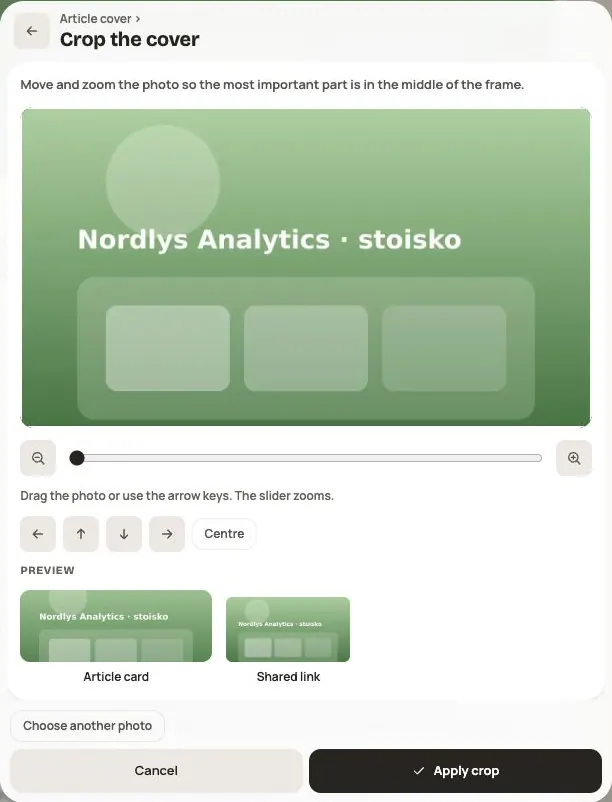
Photos and files: formats and limits
Which photos you can add, how big they can be, and what to do when a file won't upload.