
Appearance — give your event its own character
Choose Classic or Hi Mode and set colors, fonts, shapes and background. One theme works on the website, in the app and in Admin.

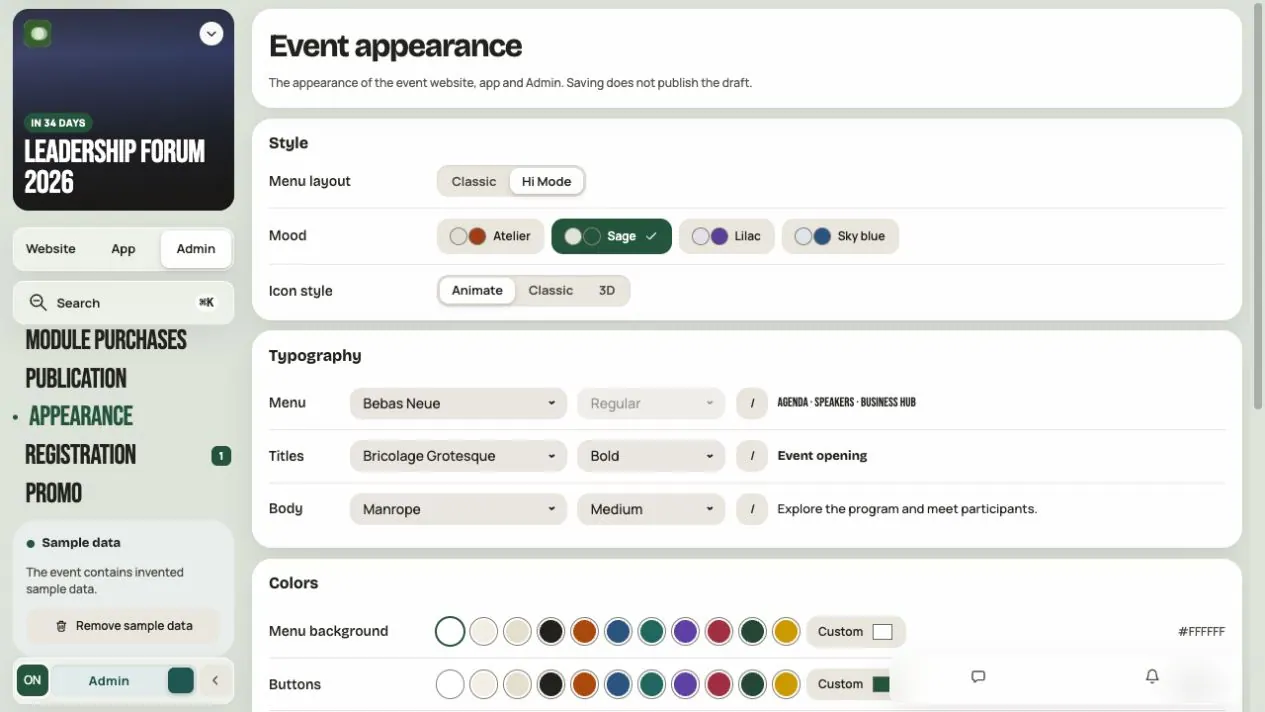
In Appearance you set the look of your event: colors, fonts, shapes and background. One theme works everywhere: on the event website, in the app and in Admin. You don't need to set colors separately for the website and the app.
Step 1. Open the right Appearance screen
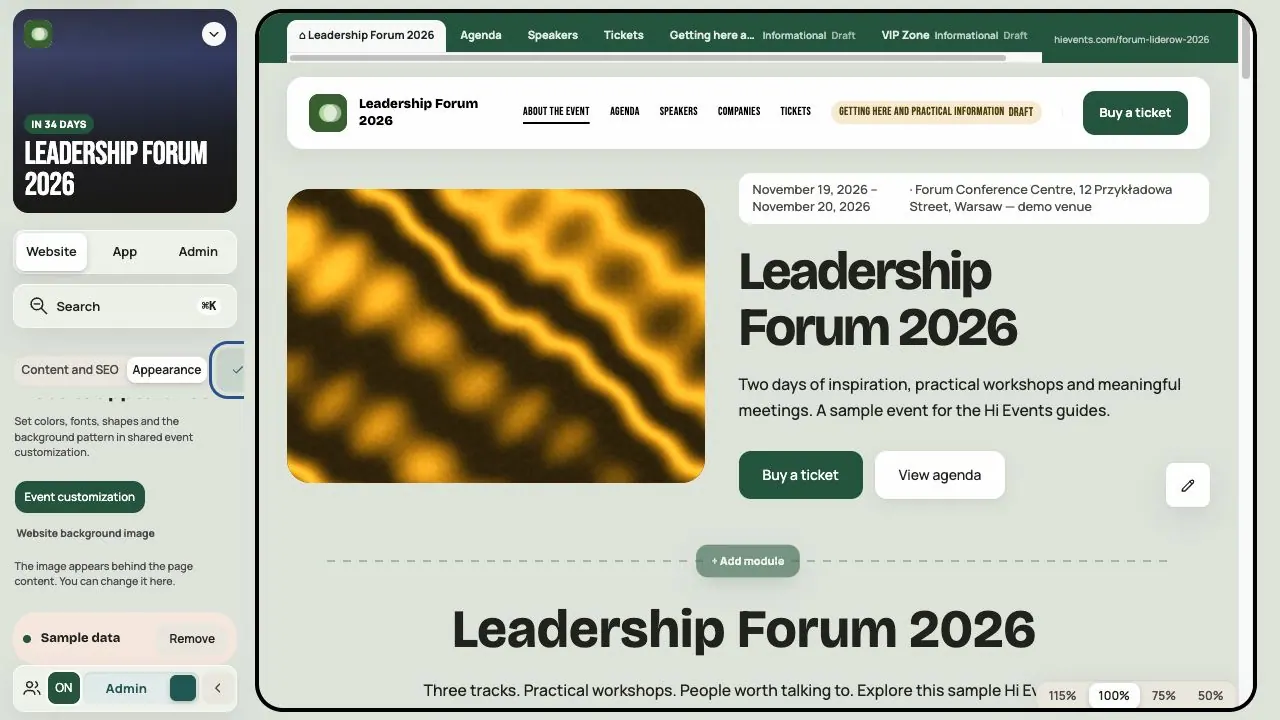
Go to Admin → Appearance in your event. The screen heading is Event appearance.
Your account and your organization have their own Appearance too. Before changing colors, make sure you are in the event.
| Where | What you set |
|---|---|
| Event appearance | Colors, fonts, shapes and background of the website, app and Admin |
| Page editor → Appearance | The layout of page modules, the banner and a separate page background photo |
| Configuration and modules | Name, dates, venue, and the content of sessions, profiles and companies |
Step 2. Choose a style
In Style, choose Classic or Hi Mode.
Hi Mode changes only the sidebar menu and the theme. The content is the same in both styles: the same session, speaker and company cards, also on phones.
In Hi Mode you choose a ready Mood: Atelier, Sage, Lilac or Sky blue. A mood sets several things at once, such as colors, background and shapes. Choose it first, then fine-tune the details. Another mood may overwrite your tweaks.
Icon style: Animate, Classic or 3D. Check the icons in the phone menu too.
Step 3. Set the typography
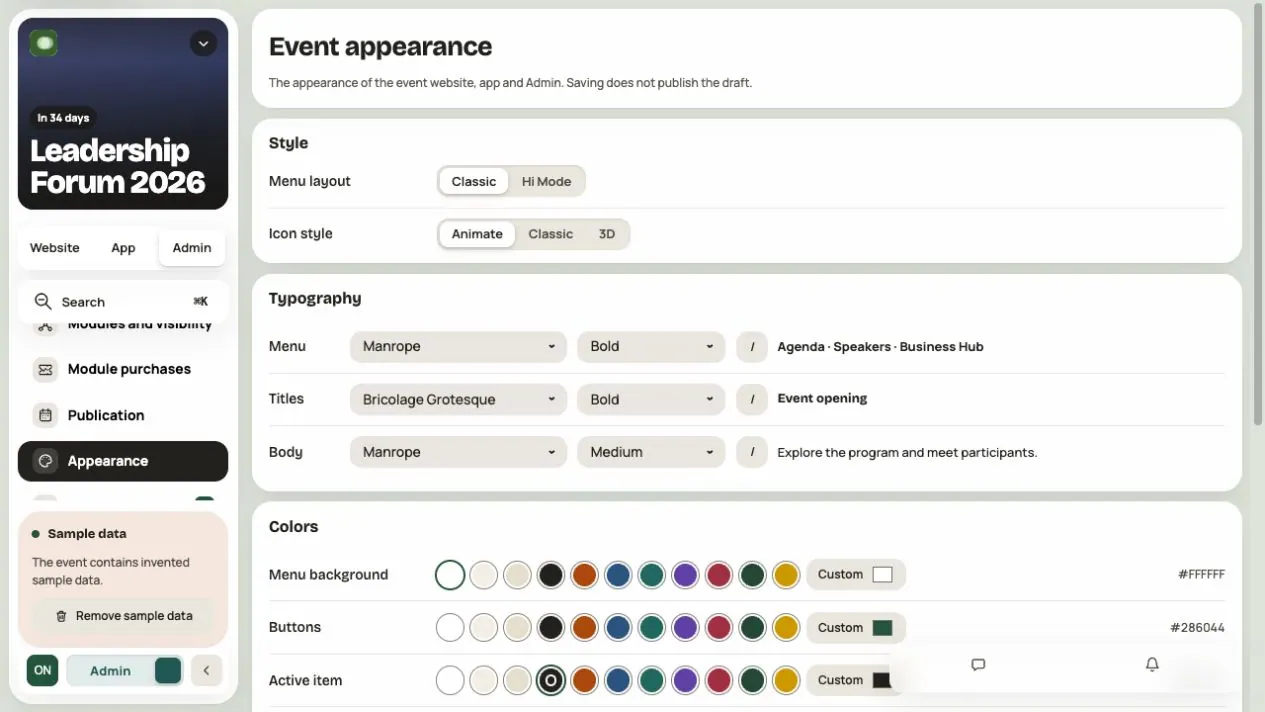
In Typography you set Menu, Titles and Body separately: font family, weight and italic. You can choose Manrope, Bricolage Grotesque, Schibsted Grotesk, Bebas Neue and Inter Display.
The menu should help people get around, titles should catch the eye and body text should be easy to read. Don't use one bold font for everything. Bebas Neue has no weight choice.
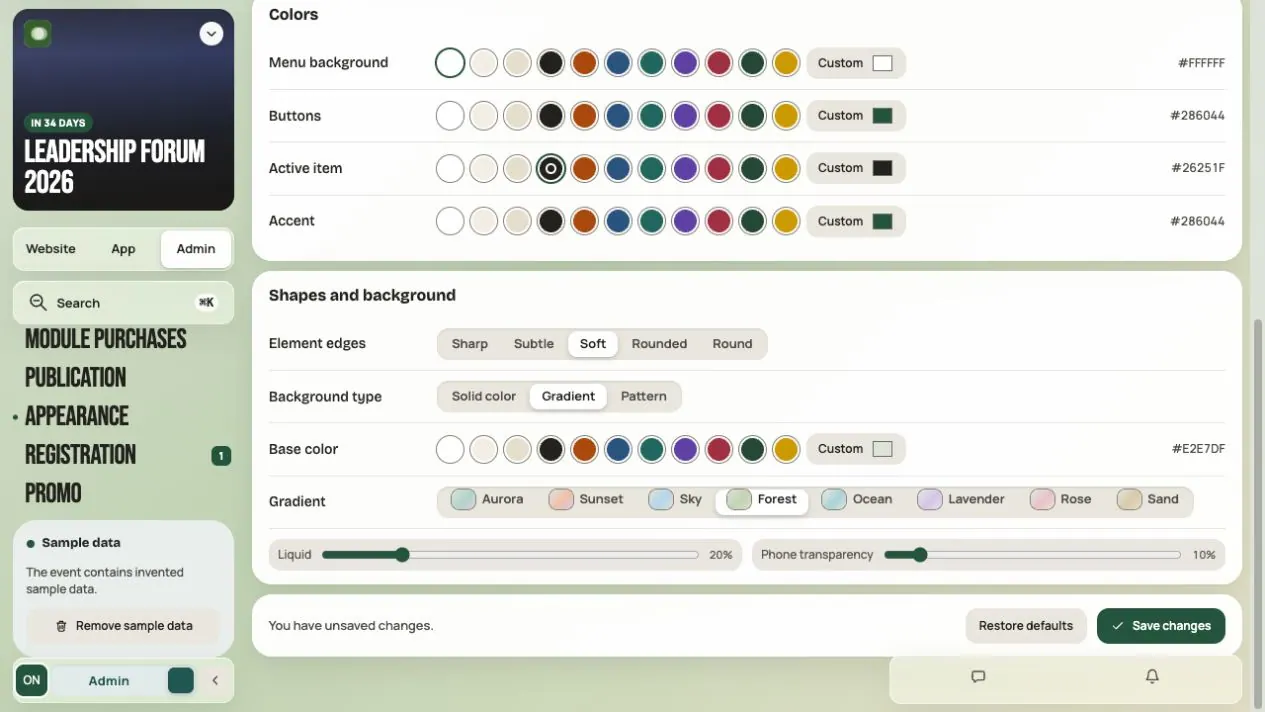
Step 4. Set the colors
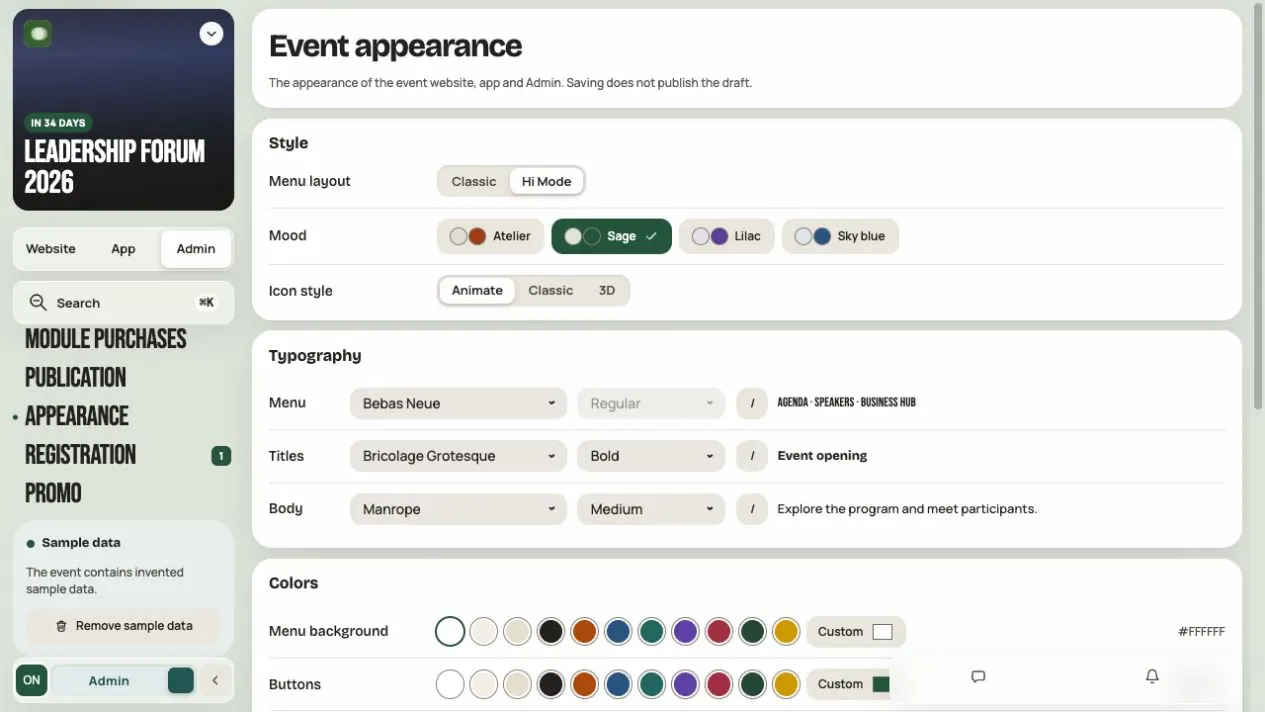
| Color | What to look for |
|---|---|
| Menu background | Module names are easy to read |
| Buttons | Main actions, such as signing up, stand out |
| Active item | It's clear which module you're in |
| Accent | Links, markers and highlights |
Start with one brand color and a calm background. Hi Events picks the text colors itself, but check the result on real content.
Step 5. Shapes and background
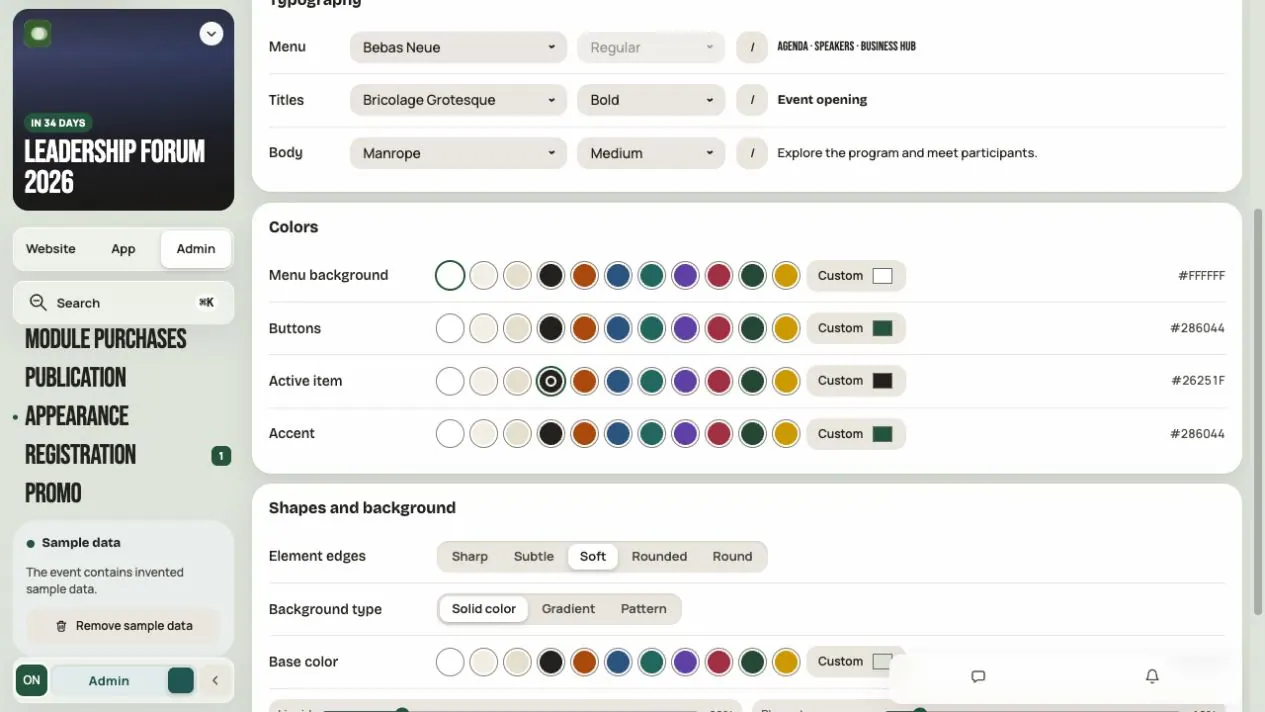
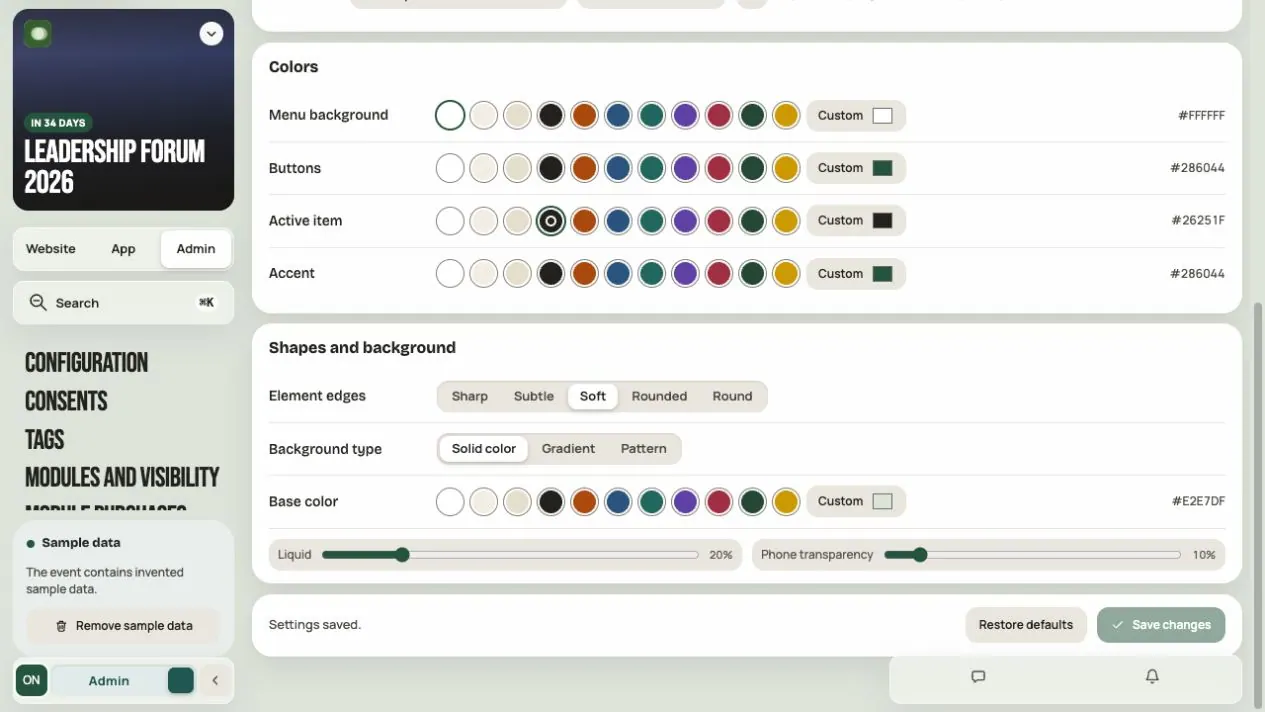
Element edges: Sharp, Subtle, Soft, Rounded or Round. This applies to cards, buttons and fields.
Background type: Solid color, Gradient or Pattern.
The Liquid slider controls surface effects, transparency and blur. A value of 0 gives a calmer, opaque appearance. It does not control the website banner animation. You set Phone transparency separately. A lower value usually works better on a small screen.
Judge the background on full screens: the Agenda, the company directory, a profile. If it draws attention away from times and names, simplify it.
Step 6. Save
You see changes right away, but to keep them, click Save changes. Wait for Event appearance saved.
- Saving doesn't publish an event draft.
- Restore defaults puts the default look on screen. It's kept only after you save.
- If the save isn't confirmed, click Retry save.
- If someone else changed the appearance in the meantime, use Load current settings. The panel asks before discarding unsaved edits and loading the current version.
When leaving with unsaved changes, return to save them or deliberately discard them. Seeing the preview does not confirm that others can already see it.
Step 7. Check the result
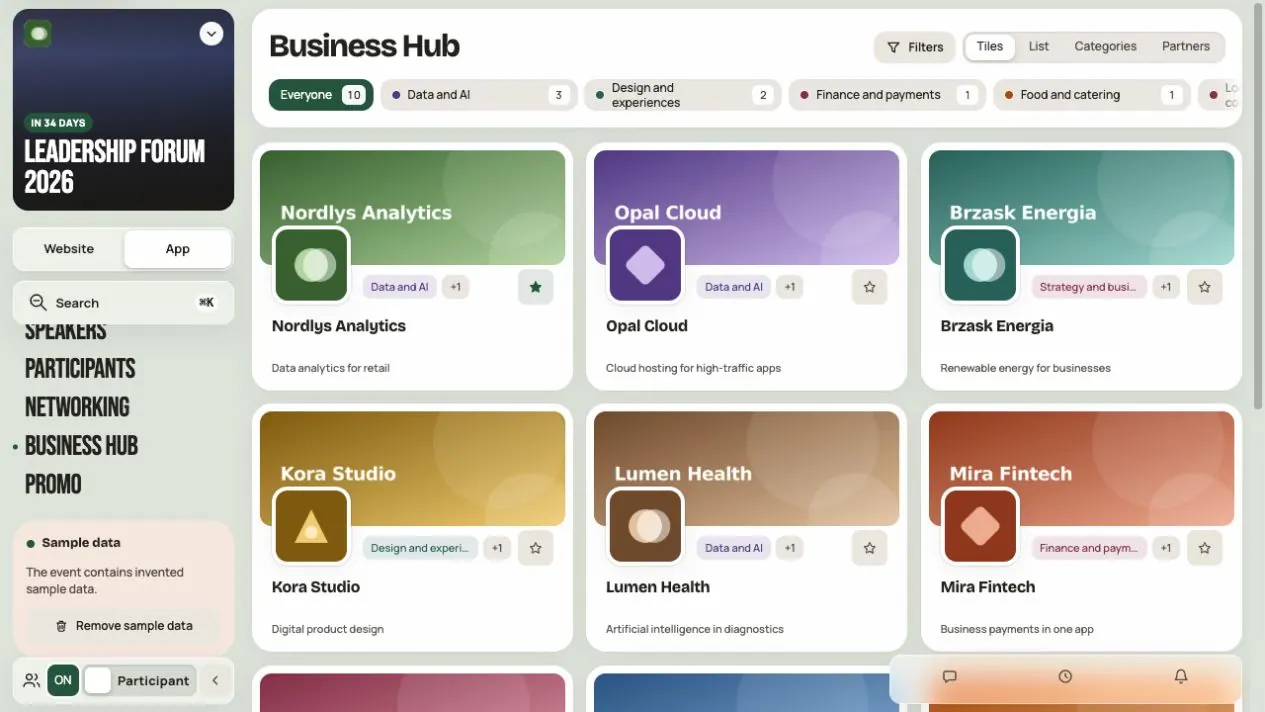
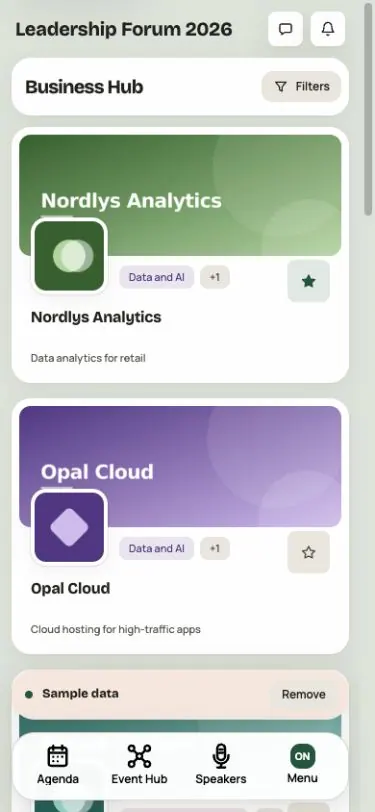
Open the App and turn off Admin mode. Look at Business Hub, a long session description and a speaker card. Then go to the Website. Check both on a phone too.
Before you finish
- You're changing the event, not your account or organization.
- Menu, titles and longer texts are readable.
- Buttons and the active item stand out from the background.
- Background and Liquid don't make reading harder on a phone.
- The panel confirmed the save.
Frequently asked questions
Do I have to set website and app colors separately?
No. One theme works on the website, in the app and in Admin. You only set the page module layout, banner and page background photo separately.
Why did my colors change when I picked another mood?
A mood is a ready set of several settings. Choose it first, then fine-tune the details.
Does Hi Mode change module content?
No. It changes only the sidebar menu and the theme. The content is the same.
Is it enough that I can see the new colors?
No. Click Save changes and wait for the confirmation.
Does Restore defaults delete event data?
No. It affects only the appearance. Sessions, speakers and companies stay.
Read on
All articles →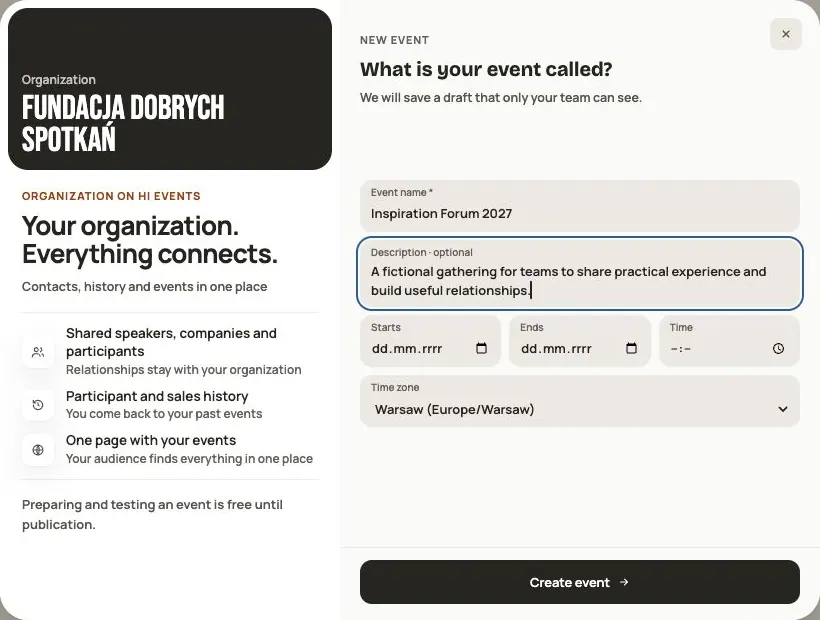 Help
Your first event, step by step
From draft to publication: name and dates, consents, tickets, content, modules, credits and the „Publish event” button.
 Help
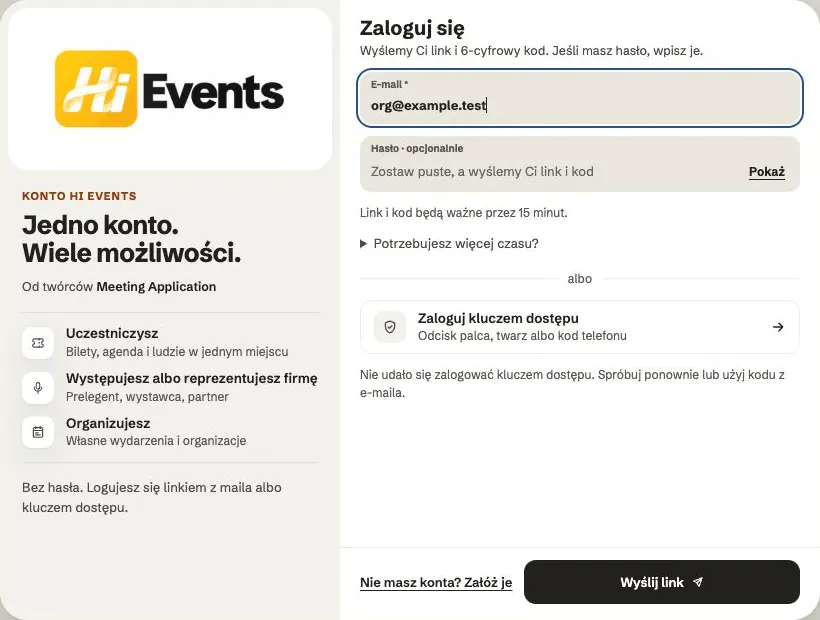
Signing in: link, code, password and passkey
Four ways to sign in to Hi Events, how to set or change your password, and how to sign in with your fingerprint.
 Help
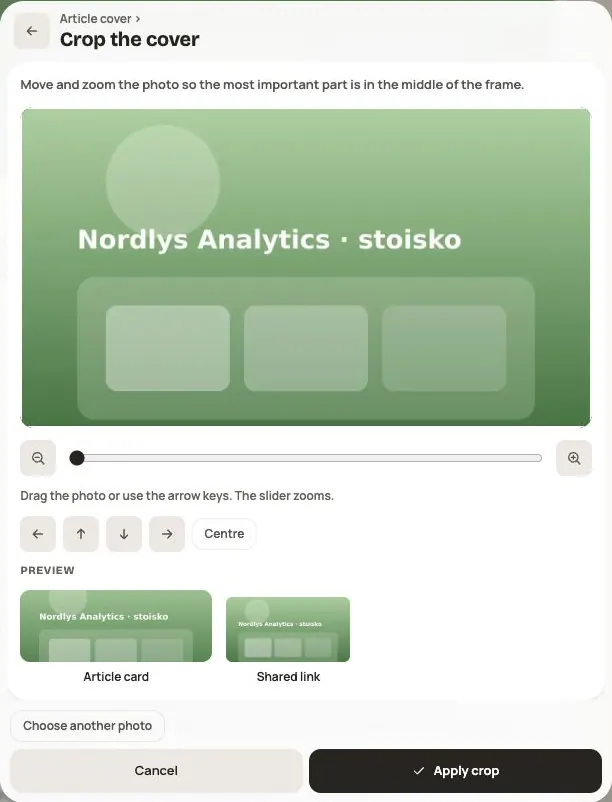
Photos and files: formats and limits
Which photos you can add, how big they can be, and what to do when a file won't upload.