
Polls and quizzes: how to prepare and run them
Quizzes with a leaderboard and polls, live, timed or at your own pace. How to prepare them, host them and show them on stage.

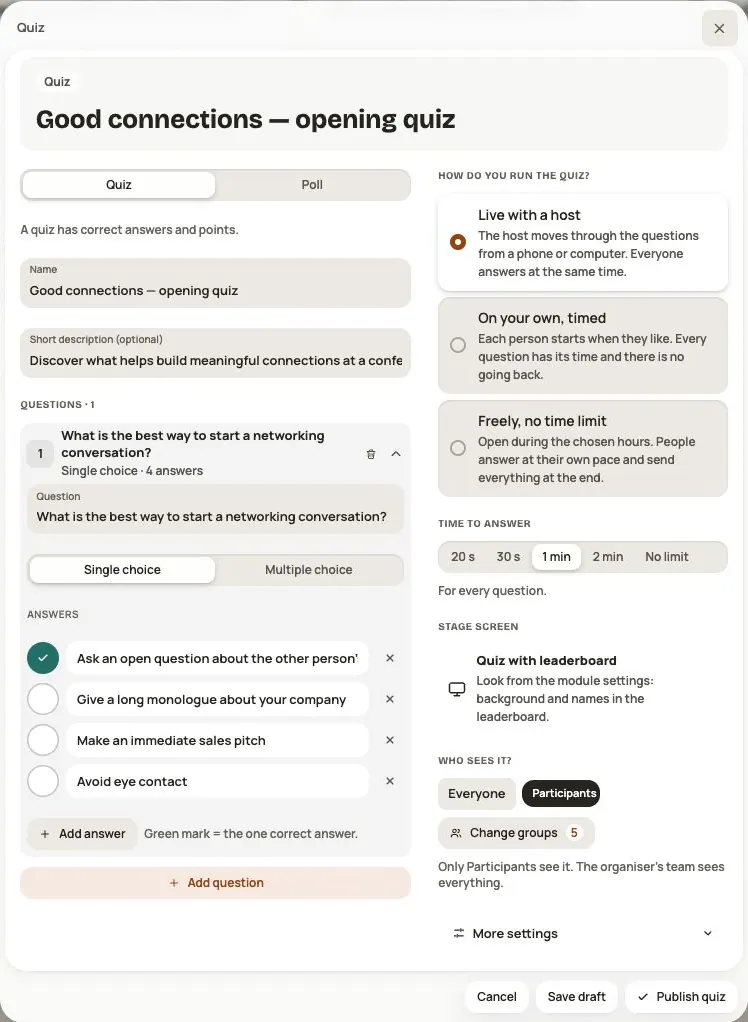
The Polls & quizzes module lets you ask participants questions in the event app. Participants answer on their phones, and you can show the results on a big screen.
- A quiz has correct answers and points. The results go into the event leaderboard.
- A poll collects opinions, with no points and no correct answers. It can be anonymous.
What it costs
Check the current price and your plan’s discount in Admin → Module purchases before purchasing.
You buy it in the event panel, in Admin → Module purchases. While the event is a draft, you can test the module with your team without a licence. Check the module’s access and any licence end date in the purchase summary. Purchasing and sharing with participants in Admin → Modules and visibility are separate steps.
Step 1. Add a quiz or a poll
- Open the event app and turn on Admin mode.
- Go to Polls & quizzes and click New quiz or New poll.
- Enter a name and, if you like, a short description.
- Add questions. Each question can be:
- single choice,
- multiple choice (in a quiz, the point is given only for the full set of correct answers),
- open — polls only: the participant types one word, up to 3 words or a sentence. The answers form a word cloud, with the most common ones largest.
- In a quiz, mark the correct answers. A choice question needs 2 to 6 answers. A quiz or poll holds up to 50 questions. An open poll question has no correct answer and awards no points.
Write in the event’s content languages
Use Content language → PL / EN to switch the version you edit. Supply the name, description, questions and answers in each language. The primary language is required; missing translations may appear in the primary language.
Question order and type, correctness, timing and audience are shared. Participants answer the same quiz and contribute to one leaderboard regardless of language. Words submitted by participants are not automatically translated.
Step 2. Choose how you run it
| Mode | How it works |
|---|---|
| Live with a host | You switch the questions from your phone or computer. Everyone answers at the same time. |
| On your own, timed | Each participant starts when they want. Every question has a set time, and there is no going back. |
| Freely, no time limit | The quiz or poll is open during the hours you choose. Participants answer at their own pace and send everything at the end. |
You choose the time to answer from 20 s, 30 s, 1 min or 2 min. When hosting live, you can also choose „No limit”.
You can set an opening and a closing time. Without times, you open and close the quiz with the buttons in the results window.
Step 3. Decide who sees it
In Who sees it? keep „Everyone” or choose participant groups. Only people in at least one of the chosen groups will see the quiz. The organizer's team sees everything.
Step 4. More settings
Under More settings you'll find:
- Anonymous poll: results have no named answer table, including for the organizer. You see aggregate results and the word cloud. This controls how results are presented; responses are still stored against the participant’s account.
- Question first, answers on a click: you talk about the question, then open the answers and the clock starts.
- Results right after each question (quiz) or Participants see the poll results.
- Count towards the event leaderboard: points from this quiz go into the shared ranking.
- After it closes, show the answers in the quiz history or keep the results in the app, always without names.
Click Save draft to come back later, or Publish quiz / Publish poll to make the activity visible.
Important: once someone has answered, you can no longer change the questions or answers. You can still correct texts and timing. You cannot change the number or type of questions, answer structure or which answer is correct.
Hosting live
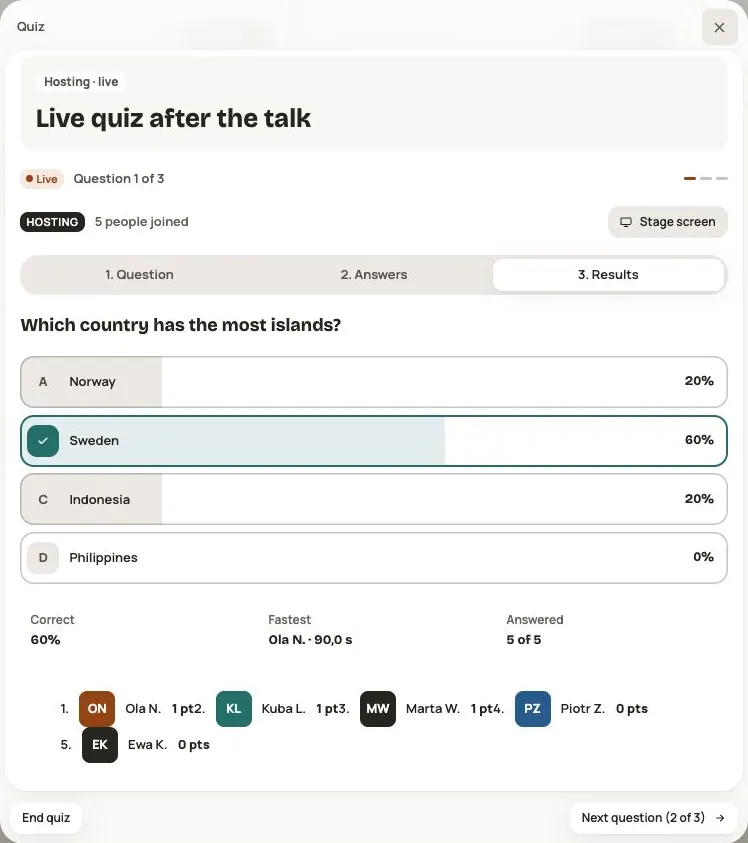
- On the quiz tile, click Host. You'll see how many people have joined.
- When the room is ready, click Play. The first question appears.
- Each question has three steps: Question → Answers → Results. Click Open answers and then Show results. Only you see the correct answer while it runs.
- Click Next question, and at the end End quiz.
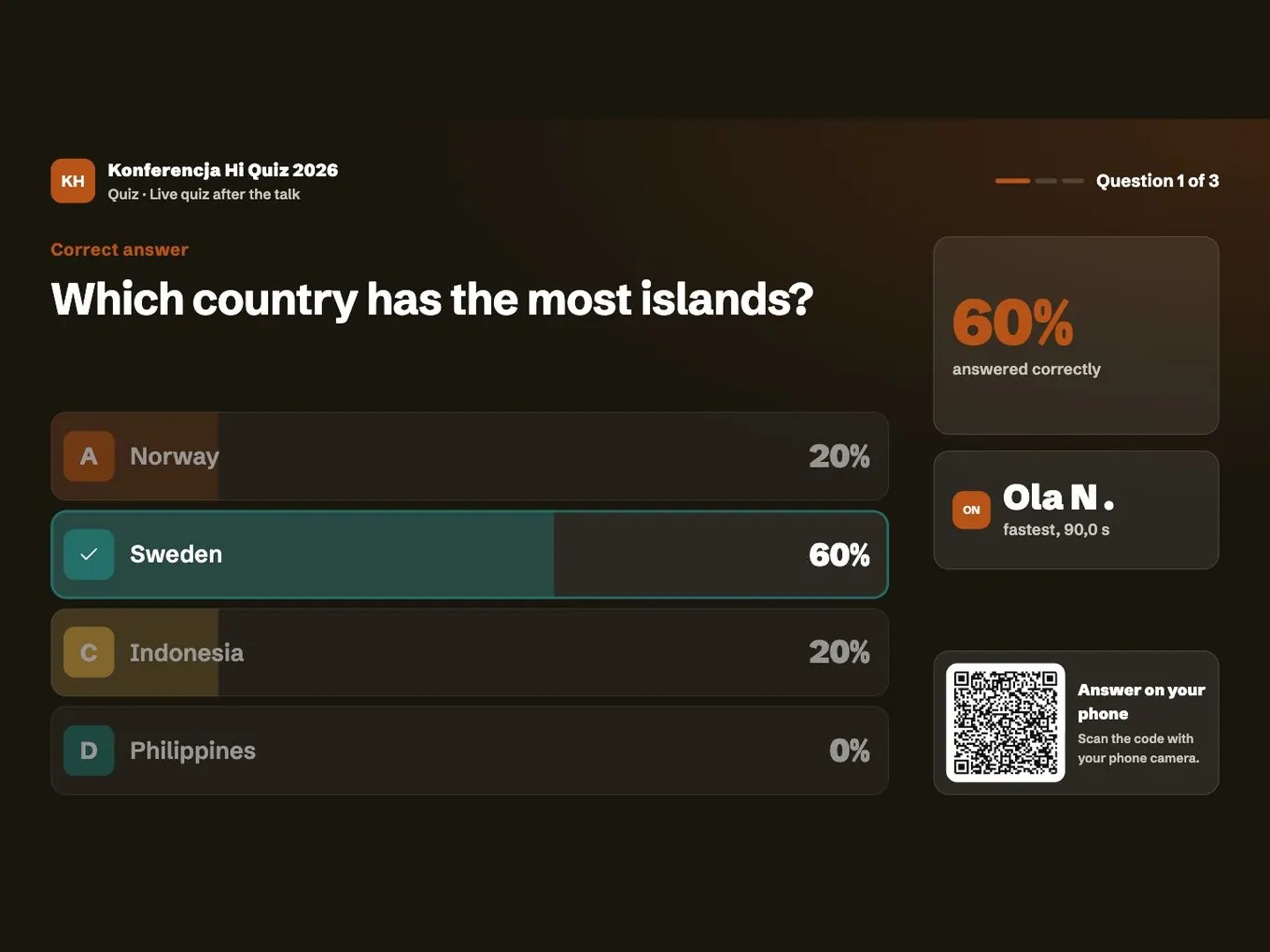
Stage screen
Click Stage screen on the tile, copy the link and open it on the computer connected to the projector (signed in as the organizer), then switch to full screen. The screen shows the question, the countdown, the results, the word cloud and the leaderboard. The QR code on the screen takes participants straight to the quiz in the app.
In Module settings you choose the screen's look for all quizzes and polls in the event: a dark, light or event-colour background, names in the leaderboard (first name and the first letter of the last name) or points only, and the screen language. Screen language chooses one question version for the room; it does not change participants’ phone language. The QR code can be turned on or off. Colours, font and logo come from Appearance.
Results and leaderboard
- All results show the share of correct answers and the spread of votes for every question.
- People's answers is a table with each person's answers. You can filter by full marks, with mistakes, finished and not finished, and search by first name, last name or email. An anonymous poll has no such table.
- The Leaderboard tab ranks the whole event. Use the switches to choose which quizzes count. Each correct answer gives 1 point. In a tie, the person who answered correctly faster (or finished first) ranks higher.
What participants see
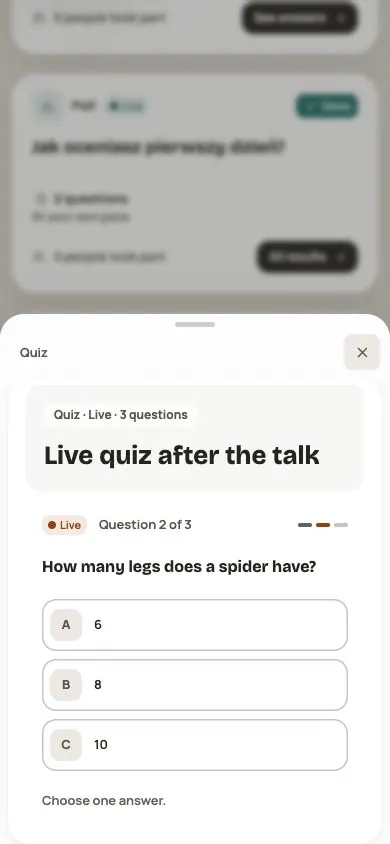
Participants open the event app, go to Polls & quizzes and click Play, Answer or Join now. They answer with their account in the app. In a quiz, they see the correct answers only after it closes, so no one can give hints to others.
Frequently asked questions
Can a participant change their answer?
In „Freely” mode, yes, until they send it. Once sent, answers can't be changed. In the timed mode, after clicking „Next” there is no way back to the previous question.
What if someone edits the quiz at the same time?
When both editors changed the same field, choose Use saved changes or Keep my changes for the marked fields, then save. If a question with your text was deleted, copy any text you need before accepting its deletion.
For an uncertain result, retry the same attempt. Do not immediately create a duplicate quiz: the first save may already have succeeded.
Can I download the results to Excel?
Not yet. You view the results and people's answers in the app.
Read on
All articles →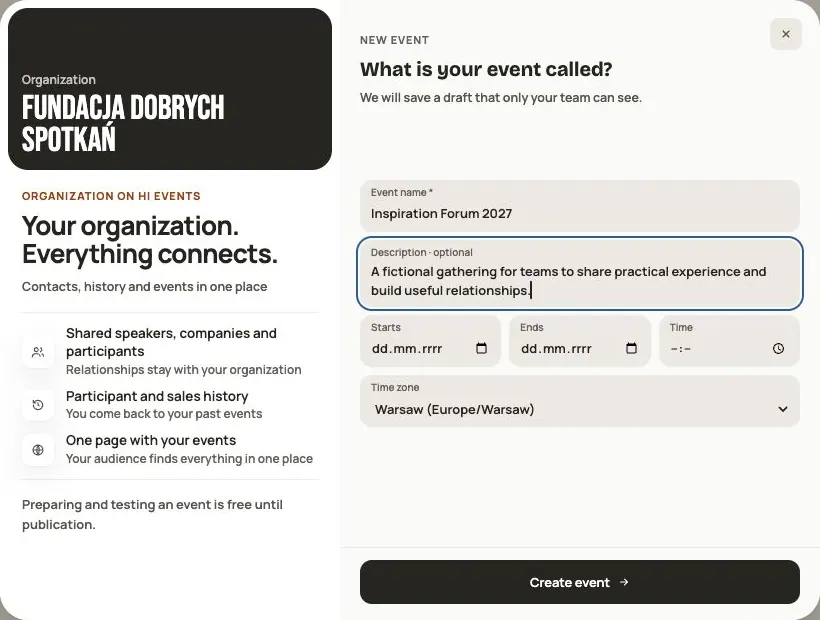 Help
Your first event, step by step
From draft to publication: name and dates, consents, tickets, content, modules, credits and the „Publish event” button.
 Help
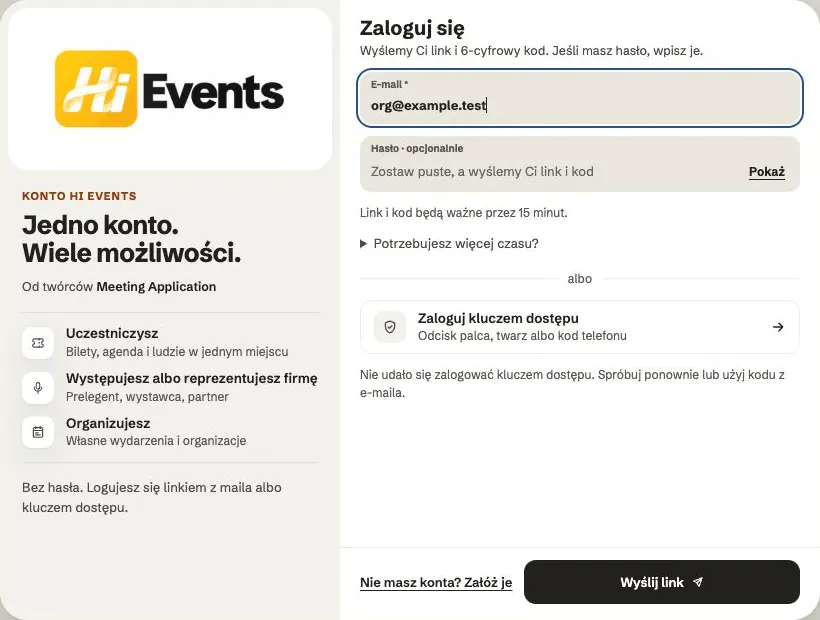
Signing in: link, code, password and passkey
Four ways to sign in to Hi Events, how to set or change your password, and how to sign in with your fingerprint.
 Help
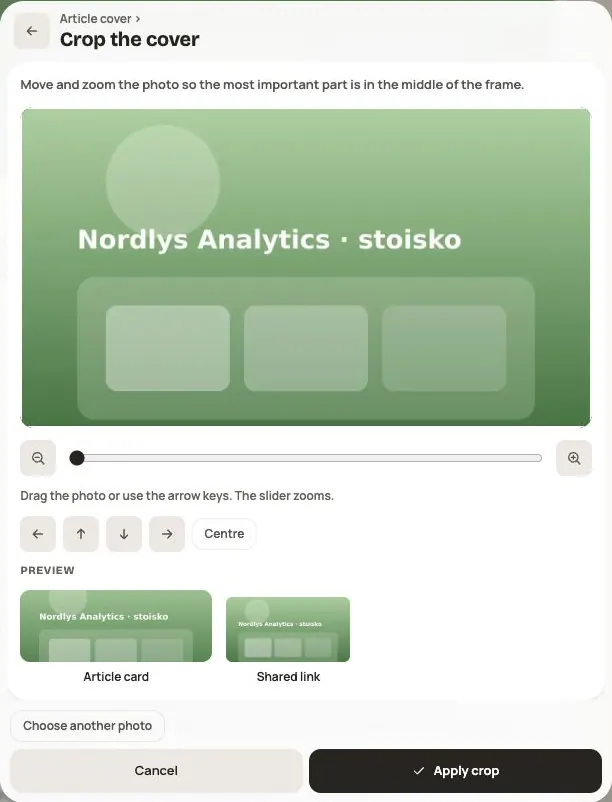
Photos and files: formats and limits
Which photos you can add, how big they can be, and what to do when a file won't upload.