
Purchases and payments in Plan and payments
How to buy a plan, credits and modules in one order, how to pay, where to enter invoice details and where to find your history.

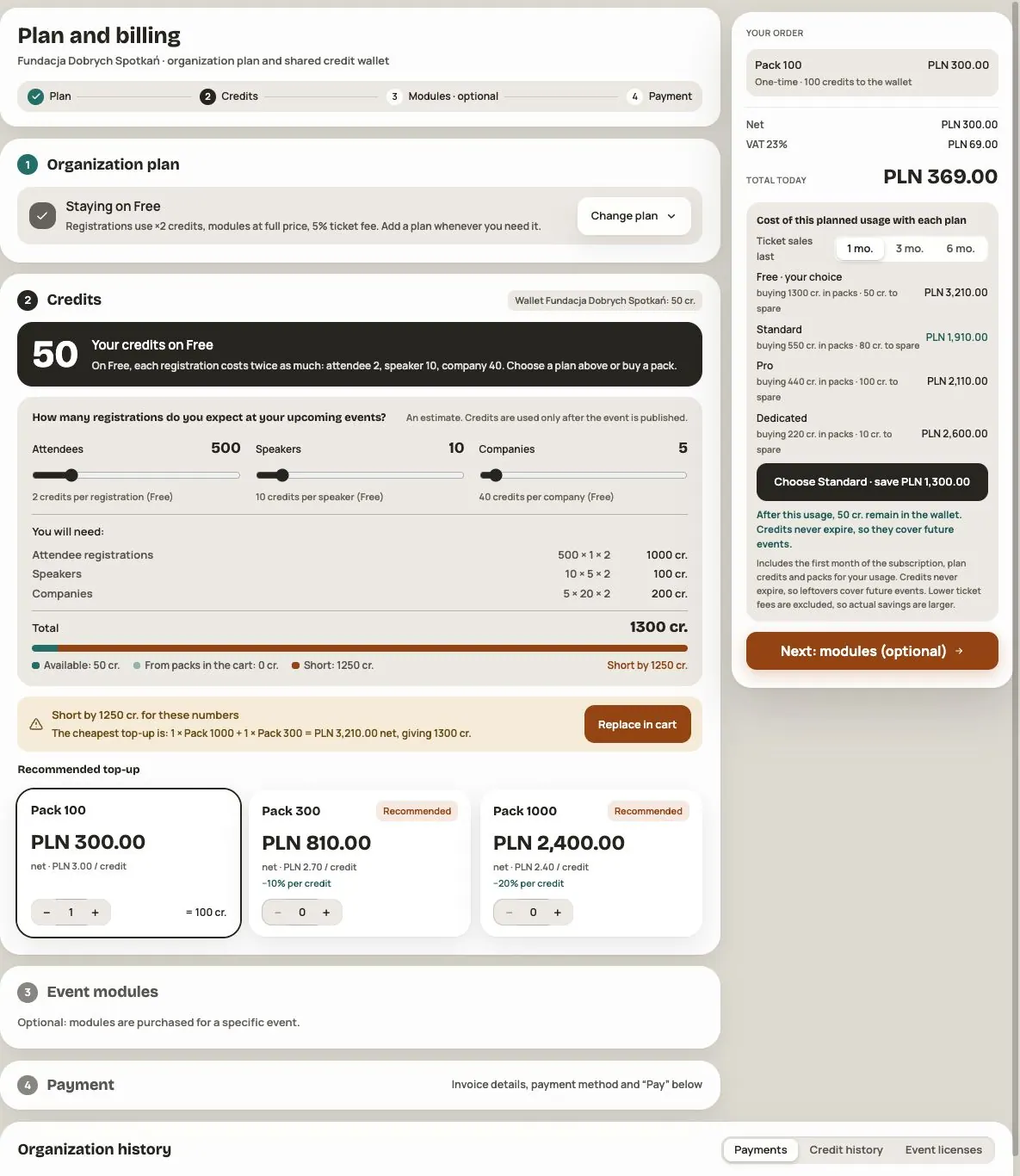
Everything you buy in Hi Events you buy in one place and in one order: a plan for the organization, credit packs for the shared wallet and modules for a specific event. The people who manage the organization can make purchases.
Where you buy
- Plan and payments in your organization: the plan and credits. From here you can also go to the modules of a chosen event.
- Admin → Module purchases in an event: modules for that event (for example Networking, Polls & quizzes, News). You can also top up credits here.
- Admin → Publication: when you don't have enough credits to publish, you can buy them here and go back to publishing.
Step by step
A purchase has four steps: Plan → Credits → Modules → Payment. Every step except payment is optional. The cart on the right shows what you chose and how much you'll pay.
- Plan: choose a plan or click Continue without a plan.
- Credits: enter how many registrations you expect. We'll suggest how many credits you need and which packs are cheapest.
- Modules: pick modules for the event or click Not now, continue to payment.
- Payment: enter your invoice details, choose a payment method and click Pay.
Have a discount code? Enter it in the cart under „Have a discount code?” and click Apply.
Payment methods
| Method | Good to know |
|---|---|
| Card | The card can be saved for future payments and credit recharge. Check its status after payment. |
| BLIK | You enter the 6-digit code from your banking app and confirm the payment on your phone. It pays for this order only. |
| Apple Pay / Google Pay | Appears if your device supports it. The wallet card can be saved; check its status after payment. |
| Bank transfer (Przelewy24) | You choose your bank and confirm the payment there. We turn on the plan, credits and modules right after confirmation. |
Payments are handled by a payment provider. Hi Events does not store the full card number or security code; it keeps the card label and references needed to manage payments with the provider.
Check the mode and confirmed result
Plan, credit and module purchases support Stripe payments when enabled in the environment. Test mode is indicated on screen. Do not assume every payment is fictional because the event ticket shop still uses simulation.
After returning from the bank, wait for confirmation in Hi Events. Pending or Awaiting transfer does not mean paid. If the result is unknown, check the same payment rather than creating another order.
Invoice details
On your first purchase you enter your company details: name, address and invoice email.
- EU company: enter your Polish NIP or EU VAT number. 23% VAT is added to the price.
- Non-EU company: the tax number is optional, and the invoice is without Polish VAT (reverse charge). You enter a two-letter country code, for example US.
We save the details in the organization, so you don't have to enter them again next time.
Modules: prices and sharing
Agenda, Speakers and Business Hub are included in every plan. New speaker and company profiles can still use credits.
| Module | Base net price per event |
|---|---|
| Networking | PLN 1,000; included in Dedicated while the plan lasts |
| Event Hub | PLN 2,000 |
| Polls & quizzes | PLN 1,000 |
| News | PLN 1,000 |
These are application catalog prices checked on 27 October 2026, before the plan discount: Standard 10%, Pro 15%, Dedicated 20%. Example: Networking on Standard costs PLN 900 net. The cart shows final terms and availability; Coming soon does not mean an available module.
After payment
After payment is confirmed, you receive the purchased plan, credits and module licences. Share the module in Admin → Modules and visibility. In a draft, you can prepare it with your team. Its licence starts only in a published or ended event when the enabled module is available to participants rather than managers alone.
Check the scope in the purchase summary and Event licenses. License for the lifetime of the event means no fixed expiry. Period licences, including older purchases, can have an end date. Turning a module off does not pause a running period. Networking included in Dedicated lasts while that plan is active, without a separate purchase.
In Plan and payments → Organization history, find three tabs:
- Payments — orders with dates, amounts and status (Paid, Awaiting transfer, Pending, Payment error).
- Credit history — recent wallet movements.
- Event licenses — purchased modules, their status and any expiry date.
Order, offer and invoice
Organization history contains Payments, Credit history and Event licenses tabs. It shows up to 50 recent orders and 100 credit movements. Order details are not an invoice; the app does not provide an invoice download here. Simulation does not charge money or issue an invoice.
Download PDF in Your offer opens printing so you can save the offer as a PDF. This belongs to the separate offer acceptance process; the button does not collect payment.
Frequently asked questions
The payment didn't go through. What now?
Check the order status. For a confirmed decline, correct the details or choose another method as instructed. For an unknown result, check the same attempt first: a connection error does not prove that no charge occurred. If the problem continues, contact chat support or pomoc@hievents.pl.
I bought a module, but participants can't see it
A bought module still has to be shared in Admin → Modules and visibility, with the groups that should see it.
Do I pay for a module every month?
No. A module is a one-time purchase for an event. The summary specifies a licence for the lifetime of the event or a set number of months. Check the expiry of an existing licence too.
Read on
All articles →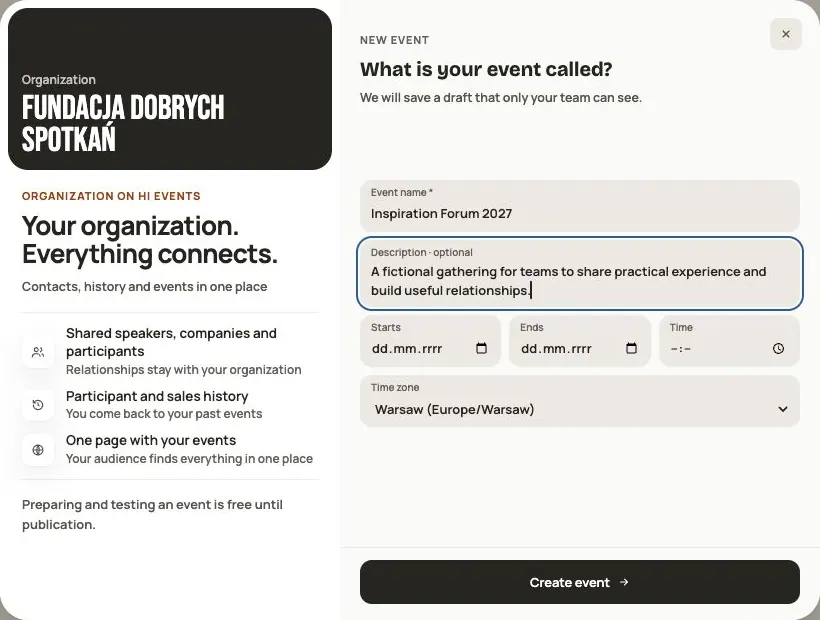 Help
Your first event, step by step
From draft to publication: name and dates, consents, tickets, content, modules, credits and the „Publish event” button.
 Help
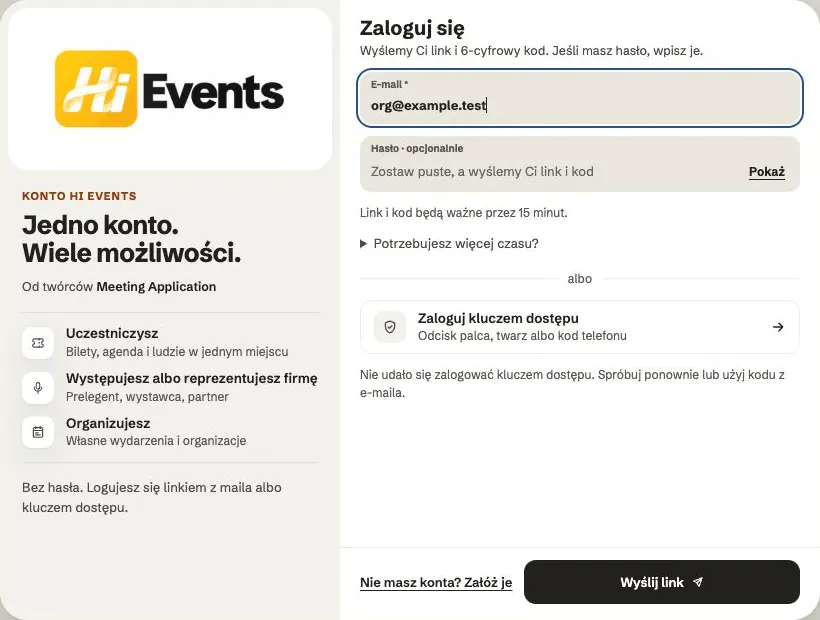
Signing in: link, code, password and passkey
Four ways to sign in to Hi Events, how to set or change your password, and how to sign in with your fingerprint.
 Help
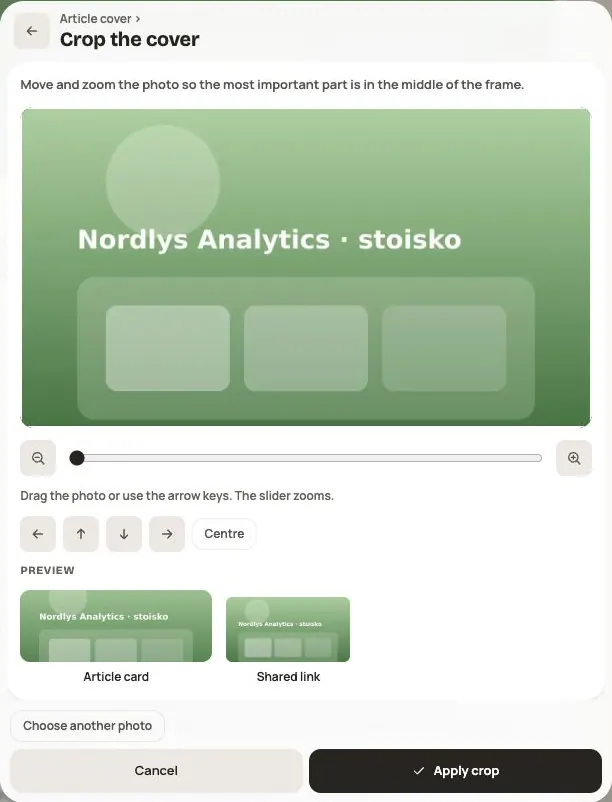
Photos and files: formats and limits
Which photos you can add, how big they can be, and what to do when a file won't upload.