
An offer from Hi Events — accept the terms and prepare your events
Open your personal invitation, review the offer and accept it in three steps covering organization details, documents and modules.

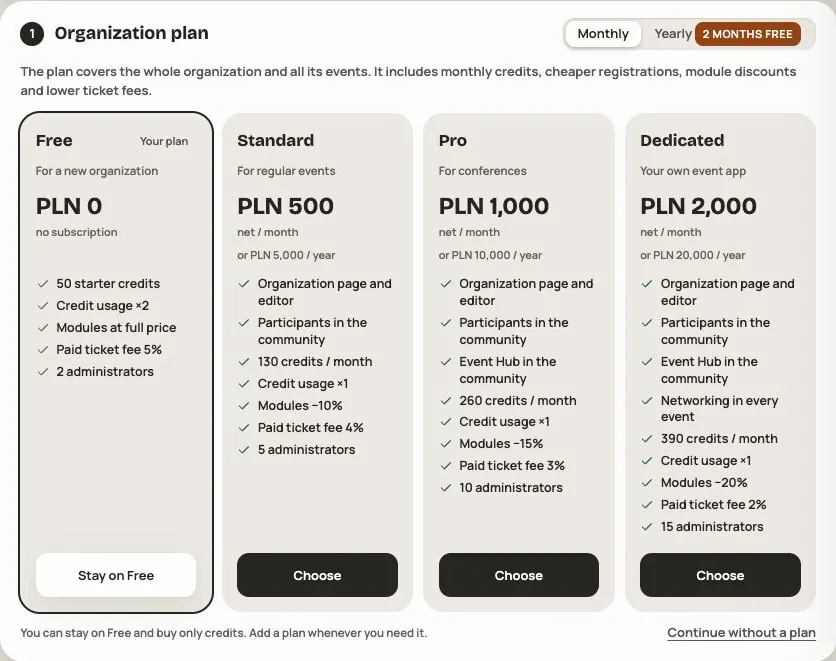
An individual offer brings together the agreed subscription, period, events, credits, modules and prices. It can also set a custom ticket commission. Find it in the organization panel under Your offer.
First, open your personal invitation
- Open the Hi Events email link. Check the recipient, organization name and expiry date.
- If you have an account, sign in with the invited address. Otherwise create an account and confirm your email. The offer link does not replace email confirmation.
- Read the Hi Events Terms and Hi Events General Licence Terms, select the required statements and click Join.
A new organization and event drafts are prepared from the offer. For an existing organization, you need permission to manage it. An additional invited person joins the team of the organization already prepared.
Join opens the offer in the panel; it does not accept it yet. Check the period, credits, net prices, tax, gross amount and each event's modules. Download PDF opens printing so you can save the offer as a PDF. It is not an invoice.
Step 1. Organization
Click Accept offer. In Organization and data controller, complete:
- Organization name — visible to participants.
- Full legal name, Tax ID (NIP) and Registered address.
- Registry number (KRS) if the organization has one.
- Data protection email.
The data controller details go into event documents. Click Next: documents and consents. Editing the form does not accept the offer.
Step 2. Documents and consents
For each event, check the prepared Event privacy policy and Event terms. The data controller details come from step 1.
The Collect switch beside Marketing consent decides whether to prepare a voluntary subscription document for that event. It does not record participants' consent or subscribe you to Hi Events messages.
Select I accept the document contents. and click Next: accept offer. Afterwards, check the documents in each event's Admin → Consents. The module still marks publications as test documents; do not treat the template as a finished document for your company.
Step 3. Acceptance
Choose optional modules if the offer has them. Your offer updates the summary. If there are no optional modules, review the prepared terms.
Check events, subscription period, credits, modules and gross amount. Click Accept offer · … gross. Wait for Offer accepted.
This button records acceptance and grants the offer's entitlements. It does not collect a card or bank payment. Arrange settlement with Hi Events; acceptance is not proof of payment.
What you have afterwards
- The subscription and period in the accepted offer, without automatic renewal.
- Pack credits and monthly subscription grants. Check the next grant in Plan and payments.
- Module licences assigned to specific events. Share them through Admin → Modules and visibility.
- Template event documents: privacy policy, event terms and an optional marketing document. Existing published versions are not replaced.
- Event drafts ready for further work. Accepting an offer does not publish an event.
Review the organization profile, programme, documents and visibility, then follow event publication. Check entitlements and billing history in Plan and payments.
If something goes wrong
Expired offer: ask Hi Events for an updated offer. The deadline is shown on the offer, rather than a fixed number of days for every offer.
Different account: sign in as the addressee. Managing the organization does not automatically let you accept this personal offer; the panel identifies who may accept it.
Unknown result: retry the same attempt using the displayed button. Organization details or documents may already have been saved even if the final screen did not open. Do not create a new offer to bypass the problem.
Read on
All articles →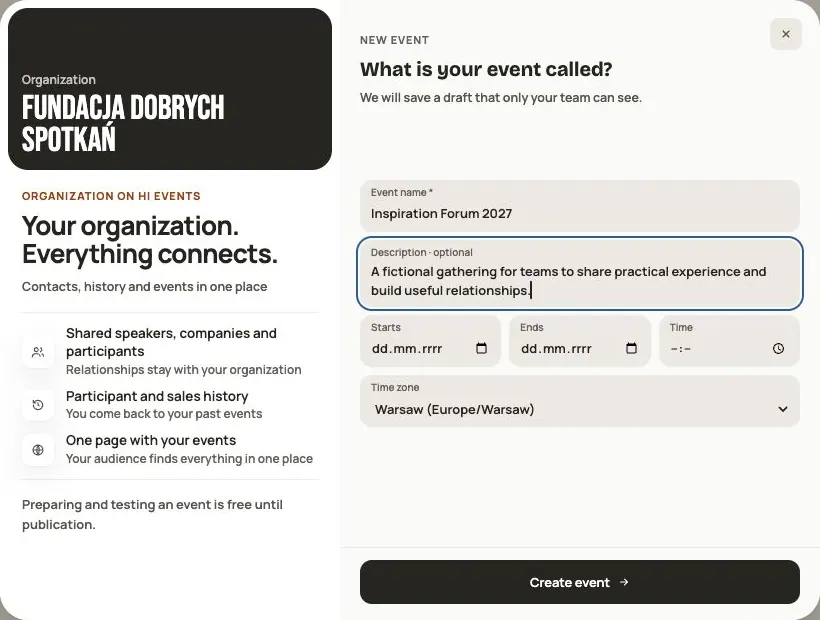 Help
Your first event, step by step
From draft to publication: name and dates, consents, tickets, content, modules, credits and the „Publish event” button.
 Help
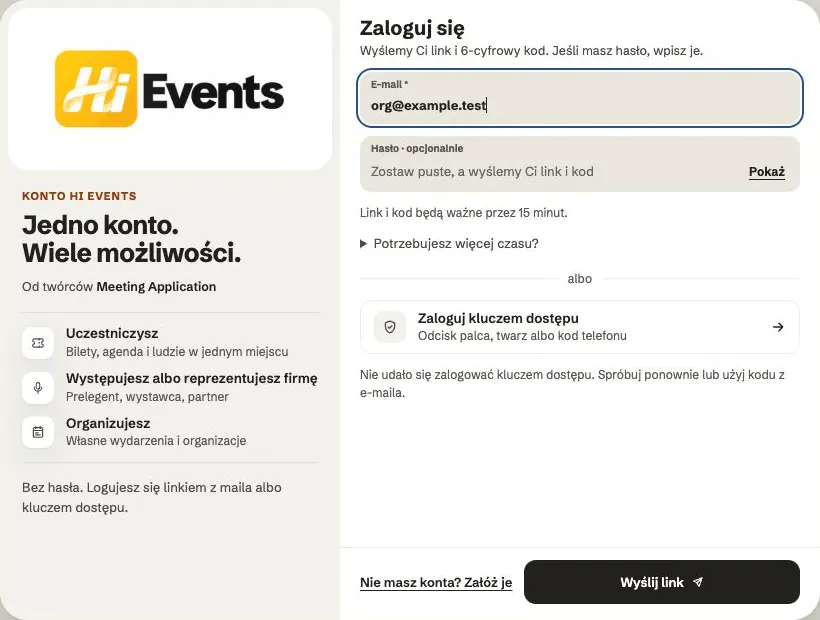
Signing in: link, code, password and passkey
Four ways to sign in to Hi Events, how to set or change your password, and how to sign in with your fingerprint.
 Help
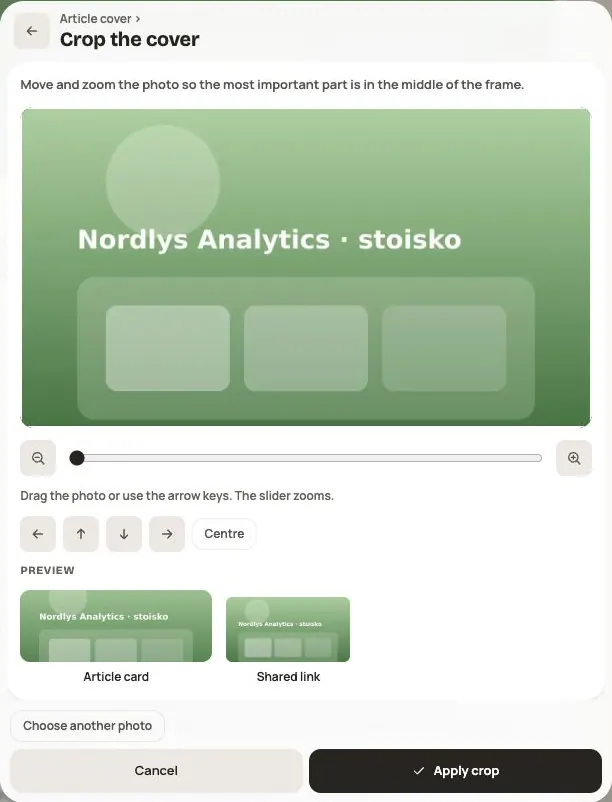
Photos and files: formats and limits
Which photos you can add, how big they can be, and what to do when a file won't upload.