
Consents and terms — prepare your event documents
Prepare the privacy policy, terms and marketing consent, publish the right version and check who accepted what.

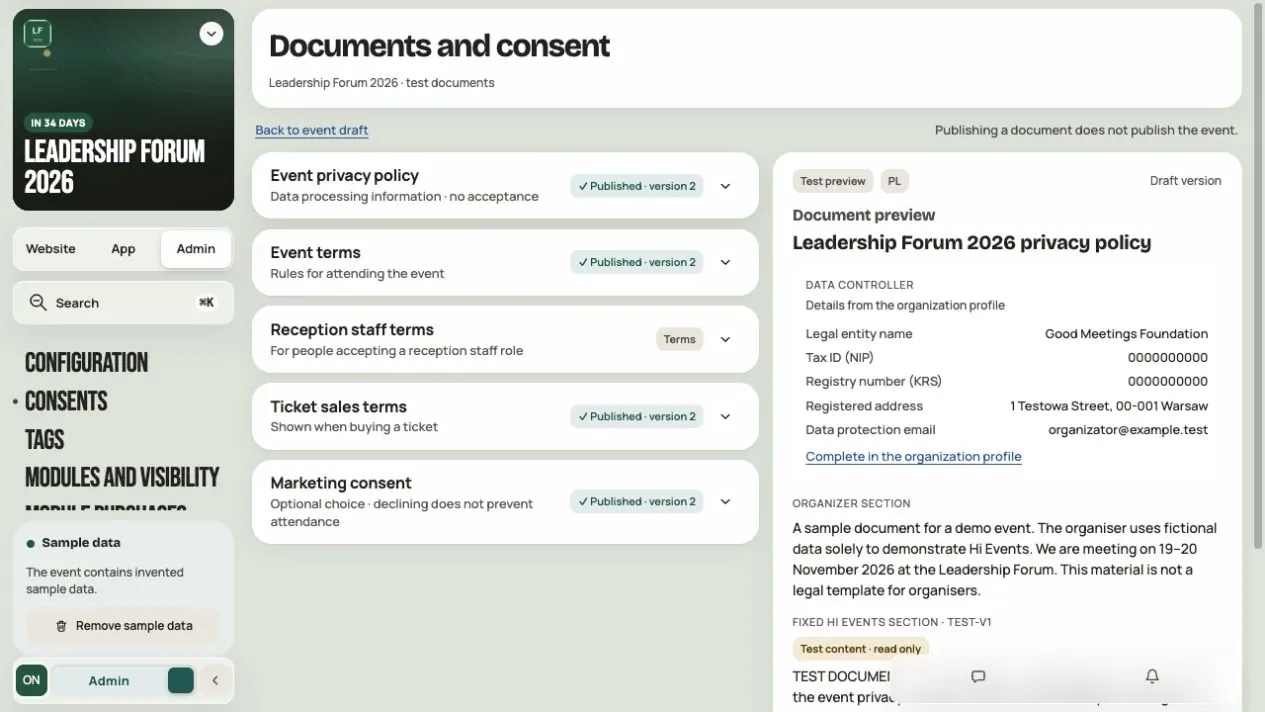
In Consents you prepare the documents a person sees when signing up for your event. You write the content, save a draft, publish a version and then check who accepted what.
Step 1. Open the documents
Go to Admin → Consents in your event. The Event documents and consent screen has five documents. Each has its own draft, published version and history.
| Document | What it's for |
|---|---|
| Event privacy policy | Informs about data processing. It's information, not consent. |
| Event terms | Rules for attending. A person accepts them when signing up. |
| Reception staff terms | For people who take on a reception staff role. |
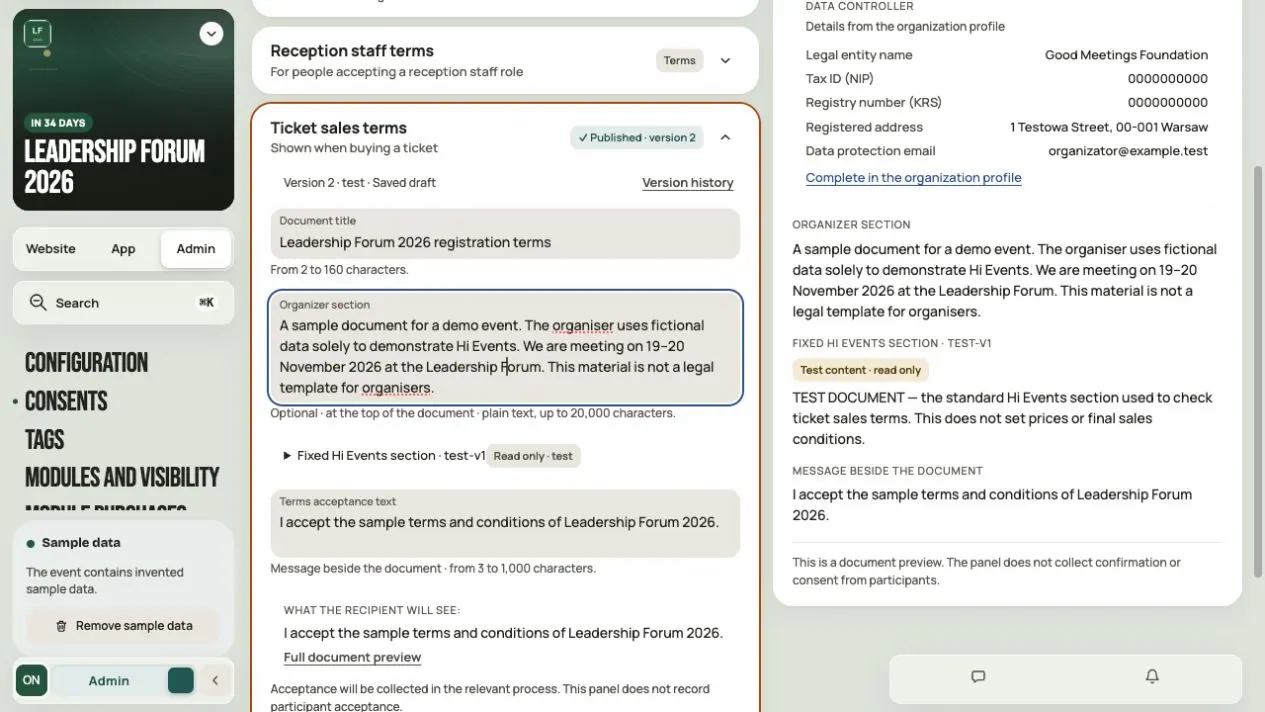
| Ticket sales terms | Shown when buying a paid ticket. |
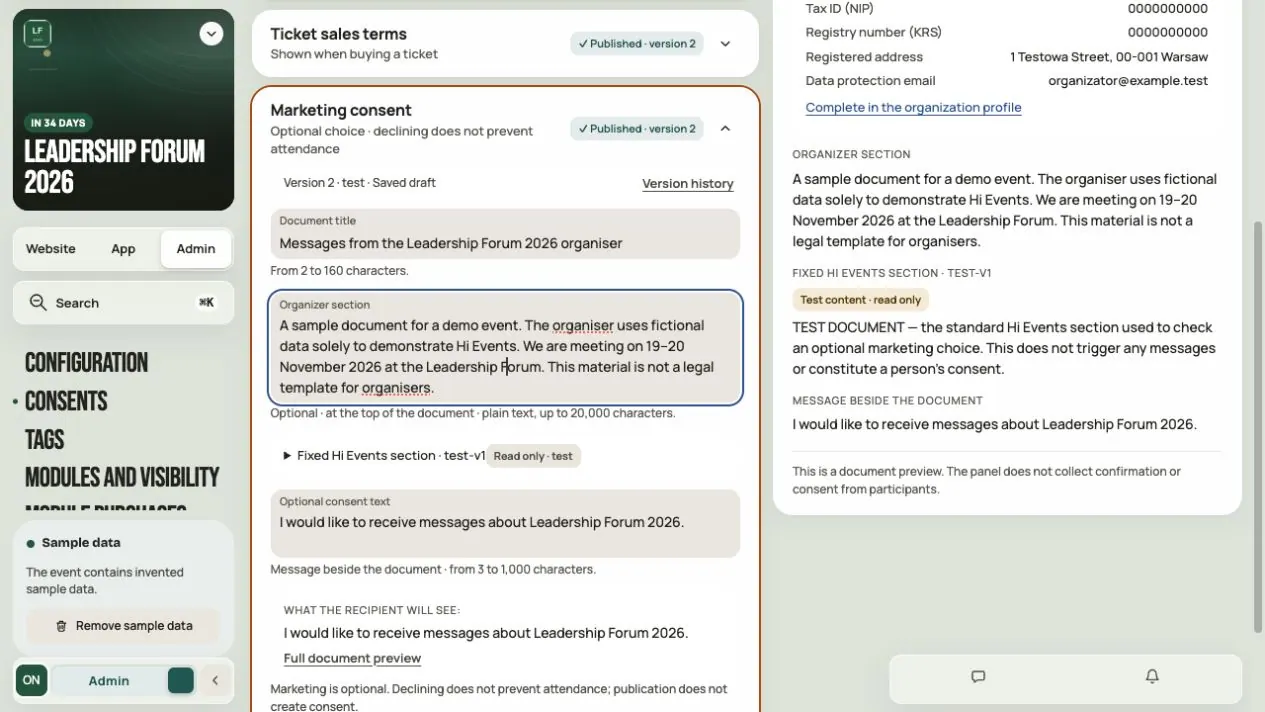
| Marketing consent | An optional choice. Declining doesn't prevent attendance. |
The panel currently marks documents as test documents. Before a real event, prepare content that fits your event.
Step 2. Write the content and save a draft
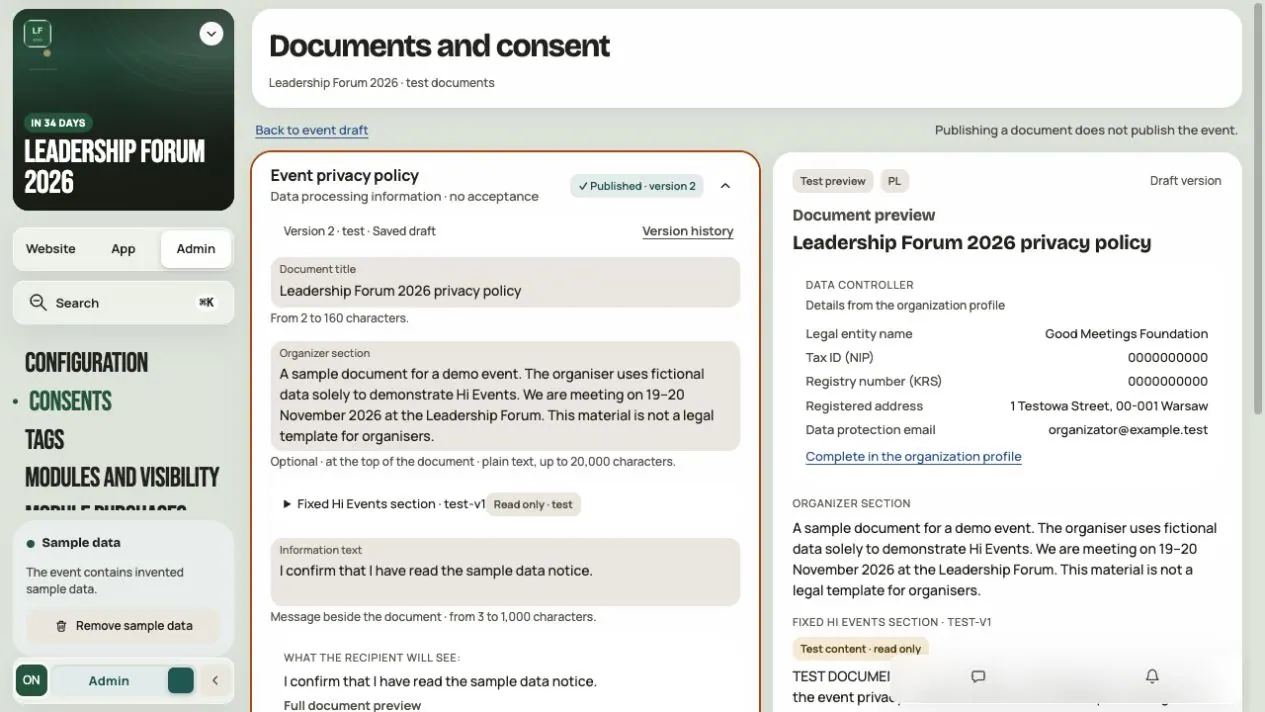
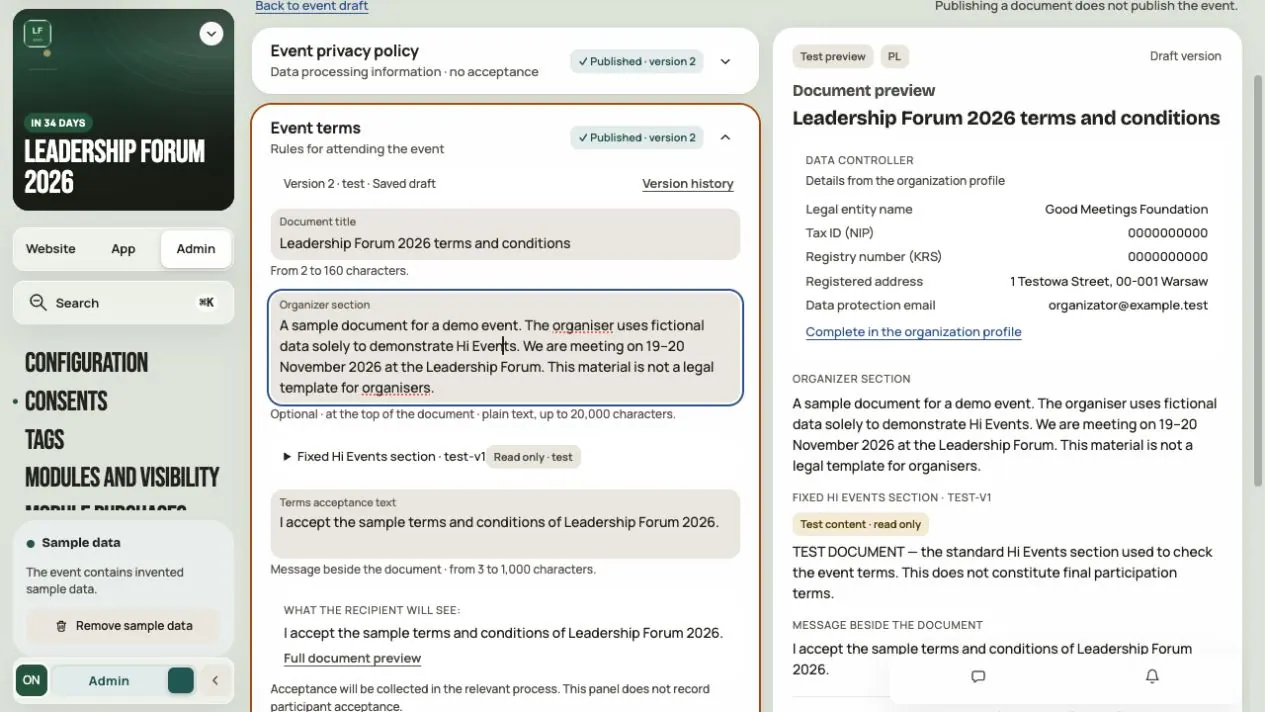
Expand a document. Fill in the fields:
| Field | Rules |
|---|---|
| Document title | 2–160 characters. A name people will recognise next to the link. |
| Organizer section | Optional, up to 20,000 characters. Shown above the fixed Hi Events section. |
| Message beside the document | 3–1,000 characters. Depending on the document, the field is called Information text, Terms acceptance text or Optional consent text. |
Click Save draft. A draft is a working version. People still see the previous published version.
Step 3. Check the full preview
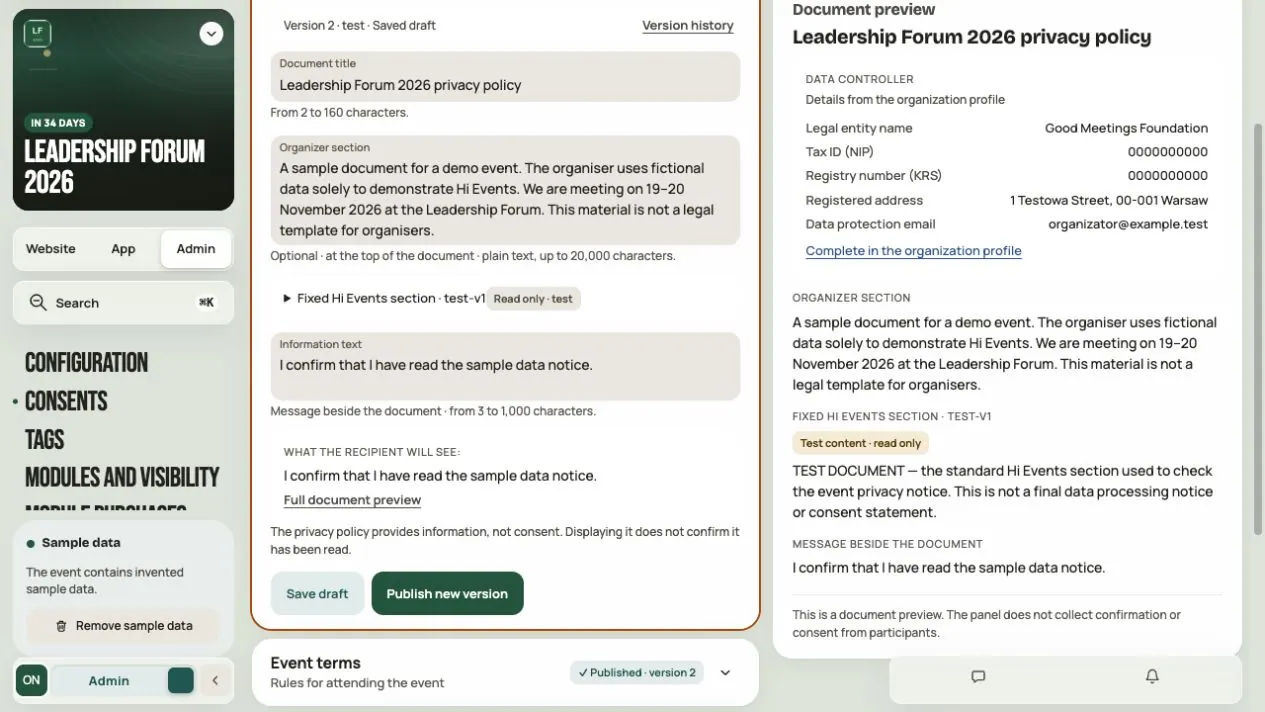
Click Full document preview. You'll see everything: the title, the data controller's details, your section, the Hi Events section and the message.
The controller's details (name, tax ID, KRS, address, e-mail) come from the organization profile. Missing fields are marked Not provided. Click Complete in the organization profile to add them.
Important:
- On publication, the organization details are saved in that version. Changing the profile later won't fix old versions. Publish a new one.
- A document has its own language, currently Polish. Switching the app to English doesn't translate its content.
Step 4. Publish a new version
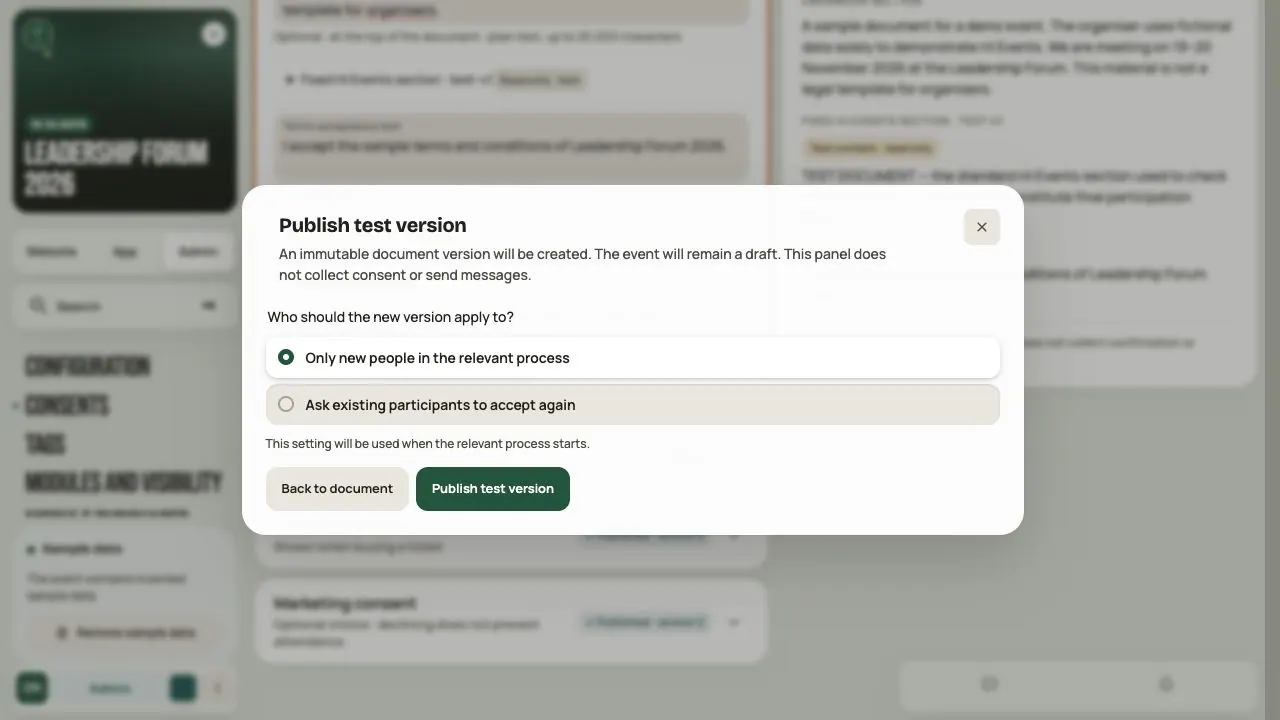
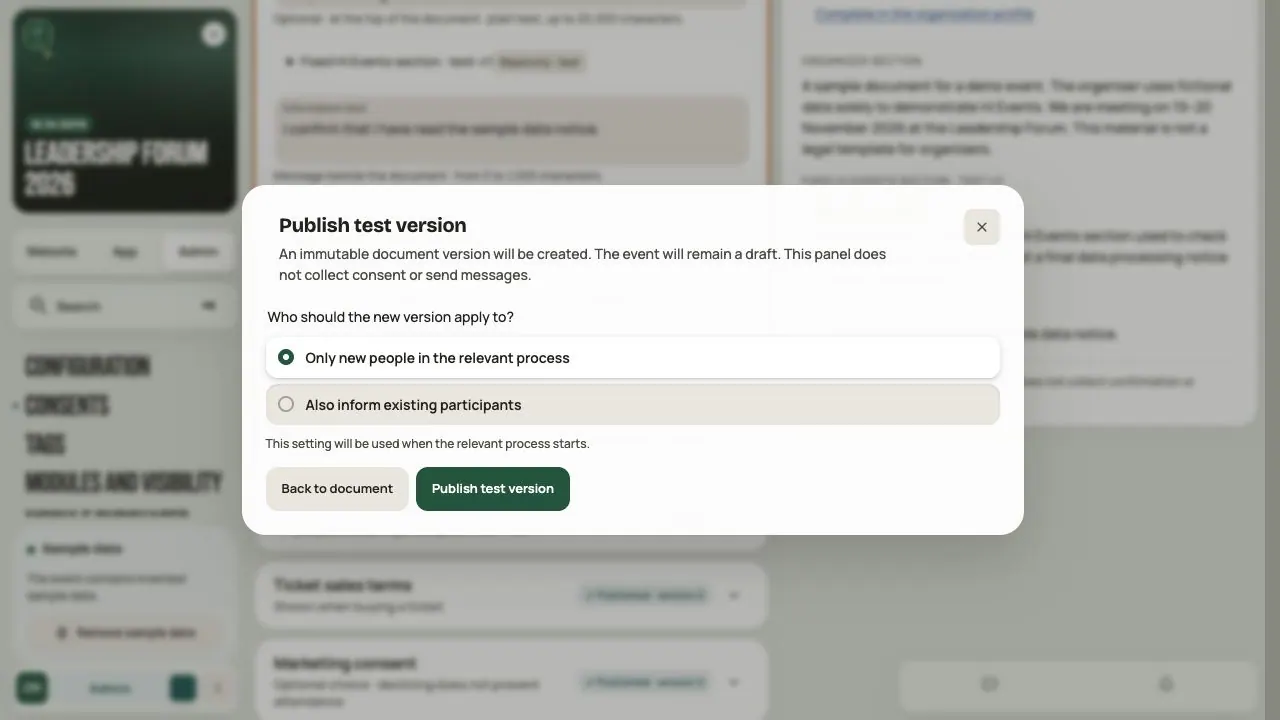
Click Publish new version. In the Publish test version window, answer Who should the new version apply to?:
- Only new people in the relevant process — the new version reaches only new people.
- The second option depends on the document, e.g. Ask existing participants to accept again for the event terms or Also inform existing participants for the privacy policy.
Hi Events assigns the version number.
Publishing a document:
- doesn't publish the event,
- doesn't send any messages,
- doesn't record anyone's acceptance.
Step 5. Check the history and acceptances
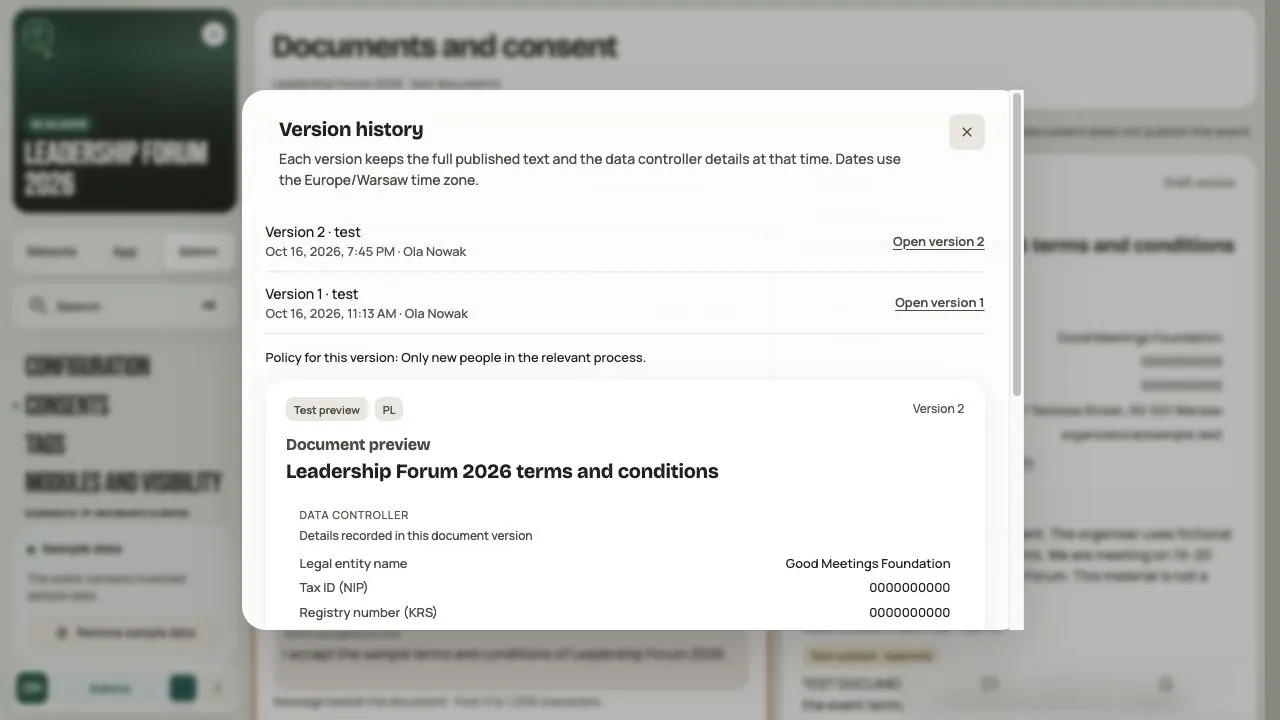
What was published? In the document, open Version history and click Open version. You'll see the content, the controller's details on the publication date, the author and the date.
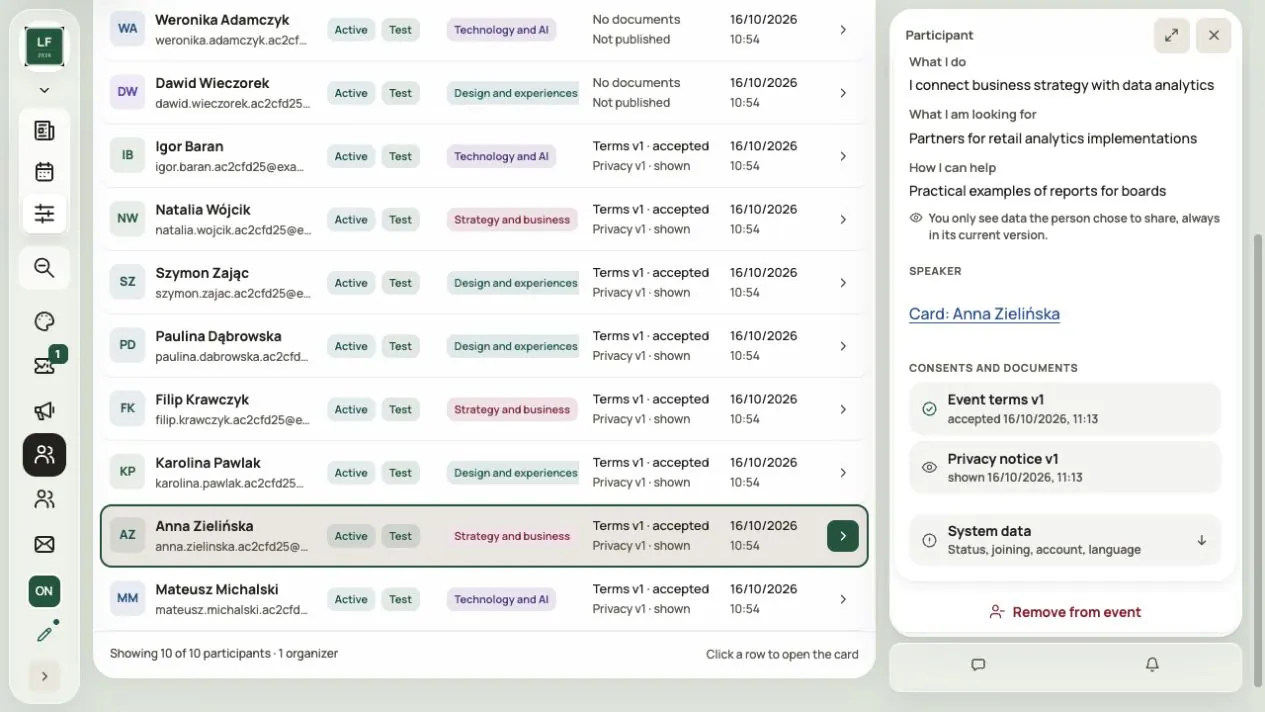
What did a specific person accept? Go to Admin → Participants, open the person's card and the Consents and documents section. You'll see e.g. "terms version 1 accepted" and "privacy policy version 1 shown".
- Showing the privacy policy doesn't mean someone read it.
- A new version doesn't change old acceptances.
Step 6. See sign-up as a participant
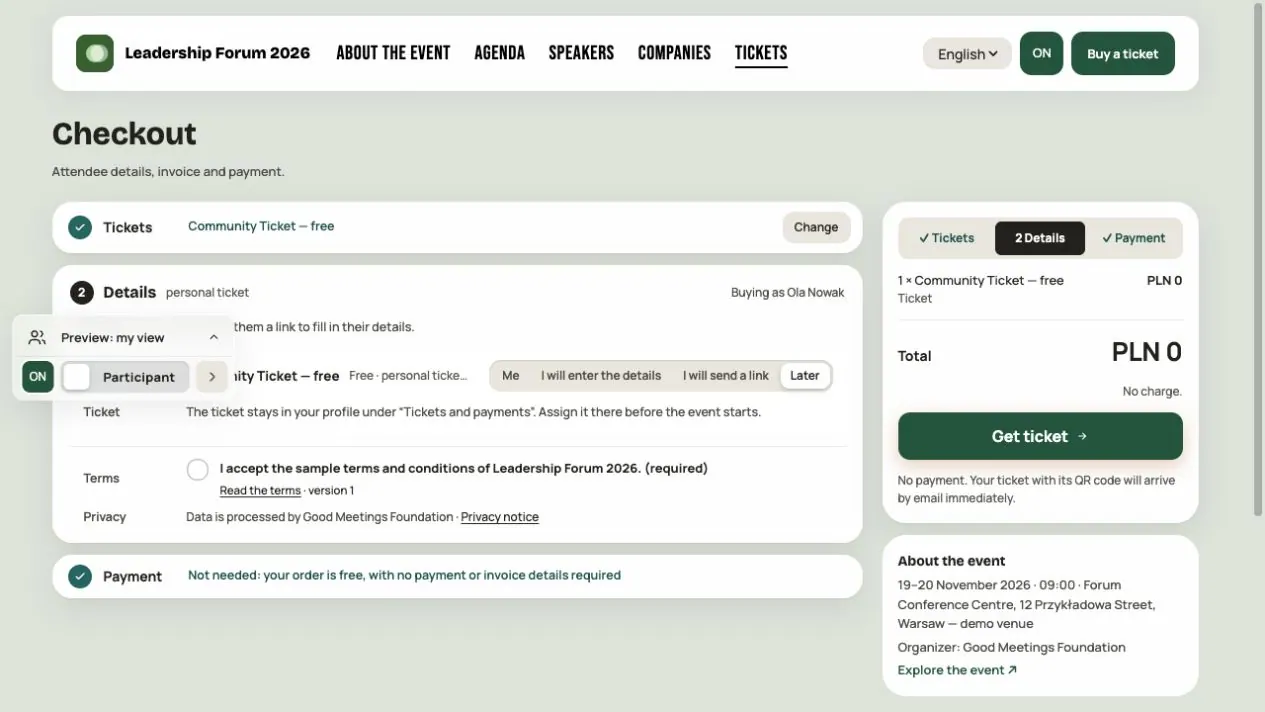
Go through the sign-up form as a new person. Check that:
- The terms acceptance box is empty. The person ticks it themselves.
- The links to the terms and privacy policy open the right documents.
- If a document changes while the form is being filled in, the person sees the new version and decides again.
Step 7. Changing a document for existing people
If you choose existing people for the privacy policy or event terms, they'll see a notice about new documents in the app.
- The terms are accepted by the person.
- The privacy policy is only shown.
- Remind me later postpones it. The reminder doesn't block access to the event.
This isn't an e-mail. If you want to write to people about the change, prepare a message in Emails.
When documents are required
| Action | Required published documents |
|---|---|
| Inviting a speaker or company manager | Privacy policy and event terms |
| Free sign-up | Privacy policy and event terms |
| Paid ticket | Ticket sales terms as well |
A saved draft isn't enough. The document must be published.
Event documents are separate from the Hi Events terms you accept when creating your account.
Marketing is a separate matter
- Marketing consent is optional. Declining doesn't prevent attendance.
- Signing up, buying a ticket or publishing a document doesn't sign anyone up for marketing.
- Messages from the organizer and messages from Hi Events are two separate choices.
- Mailings from Emails reach only people who can receive them. A group may have more people than the number of e-mails sent.
- A new version of the marketing document doesn't carry old consent over to the new terms.
What accepting a Hi Events offer does
Accepting an offer saves the data controller details in the organization profile. For events in the offer, it prepares and publishes the privacy policy and event terms from templates; a marketing document is included only where you enable Collect. Existing published documents are not replaced. Open each event afterwards to check the versions and complete text.
Collect prepares a voluntary choice for participants. It does not consent on their behalf or subscribe you to Hi Events messages.
Limits to keep in mind
- This module still publishes test documents in Polish. The event's second content language does not translate them.
- Publishing reception terms does not activate reception or staff invitations.
- For a paid order, the buyer's document evidence is recorded after successful test payment. Entering another person's details does not prove that person's own acceptance.
- Marketing requires a separate voluntary subscription. An unconfirmed address needs confirmation; opening the link alone does not complete it. Someone signed in with their own confirmed address can complete it immediately.
Before you open sign-up
- The chosen documents have complete, checked content.
- The controller's details in the organization profile are filled in.
- The needed versions are published.
- The new-person form shows the right links.
- Your team knows where to check history and acceptances.
Frequently asked questions
Is Save draft enough for participants to see the corrected terms?
No. Click Publish new version and choose who it applies to.
Does a published document mean everyone accepted it?
No. Acceptance exists only when a specific person ticks it.
Will the English version of the app translate the terms?
No. A document has its own language, currently Polish.
Will changing the organization details fix old versions?
No. Publish a new version with the new details.
What if a save or publication isn't confirmed?
Click Retry saving draft or Retry the same publication. Don't start a new publication straight away.
Why can a participant postpone accepting again?
The reminder doesn't block attendance. Remind me later doesn't record acceptance.
Read on
All articles →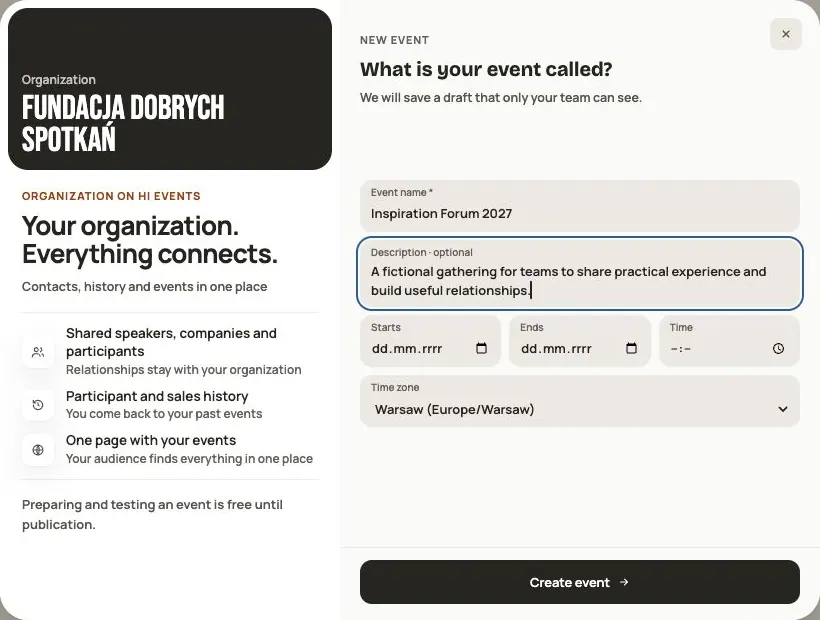 Help
Your first event, step by step
From draft to publication: name and dates, consents, tickets, content, modules, credits and the „Publish event” button.
 Help
Signing in: link, code, password and passkey
Four ways to sign in to Hi Events, how to set or change your password, and how to sign in with your fingerprint.
 Help
Photos and files: formats and limits
Which photos you can add, how big they can be, and what to do when a file won't upload.