Event Hub — get conversations and communication going
Set up the Board and channels, publish announcements, polls and meetups, and moderate participant conversations.
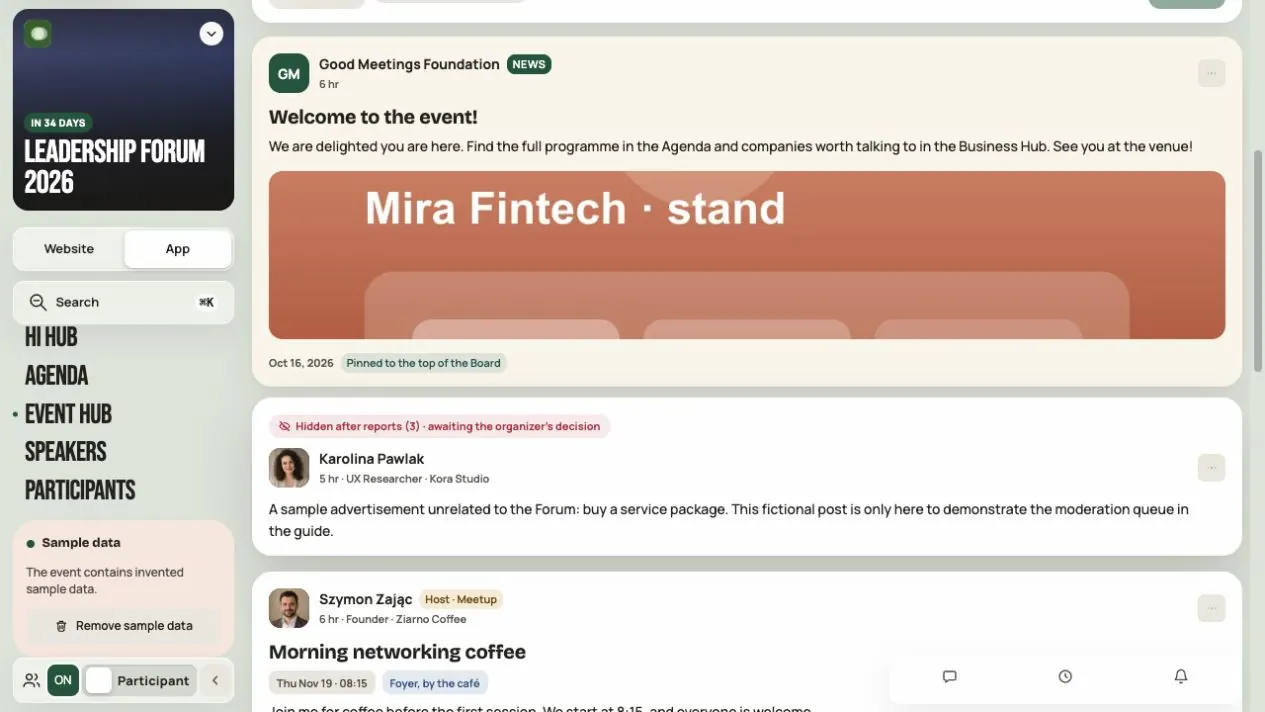
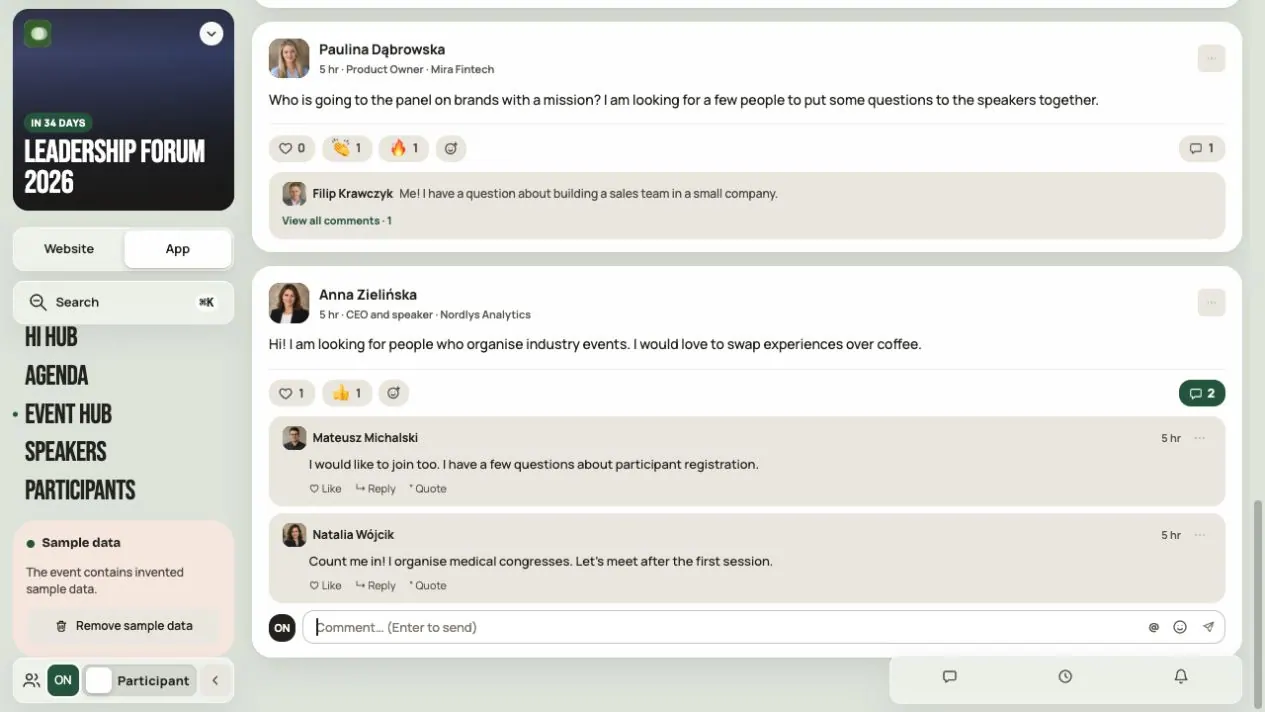
Event Hub is where people talk during your event. The main Board collects posts, and extra channels organize conversations by topic or group. Open it in App → Event Hub.
Event Hub in an event is a paid module. You buy it in Admin → Module purchases. Prices are in Pricing, credits and subscriptions.
Step 1. Check access
In Admin → Modules and visibility, check that Event Hub is on and shared with the right groups.
| Who | What they can do |
|---|---|
| Event administrator or manager | Manages channels, publishes NEWS and polls, pins posts, moderates |
| Participant | Reads channels, posts where allowed, comments, reacts, votes, proposes meetups |
Anyone who uses Event Hub shows their profile to other participants. They post under their name and photo. If they hide the profile later, earlier content remains but is shown without their name and photo. Returning to the community requires showing the profile again.
A speaker or company manager role does not grant event moderation permissions.
Test version: in an event draft you can try out Event Hub. Posts and messages from this stage disappear when you publish. Channels stay.
Step 2. Start with a welcome
Three things are enough to start: a short welcome, one specific question for participants and where to find help. Add new channels when they have a clear purpose. Five lively conversations beat a dozen empty ones.
Step 3. Add channels
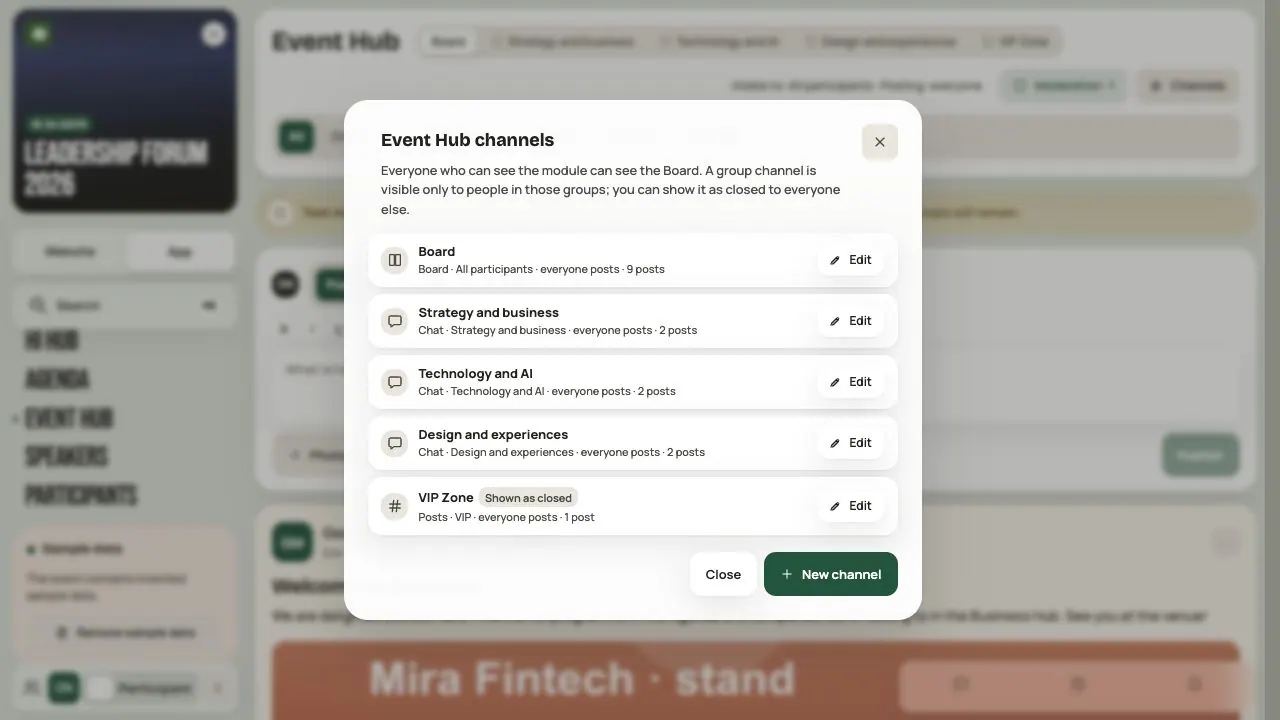
Click Channels, then New channel. Enter a name and choose the type:
- Board – posts, announcements, polls and meetups. Discussion happens under the posts.
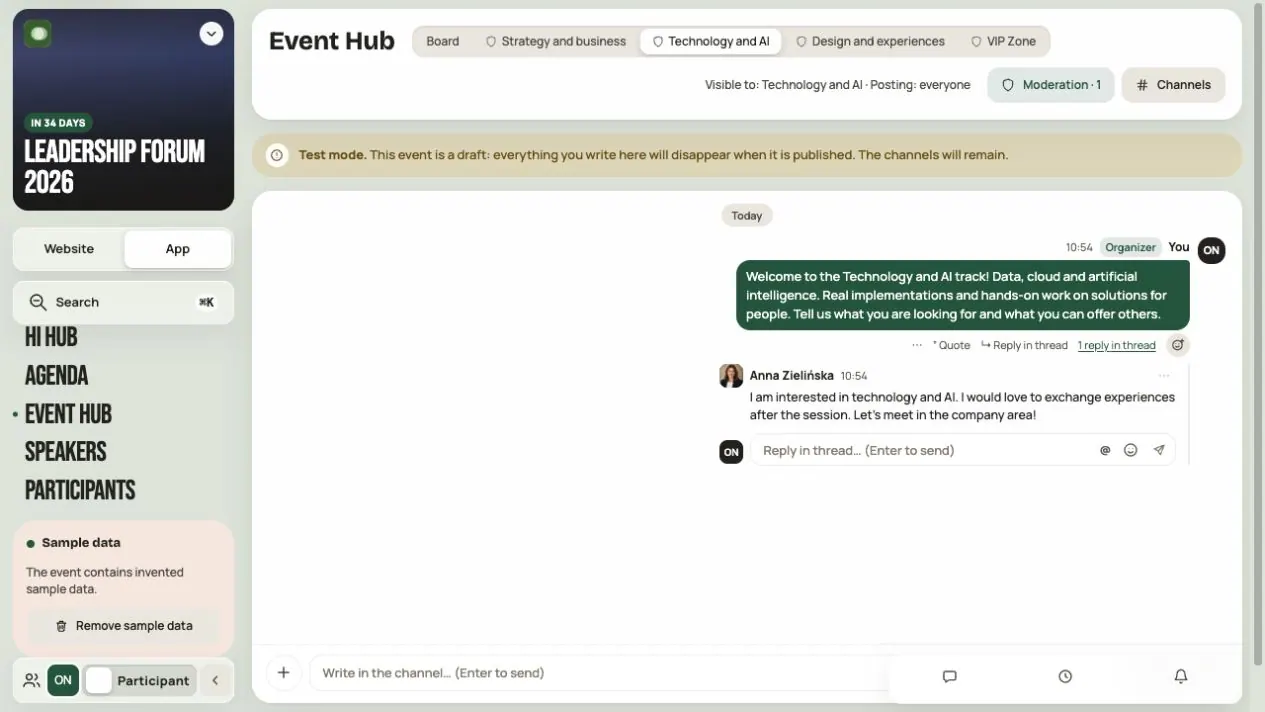
- Chat – live conversation with threaded replies.
In Who can post, choose Everyone or Only the organizer. With “Only the organizer”, participants can still comment and reply in threads. They just can't start new topics.
An event can have up to 30 channels.
Channel names in two languages
Additional channels can have separate PL and EN names, according to the event’s content languages. Complete both versions in the channel editor and save. The list also marks missing translations. The system Board name follows the interface language.
Posts, messages and moderation reasons stay in their author’s language: switching the interface to English does not translate them.
Step 4. Choose the channel's audience
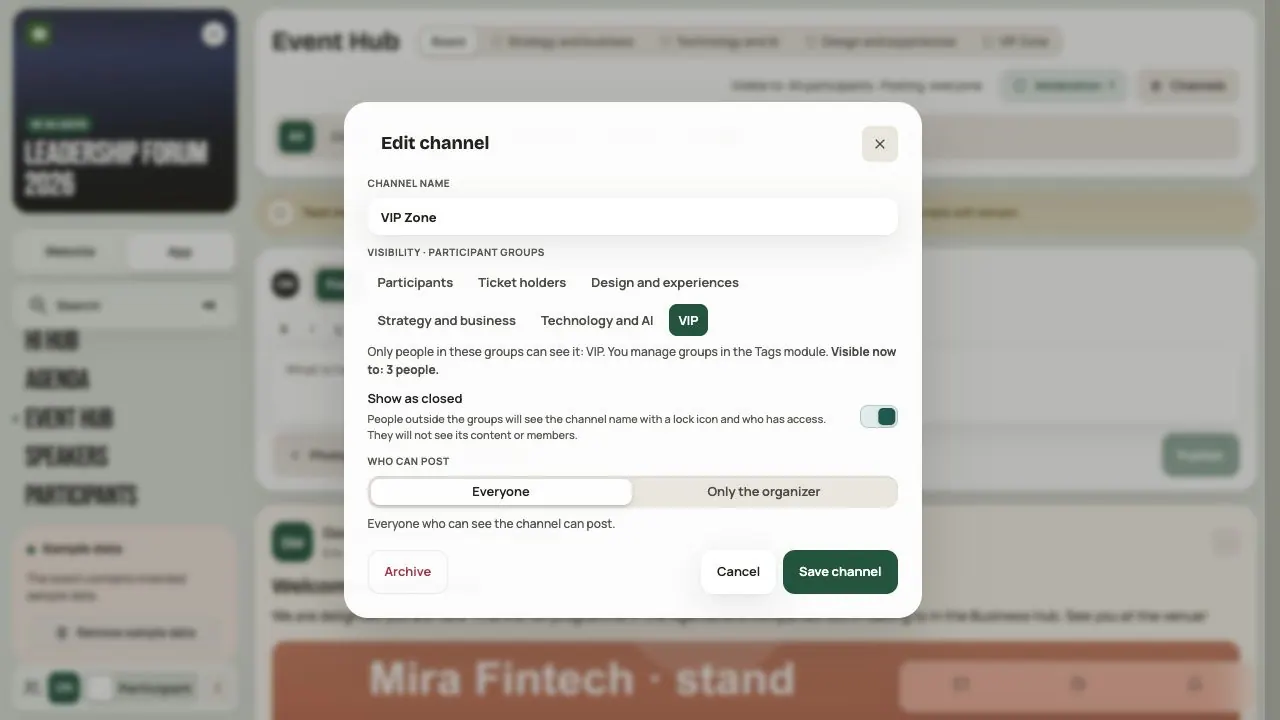
Everyone with access to the module sees the Board. For an extra channel you choose participant groups. Belonging to one of them is enough. Only the organizer's team sees a channel without groups.
Show as closed lets others see the channel's name, but they can't go in. If the name should stay private, turn it off.
Note: when you add a group to a channel with history, the new people also see earlier conversations. Hi Events shows how many people and posts this affects. If the history isn't for them, create a new channel.
Step 5. Publish a post or NEWS
On the Board, choose Post, write the text and click Publish. You can use bold, lists, links and emoji, or mention a person with @. You can add up to 10 photos.
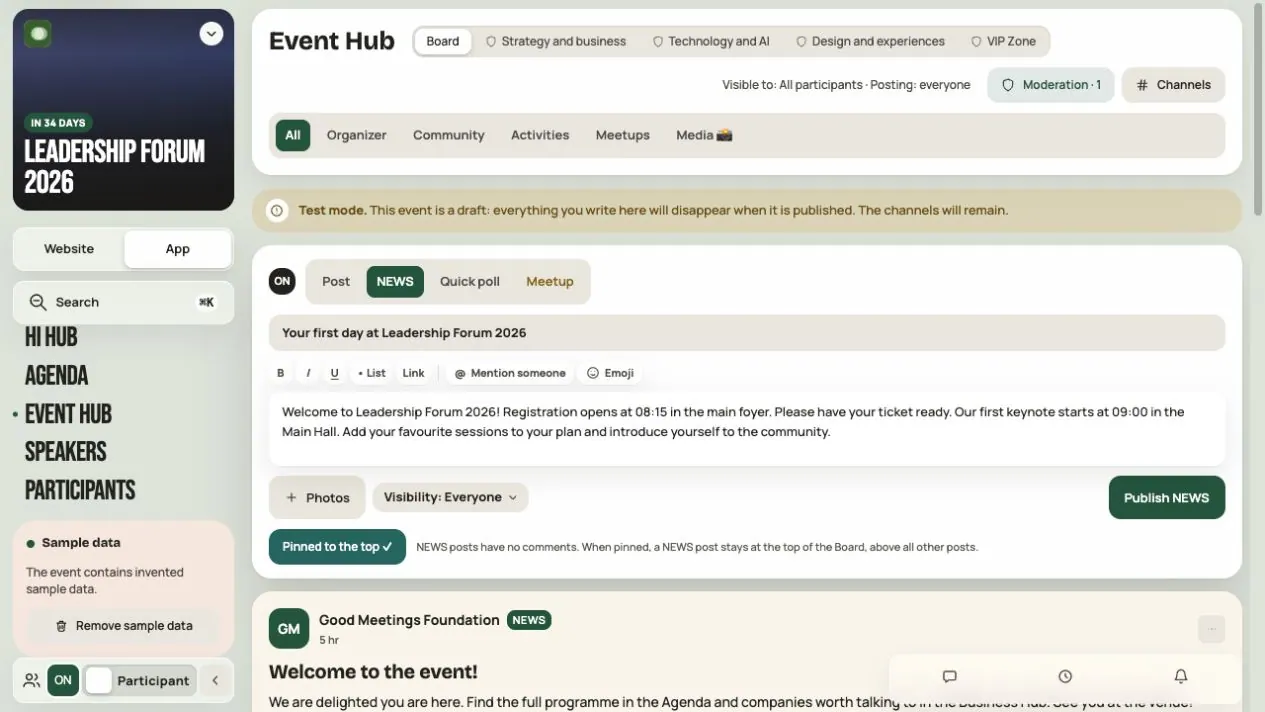
NEWS is an important announcement from the organizer, without comments:
- Choose NEWS and enter a title and text.
- If needed, tick Pin to the top of the Board.
- Set the Post visibility.
- Click Publish NEWS.
Post visibility works only inside the channel. A post for VIPs won't open the channel to someone who has no access to it.
An article from News: if you have the News module, you can pin an article on the Board. In the article settings, turn on In the event app and Pin in the Event Hub.
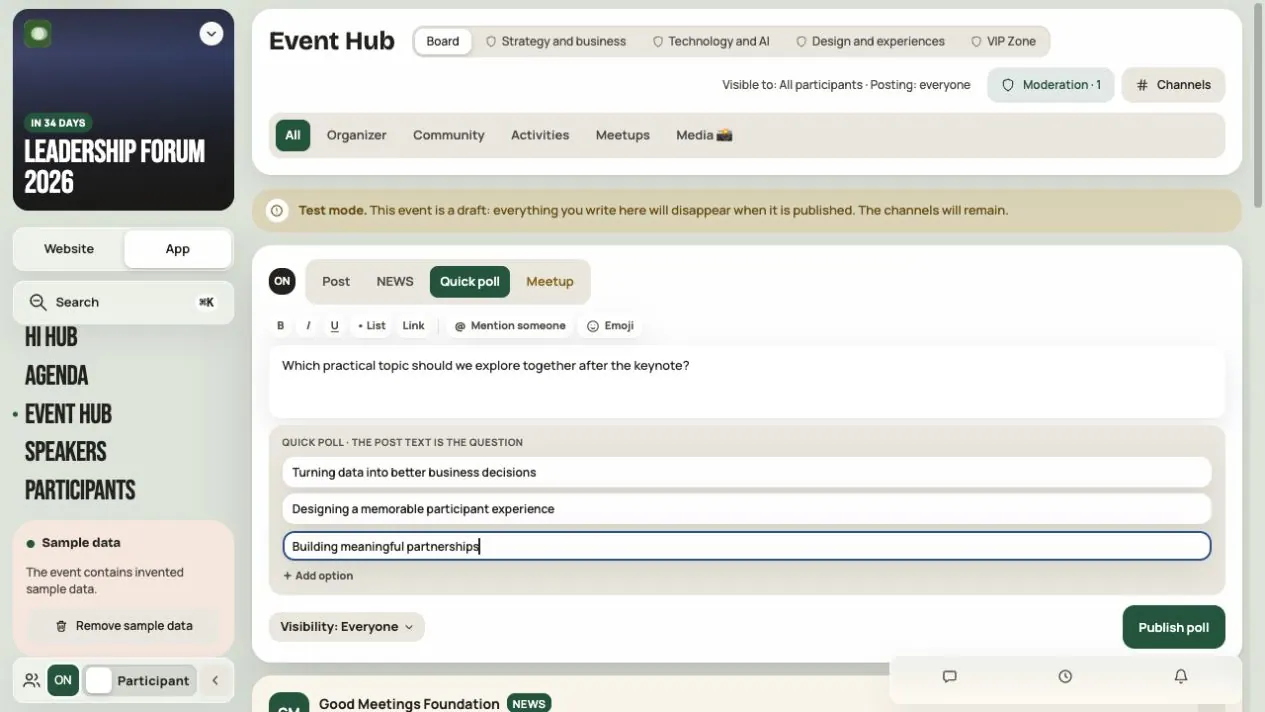
Step 6. Run a quick poll
- Choose Quick poll.
- Enter one question and at least two answers. Add more with + Add option.
- Click Publish poll.
Everyone gets one vote. When voting should end, click Close poll in Post options. Everyone sees the results, but no one can vote anymore.
Need a live quiz with a leaderboard? That's a separate module: Surveys and quizzes.
Step 7. Propose a meetup
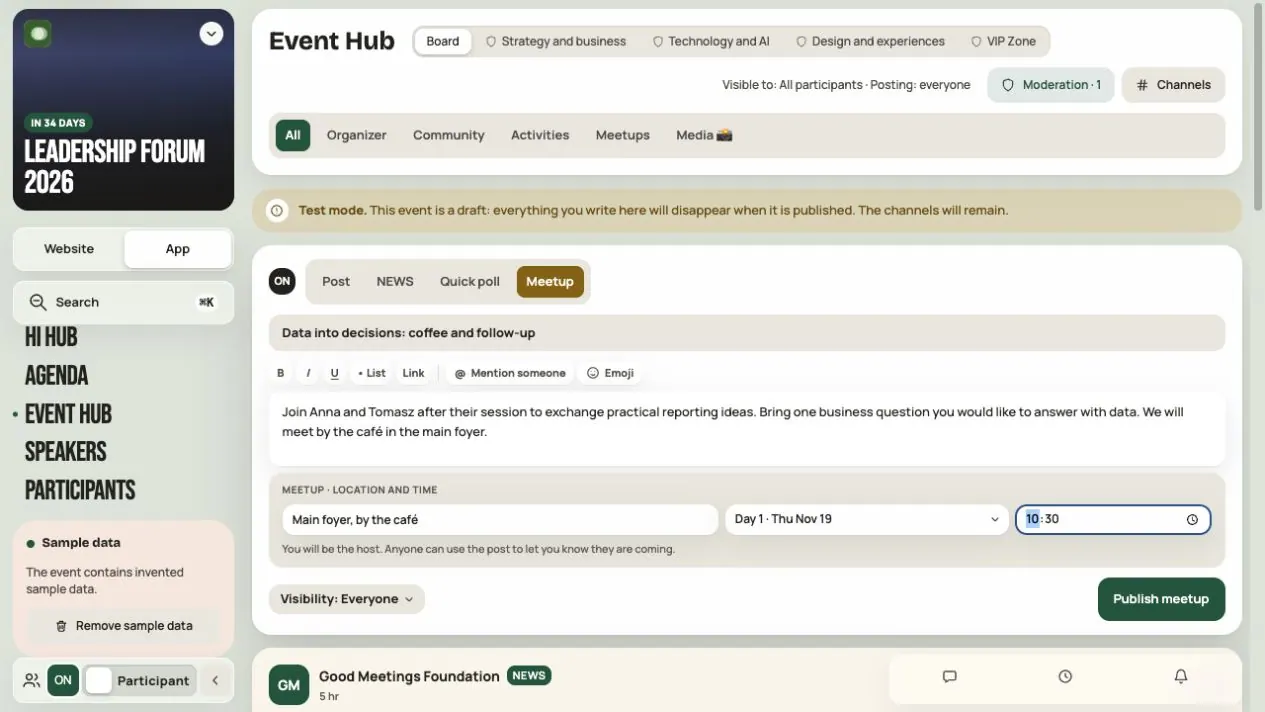
A meetup is an informal get-together: coffee, dinner, a chat after a talk. A participant can propose one too, if they may post in the channel.
- Choose Meetup and enter a topic and a short description.
- Add the place, day and time.
- Click Publish meetup.
Others click I am coming. A meetup doesn't reserve seats. You set up tables with limited seats and 1:1 meetings in the Networking module.
Talk under posts and in chat
On the Board, use Organizer, Community, Activities, Meetups or Media 📸 filters. All brings back the full view.
Open comments under a regular post. In chat, choose Reply in thread to keep the context of a message. You can also quote and react. A chat message holds up to 4 photos; a post or NEWS up to 10.
For an @ mention, select the person from the suggestions. Typing their name alone does not mention them.
Step 8. Moderate
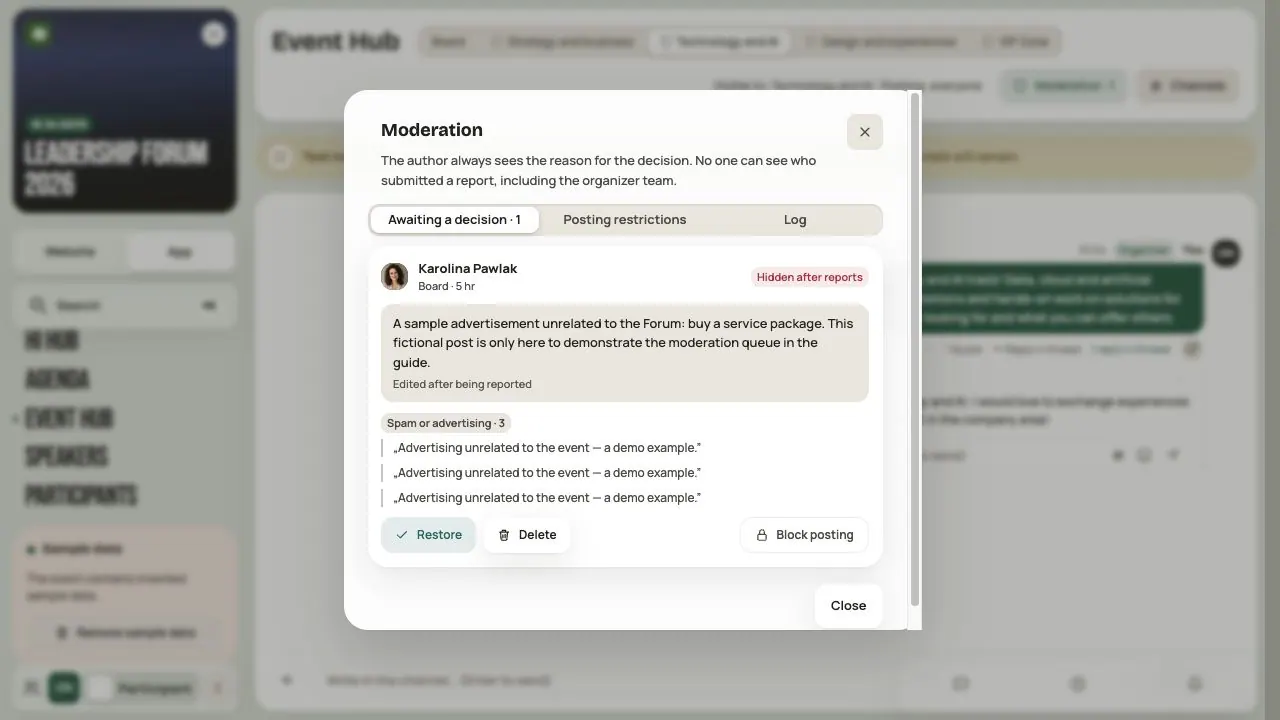
- Hide (in Post options) hides a post from participants. The author sees the reason. Hiding can be undone; deleting is permanent.
- Moderation has three tabs: Awaiting a decision, Posting restrictions and Log. Reports are anonymous, also to the team. After three reports from different people, a post disappears until you decide.
- Use Block posting for repeated violations. The person can still read but can't post, react or vote. You lift the block in Moderation → Posting restrictions.
- Archive (in the channel settings) hides the channel from participants. The team can still read the history. Archiving can't be undone.
Before you invite participants
- The module is bought, on and shared with the right groups.
- Channels have a purpose, groups and posting rules.
- There's a welcome post on the Board.
- The team knows who handles reports.
- Access is checked with Preview as a group.
Frequently asked questions
A participant can't see Event Hub
Check that the module is bought and on, that the participant's group has access and that the event is Live. The person must also show their profile in the community.
Nobody can start a new conversation in a channel
Check Who can post. With “Only the organizer”, participants can only reply and comment. Also check whether the person has a posting block and whether the channel is archived.
Does NEWS send an email?
No. NEWS is a post in Event Hub. You prepare emails in Admin → Emails.
Can I add a group to an existing channel?
Yes, but the new people see the channel's whole history. If that's not OK, create a new channel.
I don't see a publish confirmation
Read the message by the form. Before publishing again, check the channel so you don't end up with the same post twice.
Read on
All articles →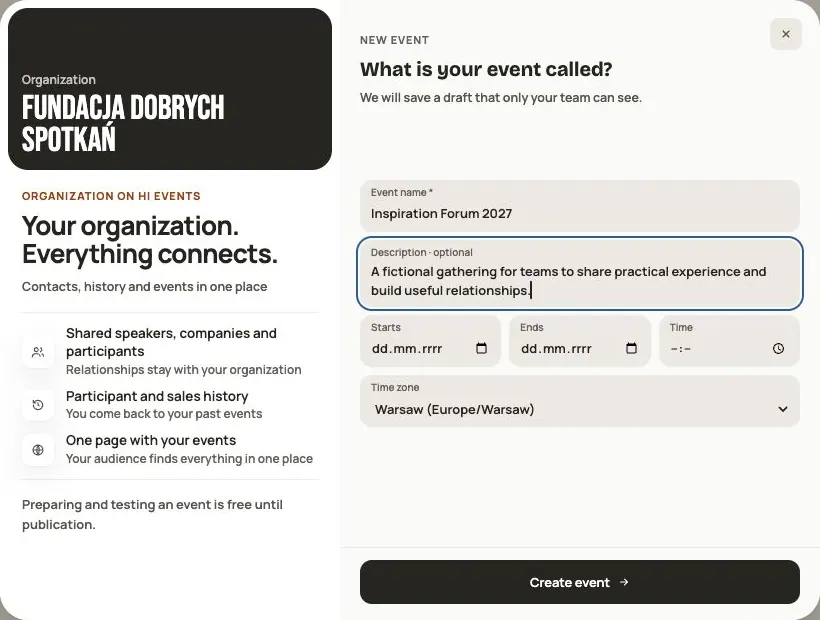 Help
Your first event, step by step
From draft to publication: name and dates, consents, tickets, content, modules, credits and the „Publish event” button.
 Help
Signing in: link, code, password and passkey
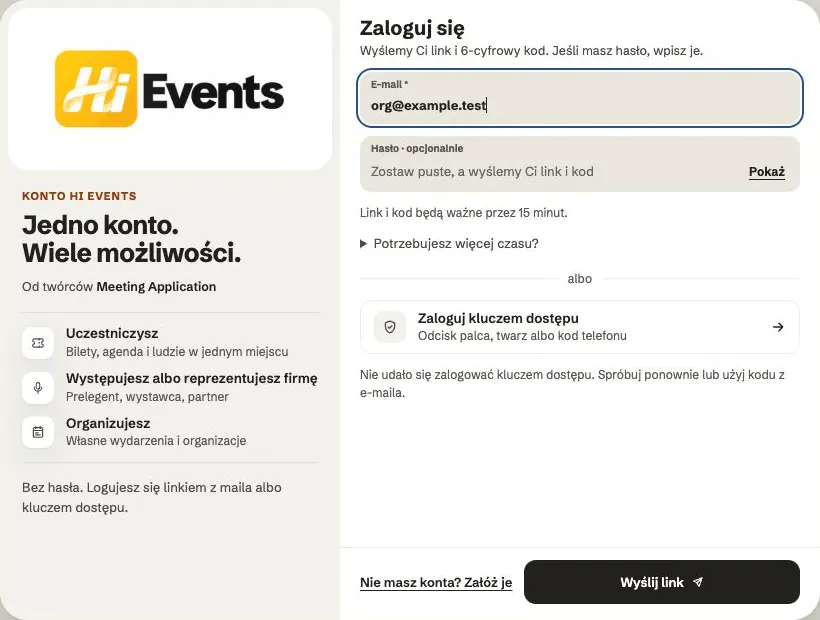
Four ways to sign in to Hi Events, how to set or change your password, and how to sign in with your fingerprint.
 Help
Photos and files: formats and limits
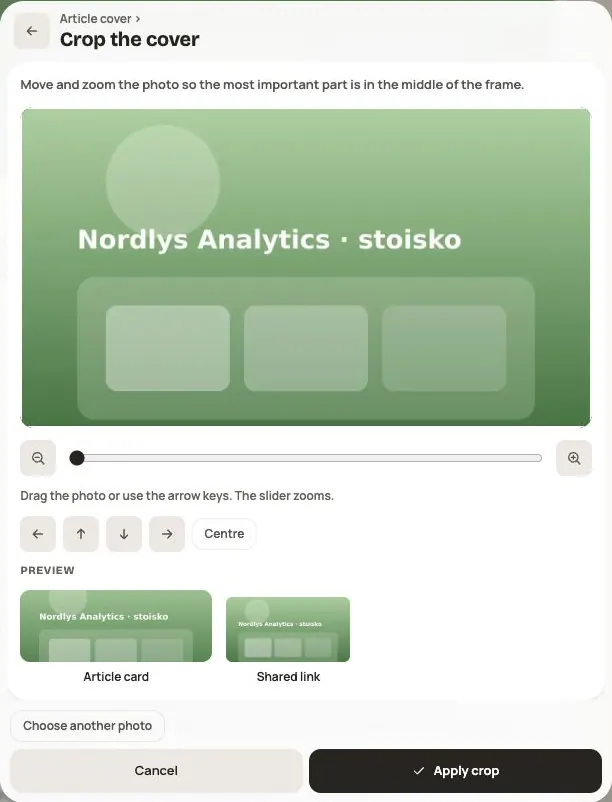
Which photos you can add, how big they can be, and what to do when a file won't upload.